
This document introduces message templates that can be used when calling the Kakao Talk Message API or the Kakao Talk Share API.
To use this feature, you must complete the Platform key and Product link management settings in the Kakao Developers app.
A message template is a form that configures messages to be sent in the Kakao Talk Share API and the Kakao Talk Message API in a predefined structure and format. You can create a message by combining various elements such as images, text, and buttons.
The message template types supported by Kakao Developers are as follows.
Message Types
| Template | Description |
|---|---|
| Feed | This is the basic message format composed of images and text. It provides Feed A type composed of images and text, and Feed B type that supports image items or text item lists. Scrap messages are message formats composed by reading web page information based on the Open Graph Protocol from the requested web page URL, based on the feed template structure. Recommended use: Single content delivery or web page sharing. |
| List | This is a message format that displays one or more contents in a vertical list. Each list can be composed of images and text. Recommended use: Delivering multiple contents in one message. |
| Commerce | This is a message format that shows product information in detail including product prices. Recommended use: Content delivery including product price information (normal price, discounted price, discount rate). |
| Location | This is a message format that includes location information. You can select the location information button included in the message to check detailed place information in Kakao Map. Recommended use: Content delivery including location information. |
| Text | This is a message format composed only of text. Recommended use: Content delivery composed only of text. |
| Calendar | This is a message format that includes public schedule information from Talk Calendar or subscription calendar information. Only Kakao Talk Channel information connected to the service app can be included. Recommended use: Content delivery including service schedule information. |
You can configure message templates in the following two ways.
| Default template | Custom template | |
|---|---|---|
| Configuration method | Define components as JSON or objects according to predefined template formats.When you call the message sending API, pass the defined object together. Note: Default template. | Compose templates in [Tools] > [Message Template] and pass the corresponding template ID when calling the API. Note: Custom template. |
| Available templates | Feed, List, Location, Commerce, Text, Calendar, Scrap. | Feed, List, Commerce. |
| Dynamic/personalized messages | Directly fill values at the code level for flexible composition. | Use variables called User arguments within templates, and dynamically compose by passing argument values through template_args when calling the API. |
| Maintenance | Immediately reflect changes by modifying message composition objects when calling the API. Code deployment may be required for changes. | Modify templates in Message template builder. When modifying the same template, the template ID remains unchanged, so you can update without code modification. |
| Advantages | Compose messages more freely than the Message Template Tool. Control message composition at the code level. | Easily compose messages using the UI. Preview message composition. |
| Disadvantages | Risk of API errors due to JSON structure errors. Large request payload. | Can only use types and structures supported by the Message Template Tool. |
The components supported vary by message template type. This section introduces template components by configuration method.
Feed templates are message templates composed of content areas and buttons. The content area can include images, messages, and social information. Based on the content composition, they are divided into Feed A Type and Feed B Type.
Feed Message Example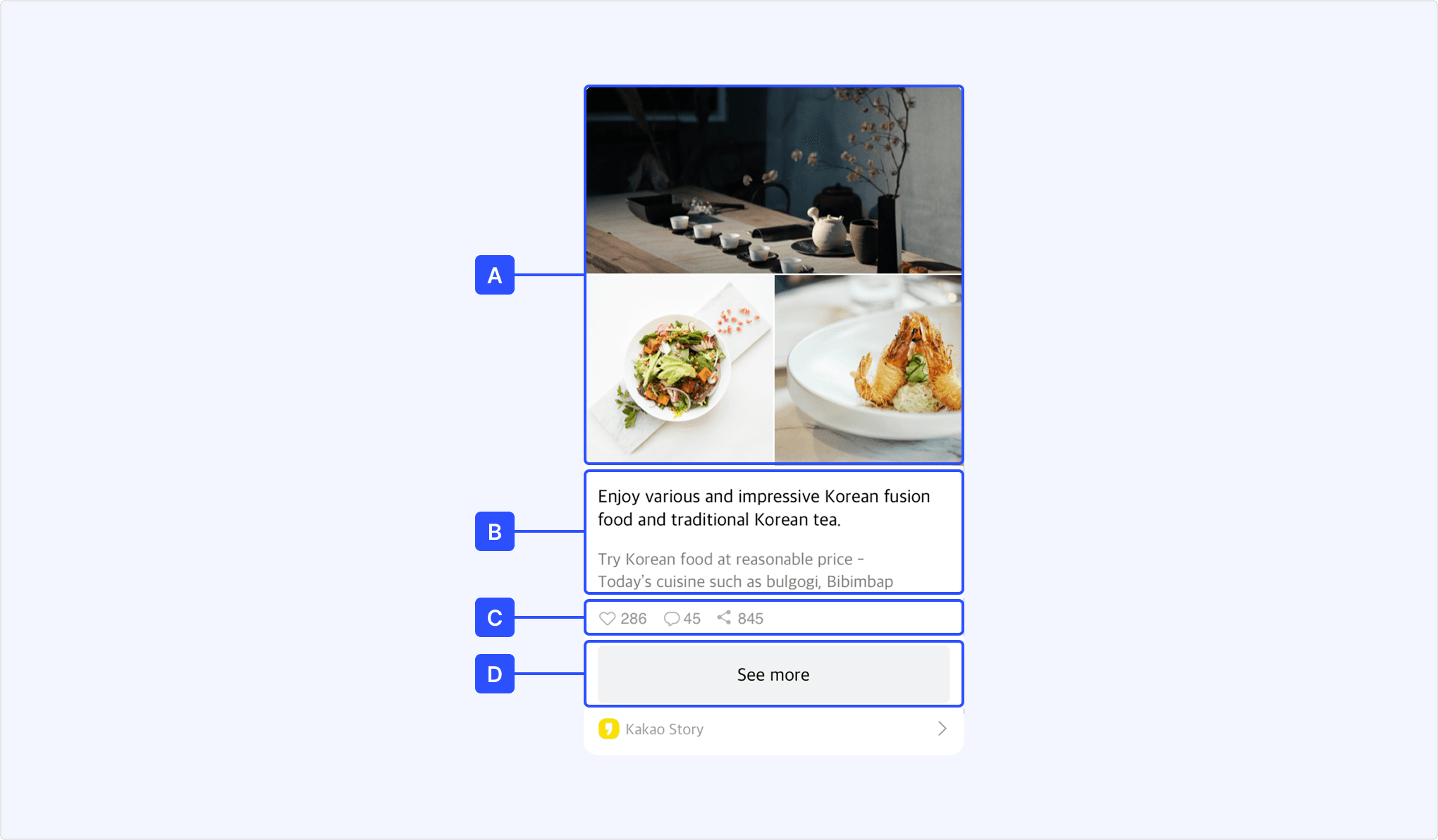
| Reference | Component | Description | Default Template | Custom Template |
|---|---|---|---|---|
| [A] | Image | Image added at the top of the message. | Content.image_urlContent.image_widthContent.image_height | Image |
| [B] | Text | Message title and description area. | Content.titleContent.description | Message title/Content |
| [C] | Social | Social metrics area. | social | Social |
| [D] | Button | Button area at the bottom of the message. | buttonsbutton_title | Button |
| - | Link | Links to add to clickable components | Content.linkButton.link | Component link settings |
This is a feed message with added image items or text items. It can be used when composing message forms including receipts, menus, and product descriptions. Areas [A] through [D] are the same as Feed A Type. This section only explains ItemContent.
Feed Message Example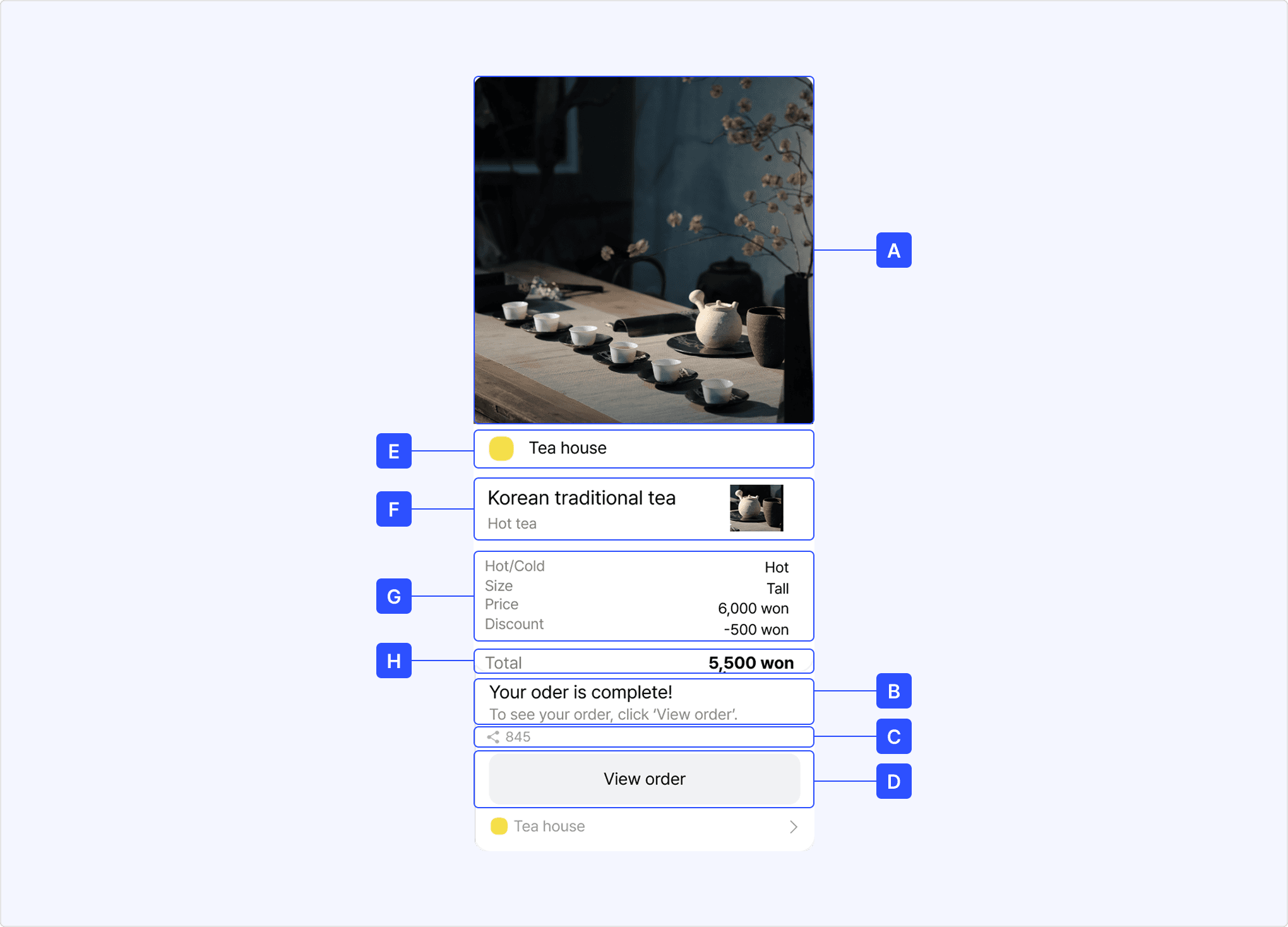
| Reference | Component | Description | Default Template | Custom Template |
|---|---|---|---|---|
| [E] | Header or Profile | Only one of header or profile can be used
| ItemContent.profile_textItemContent.profile_image_url | Header, Profile |
| [F] | Image Item | Area composed of title, category, and image Maximum 1 can be added | ItemContent.title_image_textItemContent.title_image_urlItemContent.title_image_category | Image Item |
| [G] | Text Item | Text-based item area Maximum 5 can be added | ItemContent.items | Text Item List |
| [H] | Summary Information | Comprehensive and summary information of text items. Composed of title and description. When using the [H] area, item price in [G] area and the total price in [H] area are right-aligned. If not used, they are left-aligned. | ItemContent.sumItemContent.sum_opImportant: The [G] area must have at least one item, and both sum and sum_op must be provided for the [H] area to be displayed. | Text Item List |
| - | Link | Links to add to clickable components | Content.linkButton.link | Component link settings |
List templates are composed of header titles displayed at the top of the message, content lists, and buttons.
List Message Example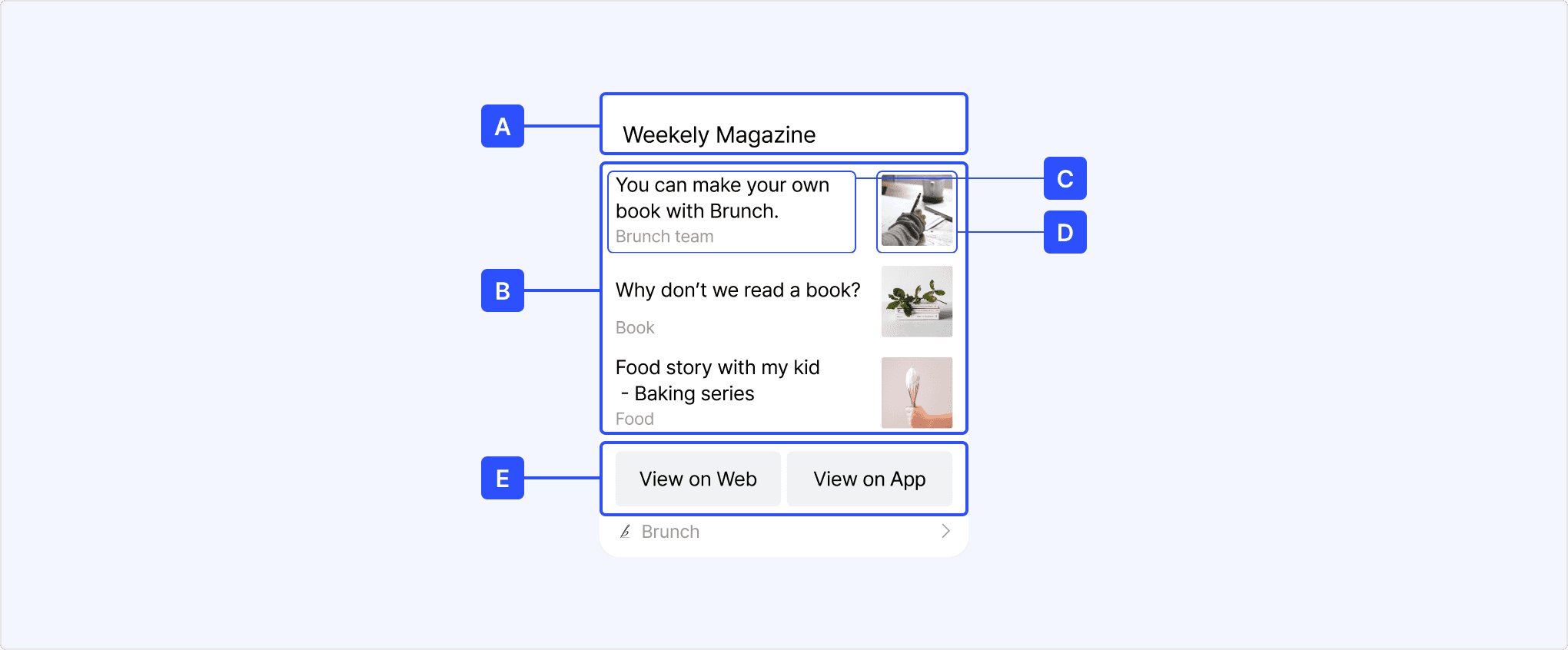
| Reference | Component | Description | Default Template | Custom Template |
|---|---|---|---|---|
| [A] | Header | Title area displayed at the top of the message | header | Header |
| [B] | Item List | List area containing multiple items | items | Item List |
| [C] | Text | Each item's title and description
| Content.titleContent.description | Message title/Content |
| [D] | Image | Each item's thumbnail image
| Content.image_urlContent.image_widthContent.image_height | Image |
| [E] | Button | Button area at the bottom of the message | buttons | Button |
| - | Link | Links to add to clickable components | Item.linkButton.link | Component link settings |
The commerce template includes images, product information, text, and buttons.
Commerce message example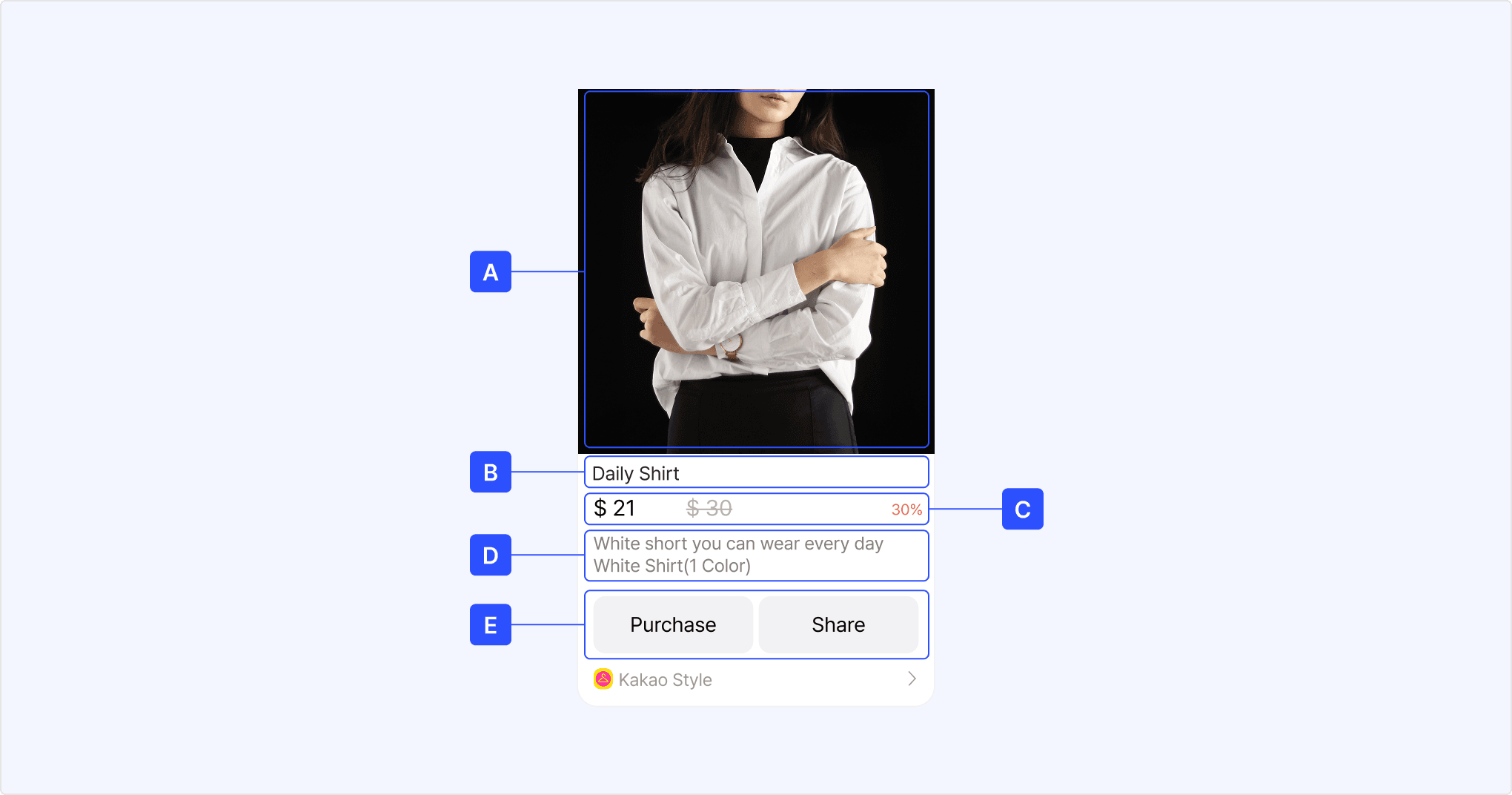
| Reference | Component | Description | Default template | Custom template |
|---|---|---|---|---|
| [A] | Image | Image size: 800x800 pixels or larger recommended. | Content.image_urlContent.image_widthContent.image_height | Image |
| [B] | Product name | Product name, maximum 2 lines displayed. | Commerce.product_name | Product |
| [C] | Discount price | Discounted product price (currency unit and position can be changed). | Commerce.discount_price | Product |
| [C] | Regular price | Original price of the product before discount. | Commerce.regular_price | Product |
| [C] | Discount rate | Product discount percentage. | Commerce.discount_rate | Product |
| [C] | Currency unit | Currency unit to be displayed with the price. | Commerce.currency_unit | Product |
| [C] | Currency unit position | Position where the currency unit is displayed. | Commerce.currency_unit_position | Product |
| [D] | Text | Product description. | Content.description | Product description |
| [E] | Button | Maximum 2 buttons displayed, button name 8 characters or less recommended. | buttons | Button |
| - | Link | Link to add to clickable components. | Content.linkButton.link | Component link settings |
This template consists of address information used for map display and content describing the location.
Location message example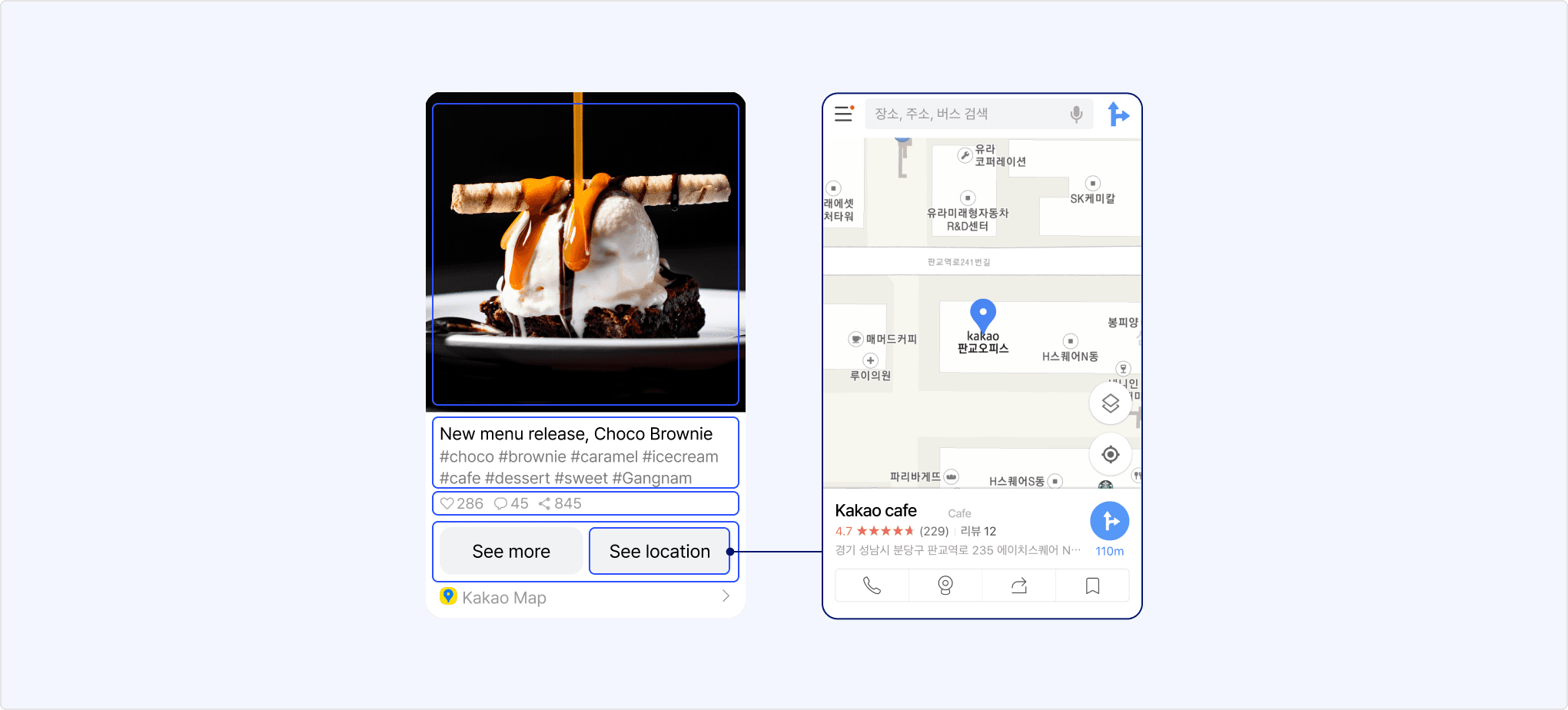
The location template can only be configured using default templates. See Default template > Location template.
| Reference | Component | Description | Default template | Custom template |
|---|---|---|---|---|
| [A] | Image | Location template can add maximum 1 image, 800x800 pixels or larger recommended. | Content.image_urlContent.image_widthContent.image_height | Not supported |
| [B] | Text | Message title and description area. | Content.titleContent.description | Not supported |
| [C] | Social | Social metrics area. | social | Not supported |
| [D] | Button | In addition to the default button, you can add a [View location] button to show the map. When clicking the [View location] button, you can immediately switch to the map screen within the Kakao Talk chatroom to view the location of the address. | buttons | Not supported |
| - | Link | Link to add to clickable components. | Content.linkButton.link | Not supported |
The text template is a concise message template format that includes only a text area and default buttons.
Text message example
The message template tool does not support text templates. If needed, you can use the feed template by excluding image and social components, but in this case, you can only enter text up to 4 lines combined for title and description.
To enter long text of 200 characters or more, you must use default templates. For details, see Default template > Text template.
| Reference | Component | Description | Default template | Custom template |
|---|---|---|---|---|
| [A] | Text | Maximum 200 characters displayed. | text | Message title/Content |
| [B] | Button | Maximum 2 buttons displayed, button name 8 characters or less recommended. | buttons | Button |
| - | Link | Link to add to clickable components. | linkButton.link | Component link settings |
Calendar messages consist of Talk Calendar subscription calendar or public schedule information, images, and buttons.
Calendar message example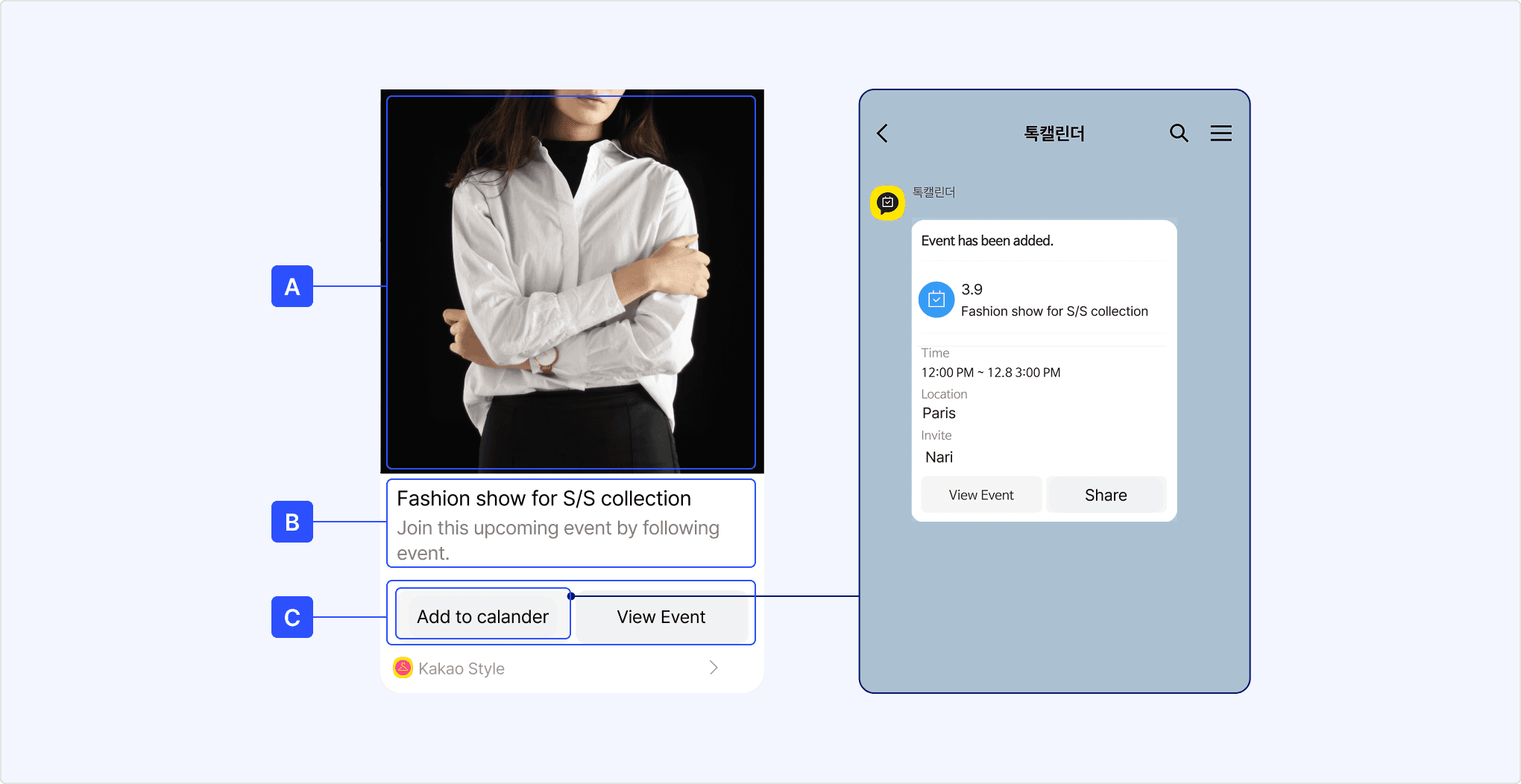
The calendar template can only be configured using default templates. See Default template > Calendar template.
| Reference | Component | Description | Default template | Custom template |
|---|---|---|---|---|
| [A] | Image | Only 1 image can be added. | Content.image_urlContent.image_widthContent.image_height | Not supported |
| [B] | Title | Schedule title. | Content.title | Not supported |
| [B] | Description | Schedule description. | Content.description | Not supported |
| [C] | Button | Maximum 2 buttons can be added. | buttons | Not supported |
| [C] | Schedule/Calendar information | Schedule or calendar information connected to the message. | id_typeid | Not supported |
| - | Link | Link to add to clickable components. | Content.linkButton.link | Not supported |
Scrap messages automatically extract core information from web pages and send it as Kakao Talk messages. When sharing a web page link, a message in feed template format is configured based on the representative image, title, description, and link of that page.
Scrap messages can be used with the following message sending APIs.
When a user scrapes a web page link, it extracts meta tag information from the Open Graph Protocol in the <head> area of the HTML code of that web page.
A message in feed template format is configured based on the information extracted from the meta tags.
Scrap message example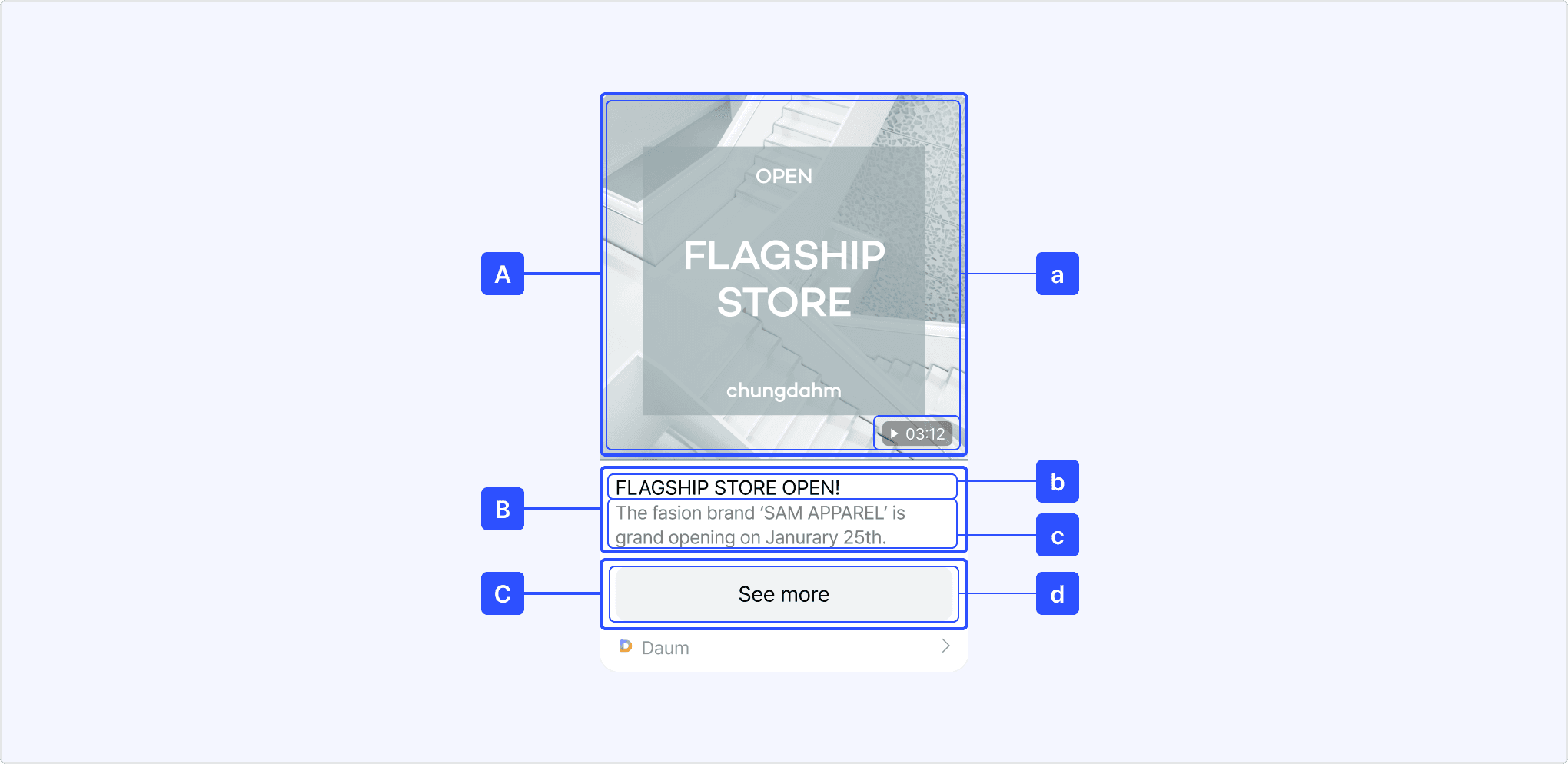
[A] Image: Displays the representative image of the web page defined by og:image
[B] Title/Description: Values defined by og:title and og:description are displayed in the title and description areas respectively, maximum 2 lines each
[C] Button: Web page name defined by og:site_name or domain is displayed in ${SCRAP_HOST}에서 확인 format, clicking moves to the corresponding web page.
When the requested web page contains the following Open Graph meta tag values, the corresponding information is applied to each area of the message.
Each Open Graph tag is automatically mapped to the default keys used in Kakao messages as follows. These default keys are automatically filled based on Open Graph tag values, so they do not need to be defined in template_args and cannot be used as user argument keys.
| Reference | OG tag | Default key | Description |
|---|---|---|---|
| [a] | og:image | ${SCRAP_IMAGE}${SCRAP_IMAGE_WIDTH}${SCRAP_IMAGE_HEIGHT} | Representative image of the scraped web page |
| [b] | og:music:duration og:video:duration | ${SCRAP_IMAGE_DURATION} | Play duration of video or music |
| [c] | og:title | ${SCRAP_TITLE} | Title of the web page |
| [d] | og:description | ${SCRAP_DESCRIPTION} | Description of the web page |
| [e] | og:site_name | ${SCRAP_HOST} | Name of the web page If not specified, the site domain of the requested web page is displayed |
| - | - | ${SCRAP_REQUESTED_URL} | URL of the address requested for scraping Address to move to when clicking components of the scrap message ([A]image, [B]title/description, [C]button) |
Only domains registered in your app settings can be scraped and sent. Domains can be registered in [App] > [Product Link] > [Web domain] on the app management page.
This section introduces constraints for each component that makes up message templates.
- File size: Maximum 5 MB.
- Image file path must be passed as URL.
- Local image paths on user devices cannot be used.
- Image paths uploaded through image upload API can be used (stored for 100 days).
- For image upload API documentation, refer to each development document: JavaScript, Android, iOS, Flutter
- Number of images
- Default template: 1 image
- Custom template: Maximum 3 images
- Image size
- Default template: Minimum 200x200 pixels
- Custom template: Minimum 400x400 pixels
- Message title/Content: Maximum 2 lines each, text exceeding 2 lines is displayed with ellipsis (...).
- When composing text messages with default template, maximum 200 characters can be displayed.
- Includes 5 social metrics: number of likes, comments, shares, views, and subscribers.
- Maximum 3 can be displayed.
- Display priority: Like > Comment > Share > View > Subscriber.
- Number of buttons: Maximum 2
- Button name: 8 characters or less recommended
- Content link: Link to navigate to when clicking the content area can be set.
- Button link: Link to navigate to when clicking each button can be set.
Links for platforms not configured in [App] > [Product Link] of the app management page cannot be used in messages. Even for platforms configured in the app, if links for those platforms are not registered, they will not be applied to buttons.
When setting links for components, links work differently depending on the platform the user is using.
Link component working criteria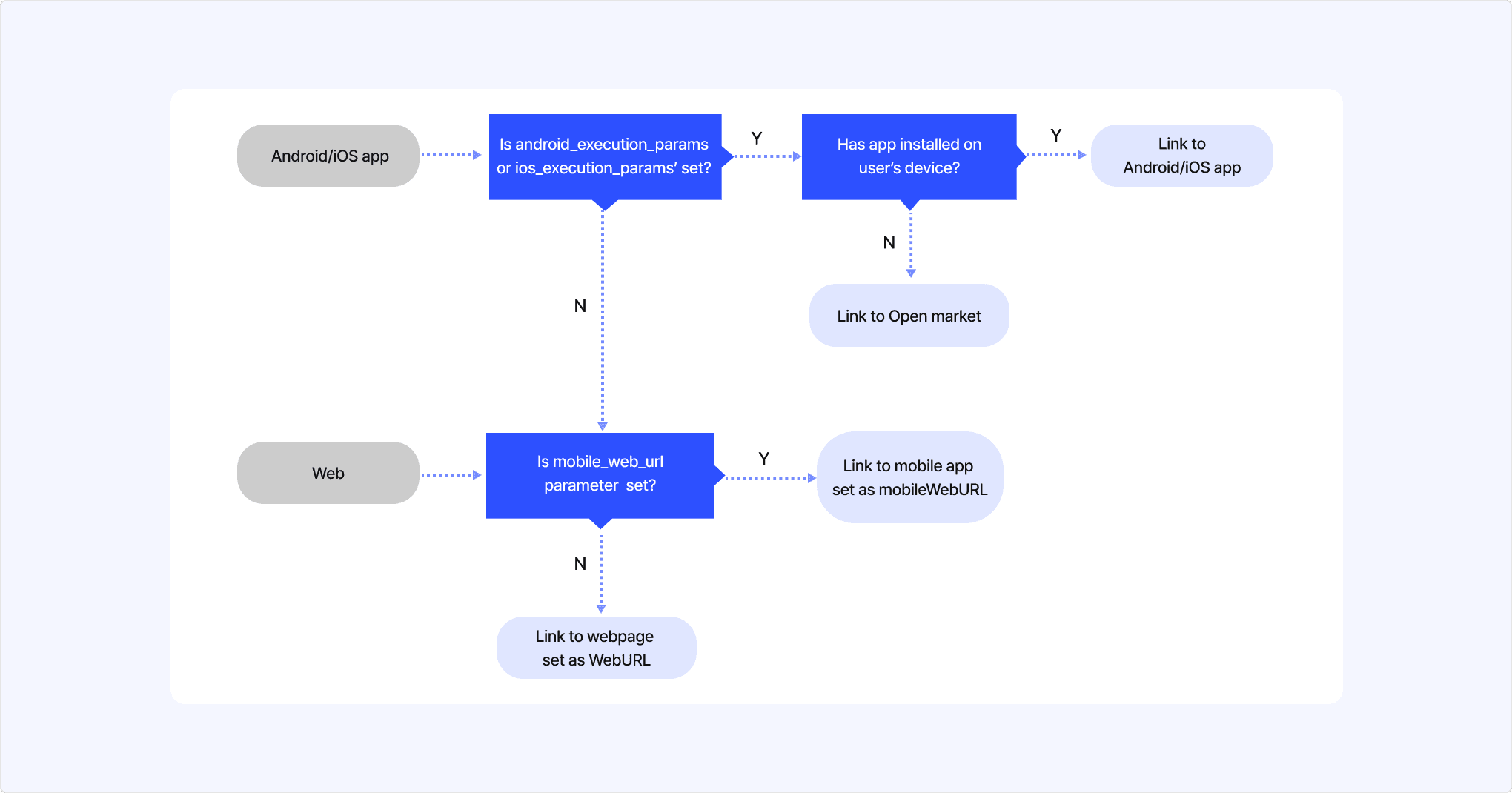
Links for content areas and buttons work according to the priority below based on request parameters, app settings, and user environment. If specific links are not set, links will not be applied to message content areas or buttons will not appear.
- App execution link: Launches the service app allowed through the URL Scheme configuration.
- Store link: When the app is not installed, the Store URL configured on the platform is applied.
- Mobile web link: Applies the link specified by the
mobile_web_urlvalue. Uses the default web domain configured in [App] > [Product Link] > [Web domain] on the app management page as the default value. - PC web link: Applies the link specified by the
webURLvalue. Uses the default web domain configured in [App] > [Product Link] > [Web domain] on the app management page as the default value.
| Platform and parameter settings | Actual message button link |
|---|---|
| App platform (common link): Web, Android Message link parameters (button link): Android( android_execution_params) | Button output: Displayed on PC/Mac, Android, iOS devices Link applied to button: Android link on Android devices Web link (common link) on PC/Mac, iOS devices. |
| Platform and parameter settings | Actual message button link |
|---|---|
| App platform (common link): Android, iOS Message link parameters (button link): Android( android_execution_params),iOS( ios_execution_params) | Button output: Displayed only on Android, iOS devices Applied link: Android link on Android devices iOS link on iOS devices. |
| Platform and parameter settings | Actual message button link |
|---|---|
| App platform (common link): Web Message link parameters (button link): Web( web_url, mobile_web_url) | Button output: Displayed on PC/Mac, Android, iOS devices Applied link: Web link. |
| Platform and parameter settings | Actual message button link |
|---|---|
| App platform (common link): iOS Message link parameters (button link): Web( web_url, mobile_web_url) | Button output: Displayed on PC/Mac, iOS, Android devices Applied link: Web link. |