사이드 메뉴
Getting started
Kakao Developers
Login
Communication
Advertisement
- Concepts
- Ad creation: Ad account
- Ad creation: Campaign
- Ad creation: Ad group
- Targeting for ad group
- Custom audience targeting for ad group
- Ad creation: Creative common
- Ad creation: Display creative
- Ad creation: Message creative
- Ad creation: Personalized message creative
- Bizboard landing settings
- Report
- Message management
- Personalized message management
- Message ad management
- Message ad operation
- Ad View management
- Business Form+ management
- Business Form linkage management
- Pixel & SDK linkage management
- Audience management
- Engagement targeting management
- Customer file management
- Friend group management
- Ad account management
- Reference
- Type information
- Error code
Concepts
This document introduces Kakao Sync and provides the review and configuration guides required to adopt Kakao Sync in your service.
Kakao Sync extends Kakao Login to simplify the service signup process. Users can consent to the provision of user information, service terms, and Kakao Talk Channel addition on a single Consent screen, and then sign up for your service with their Kakao Account information.
Here are the main features of Kakao Sync, an extended version of Kakao Login.
| Function | Kakao Login | Kakao Sync |
|---|---|---|
| Allow users to log in with Kakao Talk or Kakao Account conveniently. | ✔ | ✔ |
| Allow users to choose to provide their basic user data on the Consent screen. | ✔ | ✔ |
| Get consent to provide more diverse user data required for signup. | ✔ | |
| Allow users to sign up for your service in one click by consenting to your service terms when attempting to log in. | ✔ | |
| Ask users for consent to add a Kakao Talk Channel on the Consent screen, which makes more users add your service's Kakao Talk Channel. | ✔ |
Kakao Sync provides the following benefits.
| Feature | Description | Benefit |
|---|---|---|
| Simple Signup | Users can consent to service terms on the Consent screen. | Skip the separate service terms consent process |
| More diverse user information | Your service can request information required for signup, such as name, email, phone number, age range, birthday, gender, birthyear, and shipping address. | Skip part of the member information input process |
| Kakao Talk Channel friend growth | Users can add your service's Kakao Talk Channel during Simple Signup. | Increase the audience for channel messages |
| Target messages | You can send messages to specific user groups by combining user information from Kakao Sync with service usage history. | Improve advertising efficiency |
| Auto-login from Kakao Talk | Users who already signed up through Kakao Sync can be logged in automatically when they open your service page in the Kakao Talk in-app browser. | Reduce login drop-off |
Kakao Sync Simple Signup adds service terms and all consent items required for signup to the Kakao Login Consent screen. With this feature, users can sign up as new members without going through multiple signup pages.
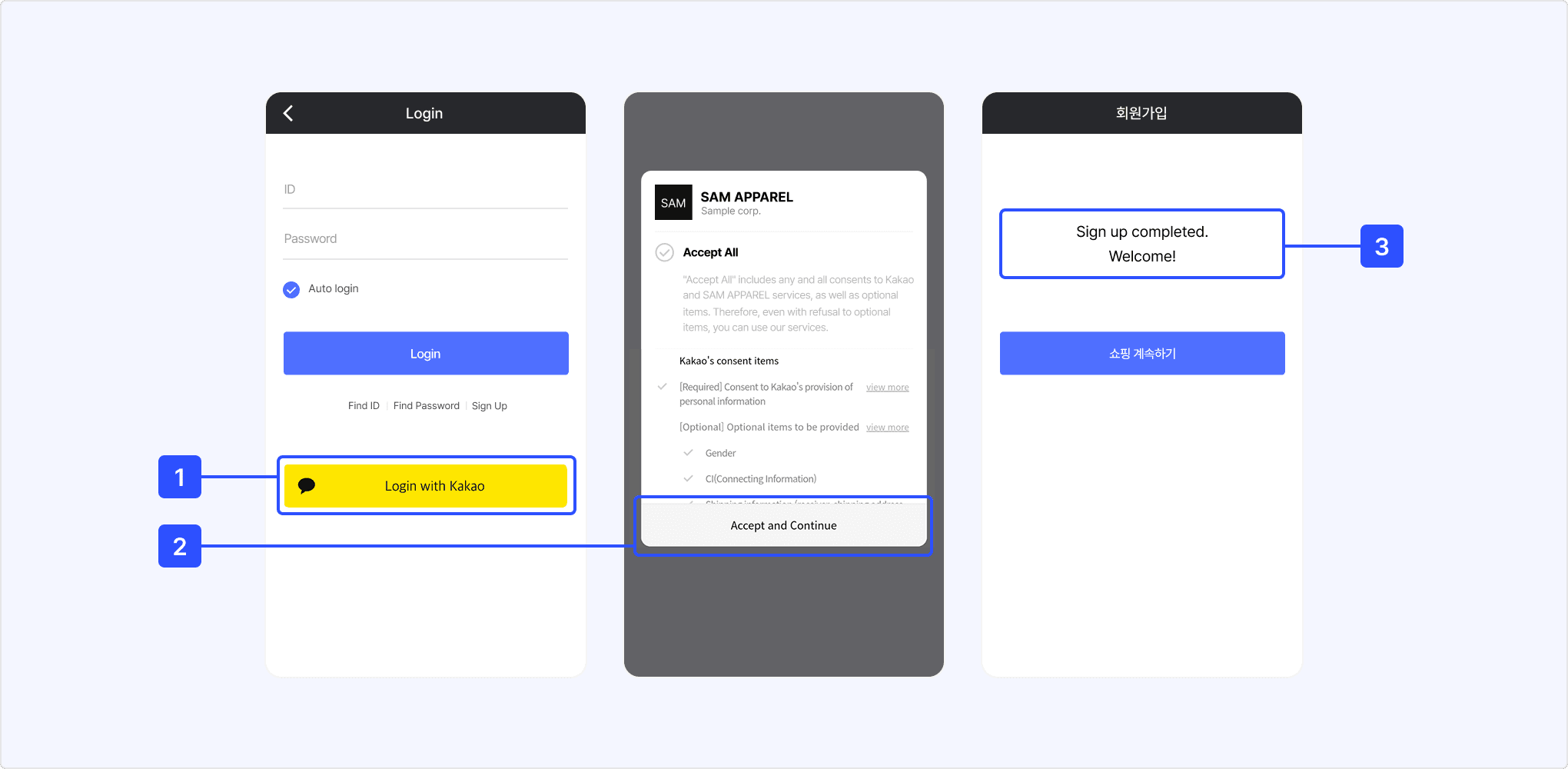
Here is an example of Simple Signup for a better understanding.

[1] A user requests login by selecting the [Start with Kakao] button in a service that has adopted Kakao Sync. Users can log in easily with Kakao Talk instead of entering a service ID and password. Even when Kakao Talk cannot be launched, users can log in with Kakao Account without a separate service signup process.
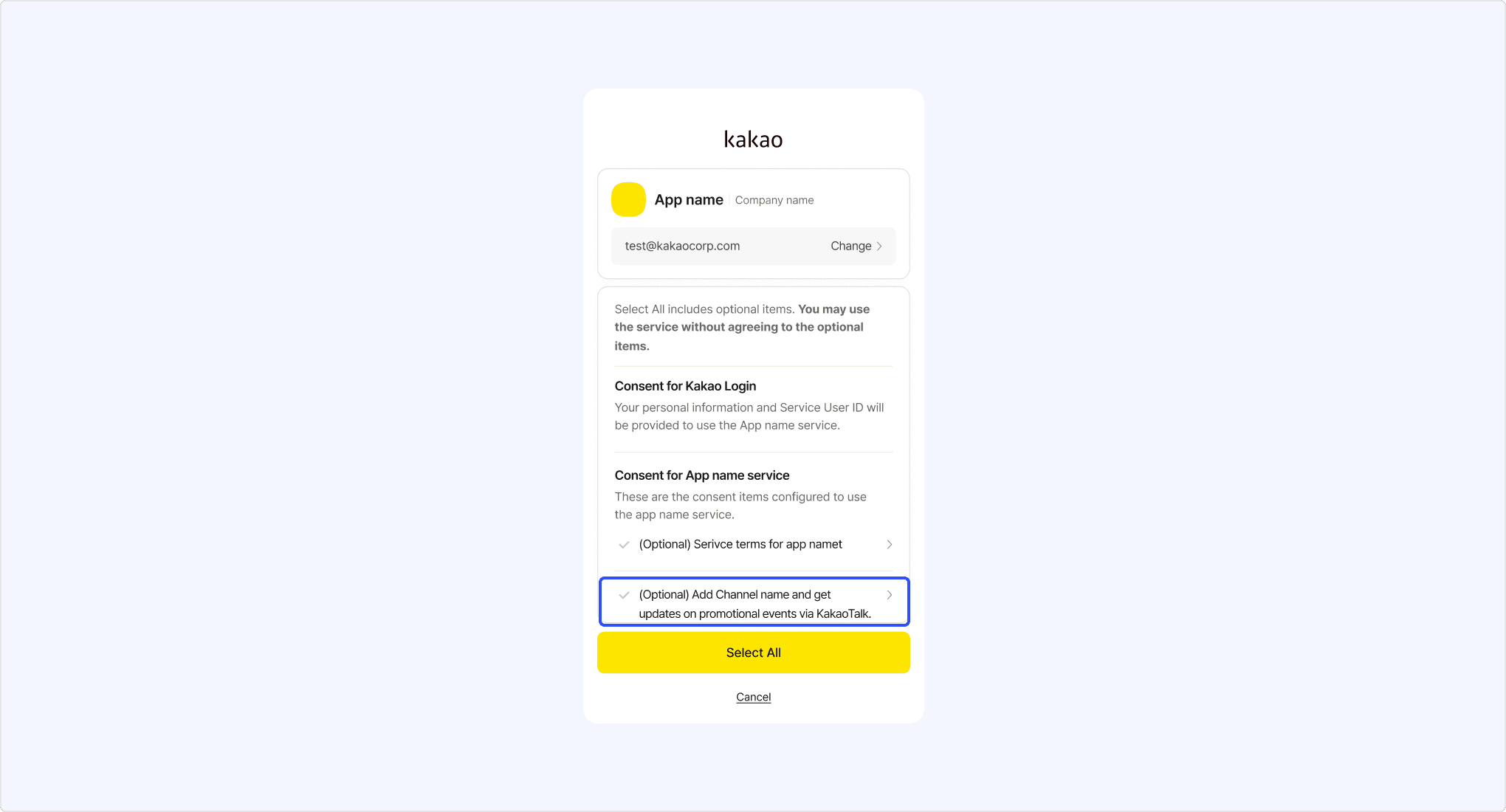
[2] After logging in with Kakao Talk or Kakao Account, the user can consent to both the information provision consent items and service terms on a single Consent screen. The user can also add your Kakao Talk Channel on the Consent screen.
[3] Your service requests the user information from Kakao. You can complete signup with the user information provided by Kakao without requiring users to enter the same information again.
If your service must collect information that Kakao does not provide, collect it separately at the point where the information is actually needed during service use.
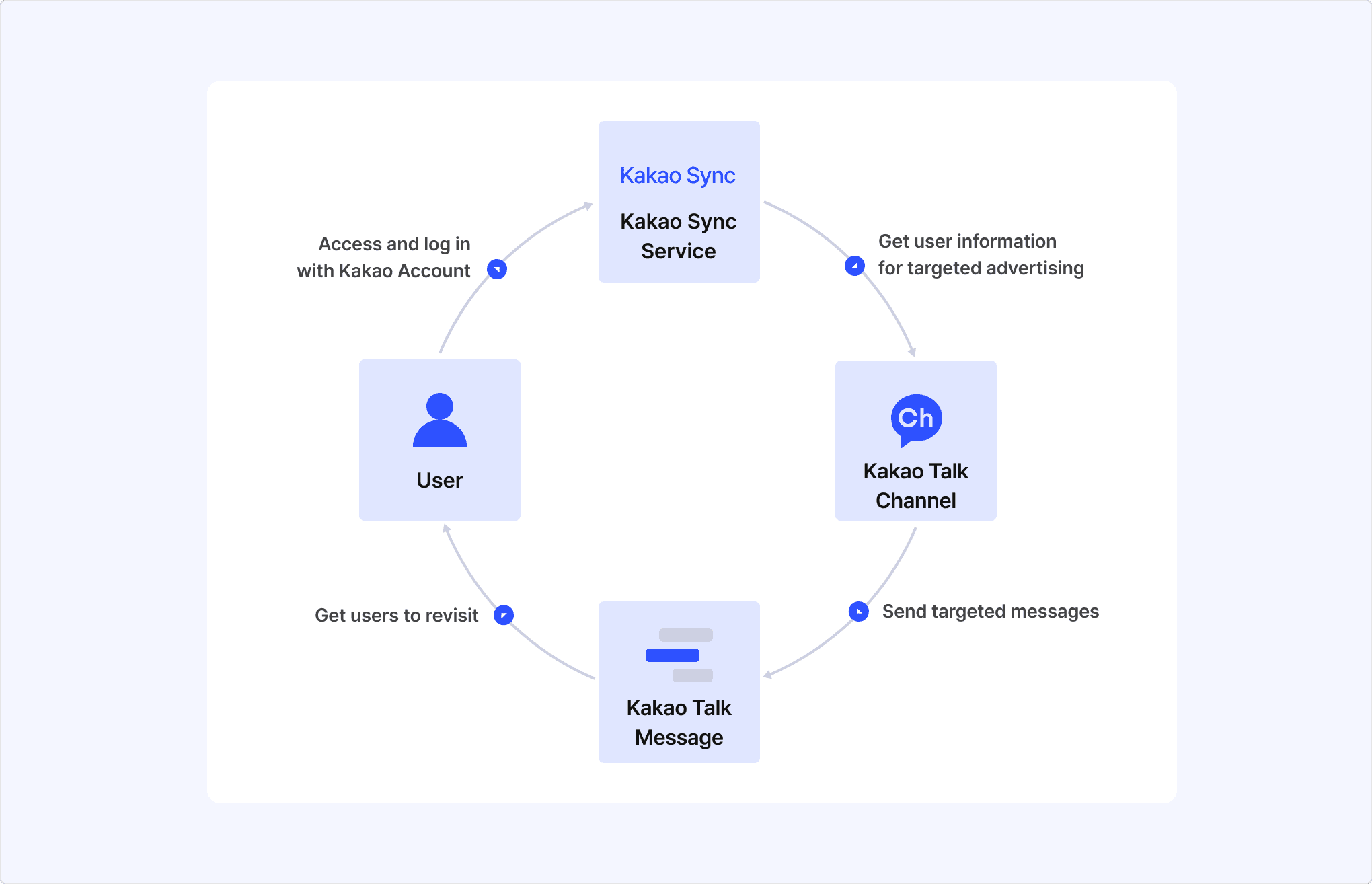
Users can add the Kakao Talk Channel of your service optionally during the Kakao Sync Simple Signup process. You can use the relationship between your service and channel for channel messages, customer consultation, and revisit campaigns.
You can send targeted messages based on demographic information obtained through Kakao Sync. According to how users signed up or visited your service and their online activities such as membership or order history, you can filter users by groups and send them targeted messages to maximize advertising efficiency.
If you use the Auto-login feature, the users who completed the Simple Signup are not required to log in from Kakao Talk anymore during the use of your service. Without the Auto-login, even users who visit your service page through a Kakao Talk Channel message may leave the login page due to the bothering login process. However, after integrating the Auto-login, the users are automatically logged in as soon as they visit the service page and use the service without any disruption.
You can implement this feature additionally after integrating Kakao Sync in your service. For more details about Kakao Sync, see Marketing or visit Kakao Business.
To adopt Kakao Sync, you need a Biz app and a Business channel, and you must request and pass review. Check the following items before applying for Kakao Sync.
If you operate a shopping mall through a major e-commerce hosting service, you may be able to adopt Kakao Sync through the Kakao Sync Simple Setup popup. This guide is currently provided in Korean only. See Guide for e-commerce platforms.
Check whether your service has a Kakao Developers app.
An app is information about your service registered on the Kakao platform. You can register a new app or check an existing app on the Kakao Developers app management page.
If your service already uses Kakao platform services such as Kakao Login or Kakao Talk Share, you already have an app. If your service has never used Kakao platform services, register a new app to adopt Kakao Sync.
Use the existing app to adopt Kakao Sync so that your existing app settings and user information remain available. If you adopt Kakao Sync with a new app, users who have used your service through Kakao Login may need to sign up again because the user ID is issued per app.
After registering or checking your app, register business information in the app and convert it to a Biz app. For more information and conversion steps, see Biz app.
If you lost the administrator account for your Kakao Developers app or Kakao Talk Channel, check the DevTalk notice and request an Owner change.
Check whether your service has a Kakao Talk Channel, and connect the channel to your Kakao Developers app.
Kakao Talk Channel, formerly called PlusFriend, lets you send service news and messages to users through Kakao Talk. After adopting Kakao Sync, you can request consent to add your service's Kakao Talk Channel on the Consent screen.

Only a Biz app can be connected to a Kakao Talk Channel, and the channel must be a Business channel. If your service does not have a Kakao Talk Channel, create one in the Kakao Talk Channel Partner Center. If the channel is not a Business channel, request conversion by referring to Business channel.
After checking your Business channel information, connect the Biz app and Business channel and set the primary channel by referring to Kakao Talk Channel. The primary channel is displayed on the Kakao Sync and Kakao Login Consent screen.
Check the types of user information your service needs to receive through Kakao Sync Simple Signup and the service terms that users must consent to.
When requesting review, enter the user information your service wants to receive from Kakao and reference materials such as service terms. Review the availability of user information required for signup by referring to User information.
If Kakao provides the user information required for service signup, your service can request that information through Kakao APIs and complete signup after Kakao Sync Simple Signup. If Kakao does not provide the required information, collect it separately during service use. (See Service terms policy.)
If your service does not have a signup process, prepare a process to register users as service members before applying for Kakao Sync.
After checking the requirements, follow the steps below to apply Kakao Sync to your service.
Log in with a Kakao Account that has the Owner or Editor role for the app, go to [App] > [Request additional features] on the app management page, and select Check eligibility. Review the eligibility information and agree to it.

Your service must collect only the minimum user information required to provide the service. Kakao reviews whether your service complies with this principle to protect user privacy. For how to request review, see Request additional features for personal information consent items.
After review is completed, you can set the user information required for your app as [Required consent] or [Optional consent] consent items.
Note: User information
[Required consent] user information is required for service signup or use. Users must consent to provide required user information to complete Kakao Sync Simple Signup.
Even if a user consents to provide information when logging in to a Kakao Sync service, Kakao cannot provide the information if the user has never entered it on the Kakao platform.
[Optional consent] user information can be skipped by users during Kakao Sync Simple Signup. Optional user information may not be provided depending on the user's consent, so do not set information that is essential for service signup or use as Optional consent.
Carefully decide whether each user information item should be Required or Optional before requesting review. A request may be rejected if the purpose of the requested user information is unclear or inappropriate. For example, requesting a shipping address for an online shopping mall that sells goods may be appropriate, but requesting a shipping address for a service that does not need delivery information may be rejected.
Note: Re-review
If you need additional user information after adopting Kakao Sync, you must request and pass review for that user information again. Re-review takes the same period as the initial Kakao Sync review. You do not need review when disabling a consent item or changing a [Required consent] item to an [Optional consent] item.
After applying for and passing Kakao Sync review, complete the following settings before development.
| Item | Description | Reference |
|---|---|---|
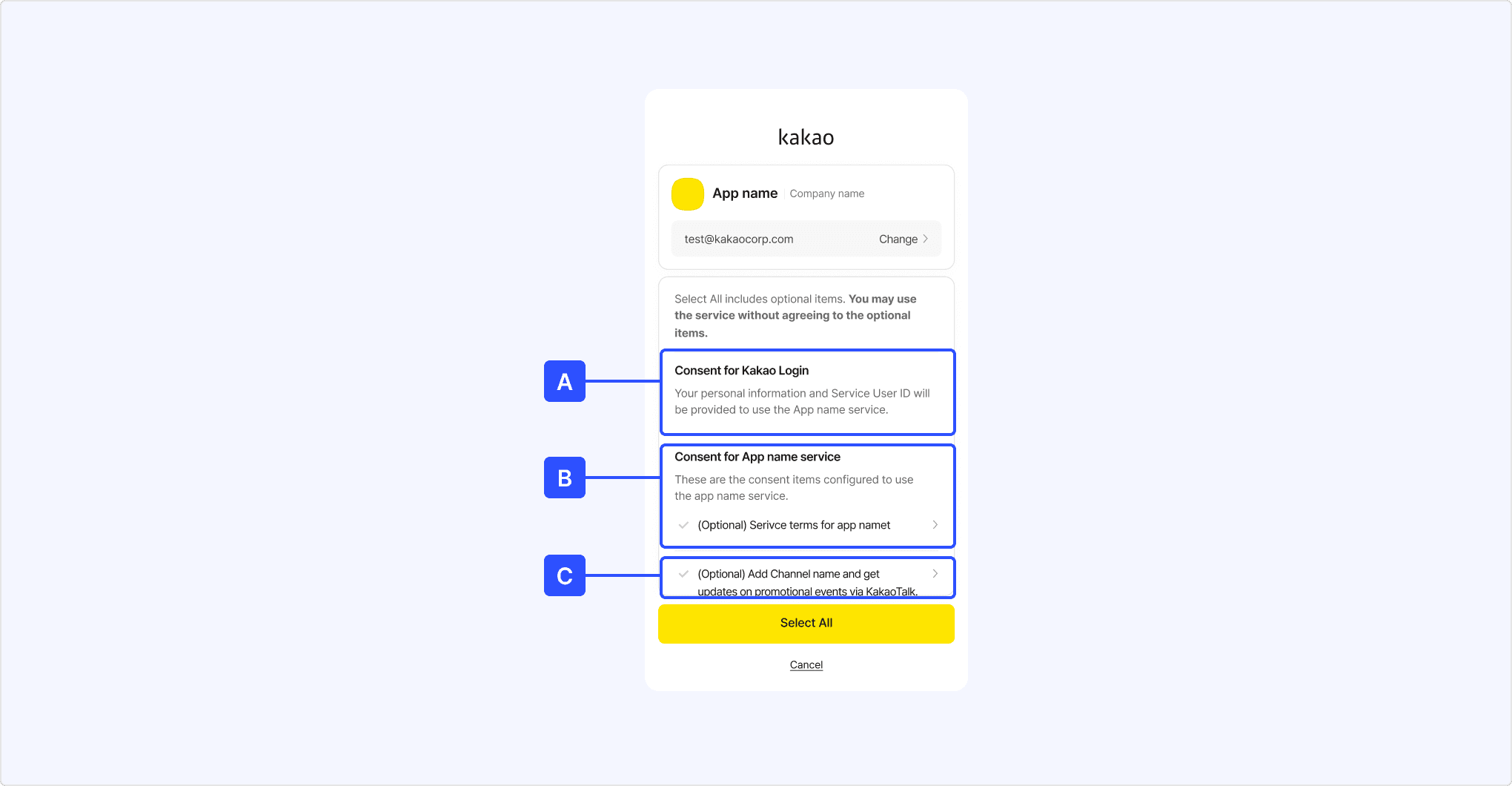
| Basic information | Set service information displayed on the Kakao Sync Simple Signup Consent screen. Make sure the app name, icon, and company name match the actual service. Path: App management page > [App] > [General] > [App basic information] | App |
| Test environment | If your service already uses Kakao Login, you can create a test app and a test channel to develop Kakao Sync without affecting the production service. Even if your service does not use Kakao Login yet, you can create and use a test app if needed. Path: App management page > [Kakao Login] | Test app Test channel |
| Kakao Login | Activate Kakao Login to use Kakao Sync Simple Signup. If your service already uses Kakao Login, keep it activated. For web services, register a Kakao Login Redirect URI. Path: App management page > [Kakao Login] | Activate Kakao Login Redirect URI |
| Simple Signup | Enable Kakao Sync Simple Signup and set service terms. When Simple Signup is enabled, service terms consent items are displayed on the Consent screen. Register and manage service terms to be displayed on the Kakao Sync Simple Signup Consent screen. Path: App management page > [Kakao Login] > [Simple Signup] | Simple Signup Set Simple Signup |
| Consent items | Set consent items for user information and features that your service wants to receive from Kakao. Users can consent to the items displayed on the Consent screen, and your service can receive the corresponding information from Kakao. Each consent item permission reflects the Kakao Sync review result. Some consent items require separate review. Check the reference guide to learn how to obtain permission. Path: App management page > [Kakao Login] | Manage consent items |
| Primary channel | Set the primary channel displayed on the Kakao Sync Simple Signup Consent screen. Path: App management page > [Kakao Login] > [Kakao Talk Channel] | Set primary channel |
After completing the settings above, integrate the Kakao APIs according to your service signup process.