
This document guides you through the implementation flow and checklist items required when integrating Kakao Sync into your service.
Kakao Sync works based on Kakao Login. When you adopt the Simple Signup feature of Kakao Sync, users can also consent to your service terms on the Consent screen, so they can sign up for your service with a single click.
Even if a user successfully completes Kakao Login, service signup is not completed unless your service creates a member in the service database or links the user with an existing member. After retrieving user information and checking service terms consent details, you must implement signup or login processing according to your service policy.
If development is difficult, you can also use a shopping mall hosting service. See Guide for e-commerce platforms.
The following is the basic flow of Kakao Sync Simple Signup using the REST API method. Refer to the step-by-step explanation together with the diagram below.
Kakao Sync Simple Signup process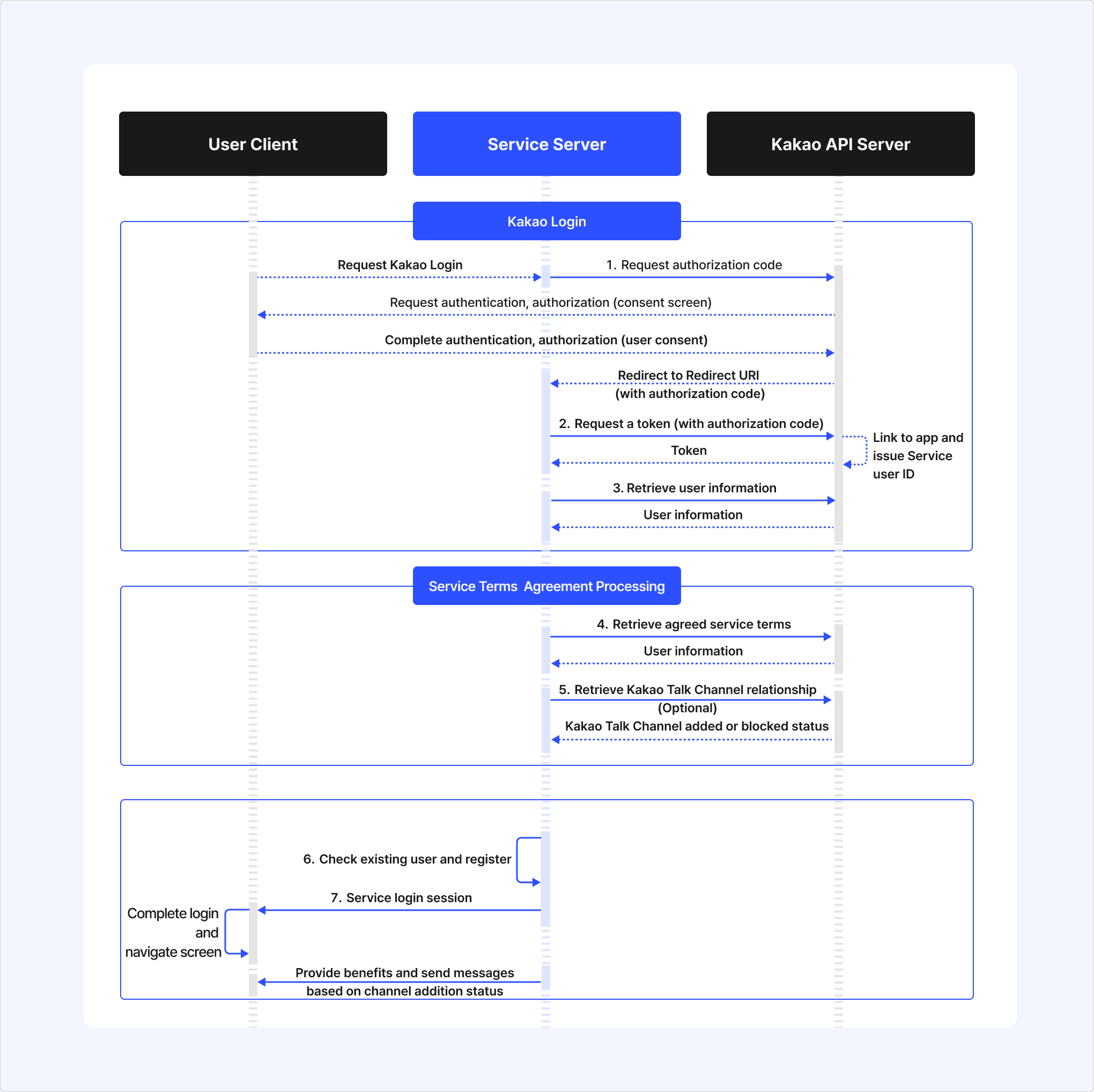
When a user selects the [Start with Kakao] button, your service calls the Get authorization code API for Kakao Login.
The Kakao authentication server provides Kakao Account authentication and the Consent screen to the user. Depending on your app settings, the Kakao Sync Consent screen may also display the following items.
- Consent to providing user information required for service signup
- Consent to service terms
- Consent to adding a Kakao Talk Channel
When the user consents to the consent items and service terms, the Kakao authentication server returns an authorization code to the configured Redirect URI.
Your service server calls the Get token API with the received authorization code to issue an access token.
An authorization code can be used only once. If the token request fails, do not retry with the same authorization code. Instead, have the user log in again.
Your service server calls the Retrieve user information API with the access token. The service user ID (id) in the response is an identifier to identify Kakao Sync users.
From the Retrieve user information response, your service can check the following.
- Service user ID (
id) - User information that the user consented to provide
- Consent details that the user consented to
- Time of the user signing up through Kakao Sync Simple Signup (
synched_at)
If required information is missing from the response, stop signup according to your service policy, or provide a separate flow so that the user can enter the information directly on your service screen.
Your service server calls the Retrieve consent details for service terms API to check which service terms the user consented to.
Service terms are identified by the tag specified when configuring Simple Signup. Your service compares the required terms tags registered in the app with the user's consent details to determine whether signup can be completed.
For users who have not consented to the required terms, handle them in one of the following ways.
- Request consent again only for the required terms using the Get consent to desired service terms API
- Process additional consent on your service's own terms consent screen
Even if a user consents to add a Kakao Talk Channel on the Kakao Sync Consent screen, if your service needs to provide benefits or manage message recipients based on the user's Kakao Talk Channel friend status, use the Check Kakao Talk Channel relationship API.
Channel friend status is separate from the connection status between your service app and the user. Even if a user unlinks from your service app, the Kakao Talk Channel friend status may remain.
After checking user information and service terms consent details, your service performs signup or login processing in the service database.
- New user: If there is no matching service member, store the Kakao service user ID and required user information, then create a service member.
- Existing member: According to your service policy, find the existing service member, and map and store that member with the Kakao member ID after obtaining the user's consent.
- Already linked user: Find the member by the Kakao service user ID stored in the service database and process login.
For details, see Kakao Login > Mapping.
Completing Kakao Login or Kakao Sync consent does not automatically complete login for your service.
After your service creates a new member or finds an existing member, you must create a service session so that the user can use the service while logged in, then navigate to the login completion screen.
To use Kakao Sync, the following settings must be completed in your app. For the overall setup process, see Prerequisites.
If you use a shopping mall hosting service such as Cafe24, Imweb, or Godomall, develop by referring to Guide for e-commerce platforms.
Before starting Kakao Sync development, first design which screens and processing steps the user goes through after the Kakao Sync Consent screen to complete service signup or login.
Kakao Sync obtains the consent required for signup on the Consent screen and lets your service retrieve user information and service terms consent details. Your service itself must implement member registration, existing member verification, account linking, and additional information collection.
We recommend a basic flow that completes signup right after the Kakao Sync Consent screen, with as little additional input as possible.
- The user selects the [Start with Kakao] button.
- On the Kakao Login Consent screen, the user consents to user information provision and service terms.
- Your service checks the information and service terms consent status required for signup using Retrieve user information API and Retrieve consent details for service terms API.
- Your service checks whether the user is an existing member in the service database.
- If the user is new, register the user as a service member. If the user is an existing member, link the existing member with the Kakao service user ID after obtaining the user's consent.
- Issue a service session and complete login processing.
Collect only the information required for signup first, and collect the rest later when it is needed. Long additional input screens after the Kakao Sync Consent screen can increase signup drop-off.
If your service is already live, a user who signs in with Kakao Sync may already be an existing member. First check whether the user is an existing member, then provide the appropriate flow (new signup or existing member linking) based on the result.
Use the following priority when checking for an existing member.
| Check result | How to handle |
|---|---|
| Matches the service user ID stored in the service database | Process login as that service member because the user is already linked through Kakao Login or Kakao Sync. |
| Exactly one user matches the criteria defined by your service, such as CI (Connecting Information) or email | Show the user masked account information, signup date, nickname, or other clues, confirm the intent to link, then link with the existing member. |
| Only some information matches, or multiple accounts are candidates. | Confirm account ownership through additional verification such as email verification or existing account login, then link. |
| No matching information | Sign the user up as a new member. If needed, let the user link an existing account after signup. |
When linking with an existing member, always confirm whether the user wants to link accounts. Even if information matches, the actual account owner may differ, or the user may want to sign up with a new account. For detailed processing flows, see Member registration and Mapping.
- Do not use email or phone number as a fixed identifier for a service member because users can change them.
- When determining whether users are the same person by email, complete email ownership verification before linking. Do not link with an existing member by simple string comparison of phone numbers because ownership can change.
- For details, see Cautions when mapping existing members with Kakao Login.
Even for consent items set as [Required consent], values may be missing from the Retrieve user information response. [Required consent] means the user must consent to providing the information to continue signup. It does not mean Kakao creates and provides a value that does not exist in the Kakao Account.
If required information for service signup is missing from the Retrieve user information response, your service must provide a separate flow according to its policy.
- Provide an additional input screen so the user can enter the information directly.
- If identity verification is required, implement and provide your own identity verification process.
- Inform the user that signup cannot proceed without the required information, then stop signup.
Here are the typical cases where your service cannot receive user information and the recommended actions.
| Case | Recommended action |
|---|---|
| The user's Kakao Account does not have the information. | Check whether the consent item allows the Provision after collecting information through Kakao Account option. If supported, use that option. If it is not supported or the user does not enter the information, your service must provide an additional input screen. |
| The user did not consent to an optional consent item | Check the value of determining whether user consent is required in the Retrieve user information API response. If xxx_needs_agreement is true, request consent again with Request additional consent. If the user still does not consent, ask the user to input the information directly or limit the feature according to your service policy. |
| The consent item or consent level for specific user information is not configured in the app. | Check available consent levels. If you do not have the required configuration permission, request additional features for personal information consent items. After review approval, you can configure the consent item. Before approval, you cannot receive the information from Kakao, so collect it directly in your service or adjust signup requirements. |
| The Kakao Account is not linked to Kakao Talk, so a phone number cannot be provided. | If a phone number is required, provide a separate phone number input and verification process in your service. |
| Name or CI (Connecting Information) cannot be provided. | If name or CI is required, provide your own identity verification process in your service. |
For provision conditions by user information item, see User information. For detailed causes and solutions, see FAQ.
The benefit of Kakao Sync Simple Signup is that users can sign up for your service without going through a separate signup page. However, if you require users to enter all information that Kakao Sync cannot provide during the signup step, signup drop-off may increase. First review whether the information can be collected later at the point when it is actually needed during service use.
Integrate APIs by referring to Kakao Sync Simple Signup process.
| Category | API and feature | When to call or use |
|---|---|---|
| Required | Get authorization code API | When the user selects the Start with Kakao button |
| Required | Get token API | After receiving an authorization code at the Redirect URI |
| Required | Retrieve user information API | After issuing an access token, when retrieving the service user ID and user information |
| Required | Retrieve consent details for service terms API | When checking whether the user consented to the terms required for signup |
| Optional | Get consent to desired service terms | When additional consent to a specific required term is needed |
| Optional | Retrieve shipping address API | When the user's shipping address information is needed |
| Optional | Check Kakao Talk Channel relationship API | When you need to check whether the user added your service's Kakao Talk Channel |
| Optional | Sync Plugin | When a user chatting with a chatbot wants to quickly sign up and log in through a half-view consent screen that appears in the chatroom |
| Optional | Auto-login from Kakao Talk | When you want users who access your service from the Kakao Talk in-app browser to be logged in automatically with their Kakao Talk account |
| Recommended | Unlink API | When a user deletes an account in your service Important: If you use the Unlink webhook or Account status change webhook, your service can detect and handle cases where a user deletes an account or unlinks from the app. When the event occurs, delete account information from the service database and call the Unlink API to unlink the app and the user. |
For platform-specific API development documents, see the following.
After completing integration development, finally check the following items before applying Kakao Sync to the production service.
After development is complete, verify the following scenarios with actual accounts.
| Scenario | What to check |
|---|---|
| New user signup | Whether the Kakao Sync Consent screen is displayed, whether the user information is retrieved, whether the service terms consent details are retrieved, and whether a service member is registered |
| Existing Kakao Login user | Whether the user is linked with an existing member by the same service user ID, and whether any required additional consent screen is displayed |
| User without required information | Whether an additional input or guidance flow is provided instead of ending in signup failure |
| User who rejects optional consent | Whether signup or login proceeds according to service policy without optional information |
| User who is already a Kakao Talk Channel friend. | Whether the Kakao Talk Channel addition item is not shown on the Consent screen to the user who added the Kakao Talk Channel already. Check that Simple Signup still completes successfully in this case. |
| Kakao Account not linked to Kakao Talk | A phone number cannot be provided, and the Kakao Talk Channel addition item may not appear on the Consent screen Whether the service provides an alternative flow such as separate phone number input or verification Whether signup completes without channel addition |
| Re-signup after account deletion | Whether member information is deleted from the service DB and Unlink API is performed together when the user deletes their account Whether re-signup is handled according to the service policy, given that the same service user ID is issued when the same Kakao Account signs up again |
See each related document for detailed configuration methods.
| Category | What to check | Related document |
|---|---|---|
| App settings | Check whether Kakao Login, Redirect URI, Simple Signup, consent items, and service terms settings are applied to the actual service app. | Prerequisites, Redirect URI |
| Test app | If you developed with a test app, check whether the same settings are applied to the original app and whether the app key used in your service source code was replaced with the original app key. | Apply test app settings to the original app |
| Signup processing | After a successful login, check whether the flow continues through retrieving user information, verifying service terms consent details, creating a member or linking an existing member, and issuing a session. | Basic flow, Integrate APIs |
| Existing members | Check whether existing Kakao Login users or existing service members are linked as the same member instead of being signed up again as duplicates. | Check and link existing members, FAQ |
| User information | Check whether users without required information or users who did not consent to optional consent items are handled through an exception flow that matches your service policy. | Handle user information |
| Kakao Talk Channel | If your service uses Kakao Talk Channel, check whether the app is connected to the channel, the primary channel is set, and a way to check channel friend status is ready. | Kakao Talk Channel, Check Kakao Talk Channel relationship API |
| Account deletion and unlink | When a user deletes an account in your service, check whether your service deletes the user information and also requests Unlink API. | Account deletion and unlink |
| Landing | Check whether users who arrive via a QR code or an ad can complete the flow from calling the Kakao Sync Consent screen through signup. | Develop QR and ad landing |
| Hosting service | If you use a hosting service such as Cafe24, Imweb, or Godomall, check whether the Kakao Sync settings in the hosting service admin screen are saved correctly, and whether the shopping mall URL, service terms URL, and privacy policy URL match your actual service. | Guide for e-commerce platforms, Hosting service settings |
When you need to send users directly to the Kakao Sync Consent screen from an offline QR code or Kakao Bizboard Ad View as described in Marketing, you must additionally develop a landing page.
For the landing URL of a QR code or Ad View button, set a service URL that can call the Kakao Sync Consent screen when the user accesses it. If your existing login page does not immediately call the Kakao Sync Consent screen, prepare a separate landing page for QR codes or ads.
If you need to create a Kakao Sync permalink for QR codes, see Request a Kakao Sync permalink.
For a service that implements Kakao Login with a REST API key, enter a service URL that starts the Kakao Login authorization code request as the landing URL of the QR code or Ad View button. This is usually the URL called by your service's [Start with Kakao] button.
If it is difficult to provide a separate service login URL, you can use a Kakao Login authorization code request URL that starts with https://kauth.kakao.com/oauth/authorize. In this case, pass the REST API key in client_id, and pass the same value as the Redirect URI registered in the app in redirect_uri.
If you need to distinguish entry paths by store, campaign, or ad creative, you can include a tracking value in the state parameter of Request authorization code. Because state is also used to prevent CSRF, verify that the value issued by your service matches the value returned in the response.
For a service that implements Kakao Login with the JavaScript SDK, initialize the JavaScript SDK on the landing URL of the QR code or Ad View button, then call Kakao Login to open the Kakao Sync Consent screen.
For a better user experience, we recommend calling the Kakao Sync Consent screen immediately from a blank landing page.
If you want to call the Consent screen automatically only in the Kakao Talk in-app browser, you can branch by checking the user agent.
| Checklist item | What to check |
|---|---|
| App key | Check whether the key used by the landing URL matches the REST API key or JavaScript key of the actual service app |
| Redirect URI | Check whether the redirect_uri used in the request exactly matches the Redirect URI registered in the app |
| Signup processing | Check whether the flow continues after consent through Retrieve user information, Retrieve consent details for service terms, and member creation or existing member linking |
| Entry tracking | If distinction by QR code, store, or ad creative is needed, manage tracking values with state or your own service parameter |
| Mobile behavior | Check whether users navigate to the expected screen in the Kakao Talk in-app browser, default camera QR scan, and general mobile browsers |