
This document guides you through the setup, application, and review process required to adopt Kakao Sync.
If you operate your service through an e-commerce platform (hosting service) instead of developing it yourself, you can adopt Kakao Sync through the Kakao Sync Simple Setup popup. See Guide for e-commerce platforms.
This is the process of registering business information in your app and verifying that the registered business information is valid.
- Log in with a developer account, then create a Kakao Developers app. Because the app's basic information is displayed on the Consent screen, set the app name, icon, and company name to match your actual service.
- Caution: If you already use Kakao Login, Kakao Talk Share, or similar features, you must use your existing app to keep your existing app settings and user information. If you adopt Kakao Sync with a new app, existing Kakao Login users may need to sign up again.
- Register business information in the app and convert it to a Biz app. Separate review is not required.
Prepare a Business Channel to connect to your Biz app.
You can create a channel in the Kakao Talk Channel Partner Center and then request conversion to a Business Channel. See Apply for a Business Channel.
Business channel review is handled in the Kakao Talk Channel Partner Center. For questions, contact the Kakao Talk Channel Partner Center Customer Service.
To connect the Biz app and Business Channel you created, a review is required. This review checks whether the app and the channel have the same business information.
See Connect a Kakao Talk Channel to an app.
The review for connecting a Business channel and a Biz app is handled in Kakao Developers. For questions, contact DevTalk.
After connection, set the Business channel as the primary channel. If you do not select a primary channel, the [Add Kakao Talk Channel] item is not displayed on the Consent screen.
On the app management page, go to [App] > [Request additional features] and select [Request] for [Business information].
If your Biz app is connected to a Business channel, select [Request] for Business information, and the review is automatically approved.
Business information application screen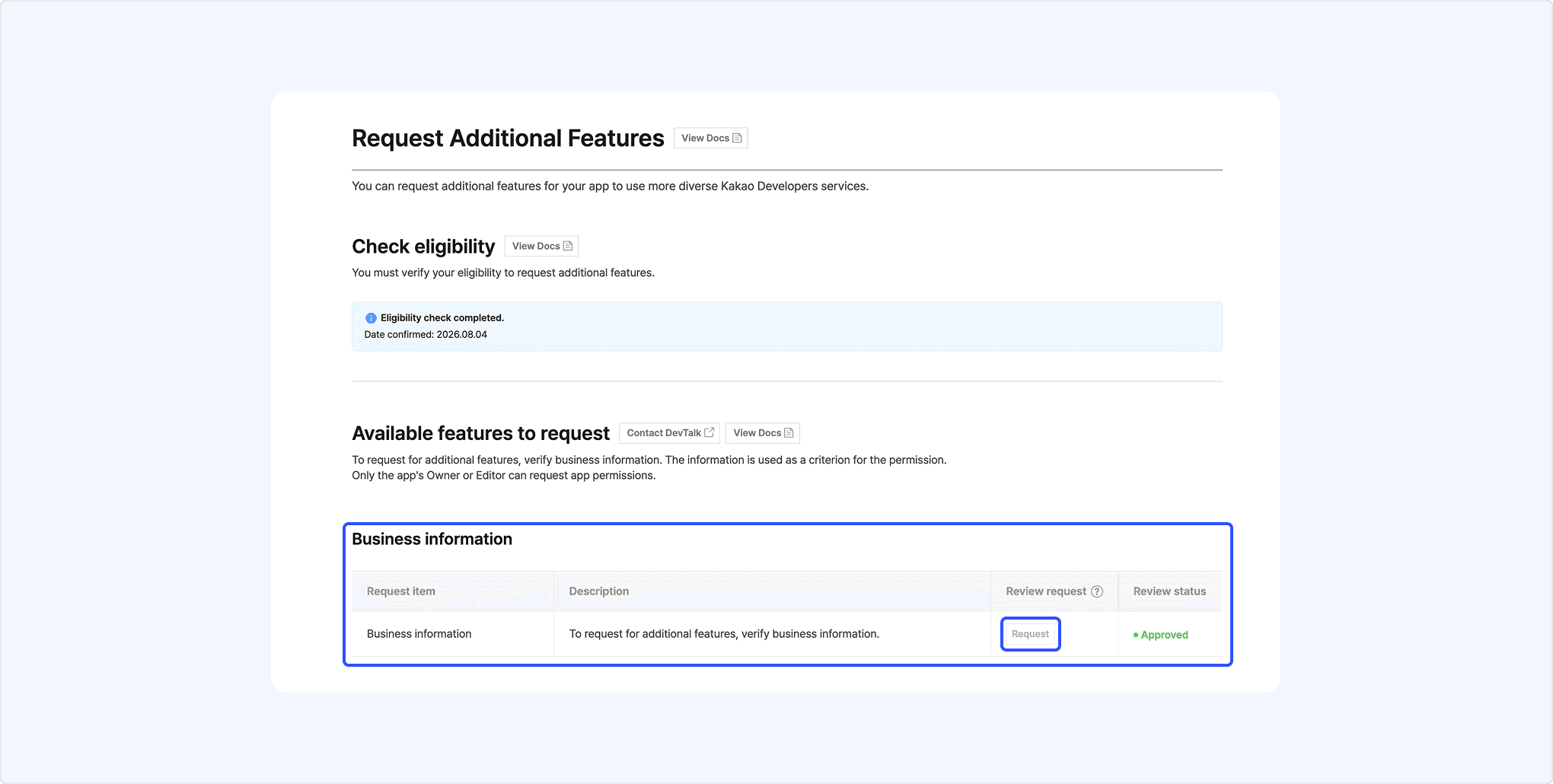
To use the Simple Signup feature of Kakao Sync, you must activate Kakao Login. Configure the following items on the app management page.
- Set [State] under [Kakao Login] > [Activate] to [ON].
- Set a Redirect URI to receive the authorization code and token.
- Configure consent items for the user information and features you want to receive from Kakao.
For an app with a Biz app and Business channel connected, the available consent levels for each consent item are as follows.
| Consent item | Required consent | Optional consent | Consent during use |
|---|---|---|---|
| Nickname | O | O | O |
| Profile | O | O | O |
| Kakao Account (email) | O | O | O |
| Kakao Account (phone number) | - | - | - |
| Name | - | - | - |
| Gender | - | - | - |
| Age range | - | - | - |
| Birthday | - | - | - |
| Birthyear | - | - | - |
| Shipping address | - | - | - |
| Kakao Talk Channel addition status and details | O | O | O |
| CI (Connecting Information) | - | - | - |
To configure other disabled consent levels or consent items, you must request additional features.
To use Kakao Sync Simple Signup, register the service terms to display on the Consent screen, then enable Simple Signup.
- Prepare the title, URL, and tag of the service terms to display in Simple Signup.
- On the app management page, go to [Kakao Login] > [Simple Signup] and select [Add service terms].
- Enter the title, URL, consent level, and tag of the service terms.
- The tag identifies the terms in the service terms consent details, so set it to the same value your service server will check.
- Set [Usage settings] to [ON] for the registered service terms.
- Set [Usage settings] to [ON] for [Simple Signup]. At least one service term must be activated to use the Simple Signup feature.
To configure disabled consent levels or consent items other than those listed in Available consent levels, request additional features for personal information consent items.
See the following documents.
- Personal information consent item review process
- Review checklist
- Q. My request for additional features was rejected.
Personal information consent item review is handled in Kakao Developers. For questions, contact DevTalk.
During the Kakao Login process, you must implement service member registration yourself based on the user information and terms the user consented to.
See Development guide.
To use Kakao Sync as a signup method, reflect how you process user information received from Kakao in your service's Privacy Policy, and provide a flow for users to request service account deletion. When a user deletes an account, process the service member information and also request Unlink API to disconnect the app and the user.
To try consent items before completing the Business information review and consent item review described in the previous step, use a test app. A test app is separate from the original app and can be used for development without affecting the production service.
For consent items available in a test app, see the items marked [Test app] in Personal information consent items.
To connect a chatbot or try Business channel features in advance, you can create a Kakao Talk Channel for developers and test with it.
A test app has a separate app key, independent settings, and permissions dedicated to the test app, so settings configured in the test app are not automatically applied to the original app.
After developing and verifying behavior with the test app, apply the following settings separately to use it in the actual service.
- Complete the settings required to use Kakao Sync in the original app by referring to Prerequisites.
- Replace the test app key used in your service source code with the original app key.
- Before production deployment, confirm that login, the Consent screen, retrieving user information, and retrieving service terms consent details work correctly with the original app.
Use a test app for testing only. When you apply Kakao Sync to the actual service, use the original app key, not the test app key.
To use additional features provided for a test app in the original app, you must request review and obtain permission separately in the original app.