
This tutorial explains step by step how to let users directly select a friend in the same service and send a message.
| Category | Details |
|---|---|
| What you will learn | Test a feature that lets users directly select a friend in the same service and send a message |
| Prerequisites |
Kakao provides different message sending features depending on the sender and purpose. See Message sending features to check whether the Kakao Talk Message API fits your service purpose.
The Kakao Talk Message API lets users send messages to Kakao Talk friends who use the same service. Users select the friends and send the messages themselves. A service cannot use the Kakao Talk Message API to automatically send messages to users. If your service needs to send users information such as order or delivery updates, use Info Talk.
Unlike sending a custom message to yourself, sending a message to a friend requires recipient information.
- Get the recipient's
uuidwith the Retrieve Kakao Talk friends list API or Friend picker. - Pass the
uuidand the custom template ID from Send a custom message to yourself to the Send message with custom template API.
In this tutorial, use the REST API Test Tool to issue an access token and check the friends list and uuid. To implement a Kakao Login button, friends list, and message sending UI, see Test with sample code and Implement Kakao Login.
To send a message to a friend, add the settings below to the Kakao Login, talk_message consent item, web domain, and message template settings you completed in Send a custom message to yourself. Use the same app.
- Integrate Kakao Login.
- Configure the [Friends list in Kakao services / (
friends)] consent item. - Configure the [Send Kakao Talk Message / (
talk_message)] consent item. - The message recipient must consent to the
friendsandtalk_messageconsent items. - To apply the feature to a real service, request additional features and obtain review approval.
Use the app from Send a custom message to yourself in this tutorial. If you need to create a new app, see Create a Kakao Developers app.
To send a message to a friend, configure two consent items.
Configure the [Send Kakao Talk Message / (talk_message)] consent item by following Send a custom message to yourself > Set consent item.
This tutorial assumes that you have already completed Send a custom message to yourself and starts with the settings for retrieving the friends list.
To retrieve the Kakao Talk friends list, configure the [Friends list in Kakao services / (friends)] consent item.
Friends list consent item settings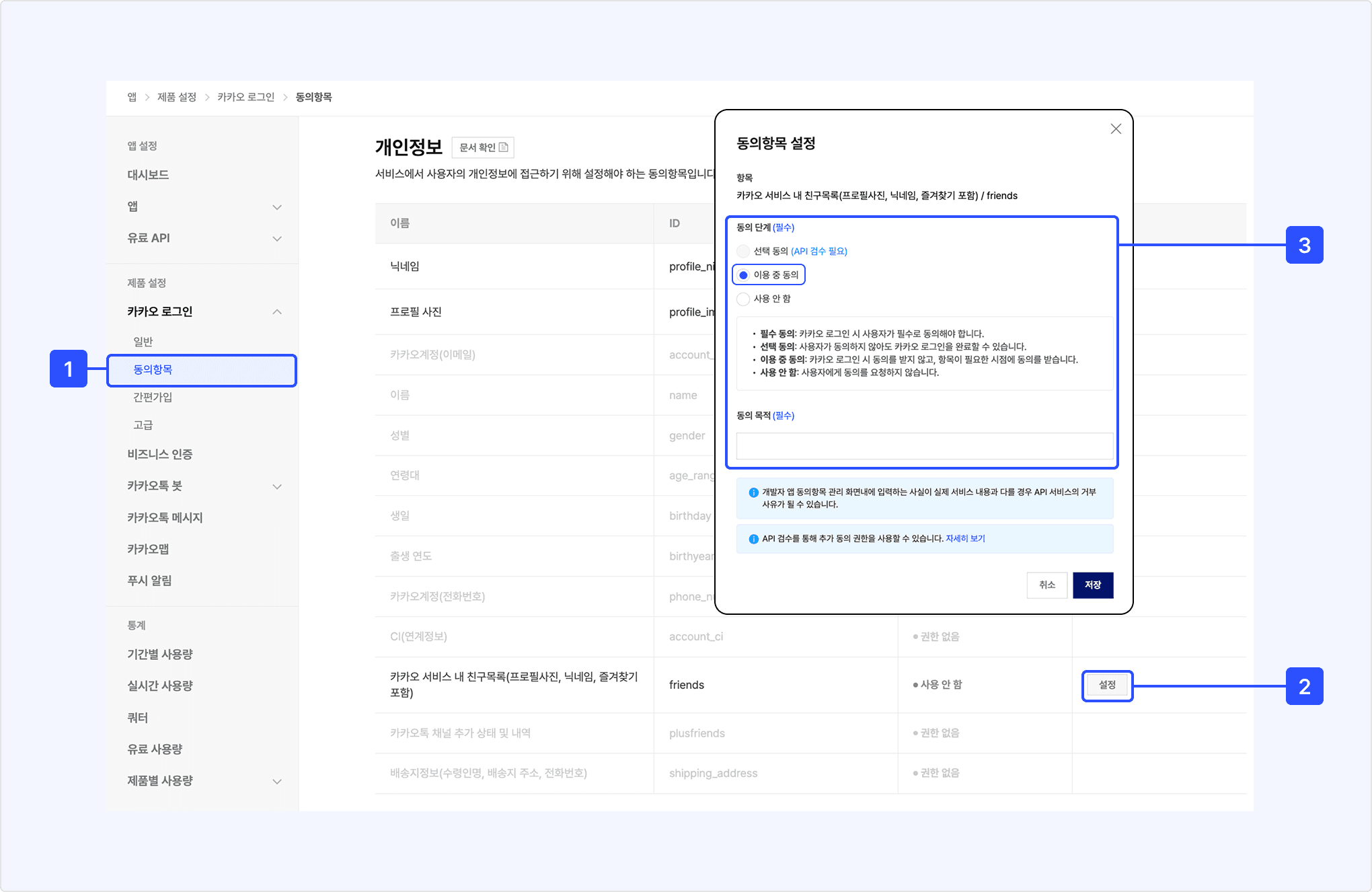
- On the app management page, select [Kakao Login] > [Consent items].
- Under [Personal information], select [Settings] for [Friends list in Kakao services (including profile image, nickname, and favorites)].
- Set the consent level to [Consent during use] and enter the purpose of consent.
- Select [Save].
Use [Consent during use] during testing. To use [Optional consent] in a real service, obtain permission by following Request additional features. After obtaining permission, you can change the supported consent levels.
To test sending messages to friends before review approval, register the sender and recipient as Kakao Developers app members.
- On the app management page, select [App] > [Member].
- Using the app Owner account, select [Add member].
- Add all Kakao Accounts to use as the sender and recipient, and assign each account the [Editor] or [Viewer] role.
- You can invite a Kakao Account only by the email address used to log in.
To send a message to a friend, the message template [Purpose] must be [Kakao Talk Message API].
- In [Tools] > [Message template], open the template you created in Send a custom message to yourself.
- In Common settings, check that [Purpose] is [Kakao Talk Message API]. If it is set to [Kakao Talk Share API], change it to [Kakao Talk Message API].
- Select [Save].
Call the Retrieve Kakao Talk friends list API with the REST API Test Tool to find the uuid of the friend who will receive the message.
Before the additional feature request is approved, the response includes only app members who meet the following conditions. If testing by yourself is difficult, use two Kakao Accounts. Both accounts must be app members, Kakao Talk friends, linked to the app, and have granted consent.
To get Kakao Talk friend information with the friends list API, the following conditions must be met.
- The sender and recipient must be Kakao Talk friends. If they are not friends, add each other as Kakao Talk friends.
- Both the sender and recipient must be linked to the app and must consent to [Friends list in Kakao services] and [Send Kakao Talk Message].
- To link the recipient to the app, complete 2-1. Link an app member to the app.
- The sender is linked to the app while completing 2-2. Retrieve app members.
The app member who will receive the message must complete the following steps to link to the app.
- In the REST API Test Tool, select the Retrieve user information API.
- In [Authentication app], select the app used in this tutorial.
- Under [Access token], select [Get token].
- In the user information access scope, select
friendsandtalk_message, and then select [OK]. - Log in with a Kakao Account and grant consent for [Friends list in Kakao services] and [Send Kakao Talk Message] on the Kakao Login Consent screen. This links the recipient's Kakao Account to the app.
- In the REST API Test Tool, select Retrieve Kakao Talk friends list.
- In [Authentication app], select the app where you created the template.
- Under [Access token], select [Get token].
- In the user information access scope, select
friendsandtalk_message, and then select [OK].- If these items are disabled, configure the consent items as described in 1-2. Set consent items.
- Log in with the sender's Kakao Account. If the Consent screen appears, grant consent for [Friends list in Kakao services] and [Send Kakao Talk Message].
- Select [Send] to call the API with the entered values.
- Find the friend who will receive the message in the
elementsarray of the response body and copy theuuidvalue.
The friends list includes only users who meet all Conditions for providing friends information. If you added an app member but the friend is not visible, see I want to send a Kakao Talk message to a friend, but the friend is not visible.
Call the Send message with custom template API with the REST API Test Tool to check that the template saved in Send a custom message to yourself is sent to the friend correctly.
- In [Authentication app], select the app where you created the template.
- In
receiver_uuids, enter the copied friend'suuidas a JSON array.- Example:
["abcdefg0001"]
- Example:
- Enter the template ID from Create a message template in
template_id.- Example:
5595
- Example:
- Enter the user argument values configured in Configure message components in
template_argsas JSON.- Example:
{"NAME":"Ryan"}
- Example:
- Select [Send] to call the API with the entered values.
- Check that the message was sent correctly.
- Check that the entered
uuidis included insuccessful_receiver_uuidsin the response body. See the Send message with custom template API response sample. - Check that the configured message was sent to the recipient's Kakao Talk.
- Check that the user argument value is displayed correctly in the message header.
- Check that the entered
You can send a message to a maximum of five friends at once. Before review approval, you can send a maximum of 30 messages per day per app. For details, see Quota.
After testing, develop the message sending flow in your service code in the following order.
- Implement Kakao Login in your service's web or app environment. Use Kakao Login to issue an access token for a user who has consented to the
friendsandtalk_messageconsent items. Includefriendsandtalk_messageinscopewhen requesting an authorization code. - Develop a screen where users can directly select recipients with the Retrieve Kakao Talk friends list API or Friend picker.
- Apply the template ID created in the Message Template Tool to your code.
- If values change for each user, pass the user argument values in
template_args. - Call the Send message with custom template API with the selected friend's
uuid.
After completing tests with app members, request the Kakao Talk friend list / message additional feature to provide the feature to real service users.
- Switch to a Biz app.
- In [App] > [Request additional features], complete Check eligibility.
- Complete Business information review if required.
- Under [Additional features], select [Request] for Kakao Talk friend list / message.
- Under request conditions, select Kakao Talk friend list / message.
- Enter the service URL, actual message sending screen, reason for the request, and usage scenario.
- Attach screenshots with personal information masked and submit the request.
Kakao Talk friend list and message additional feature request screen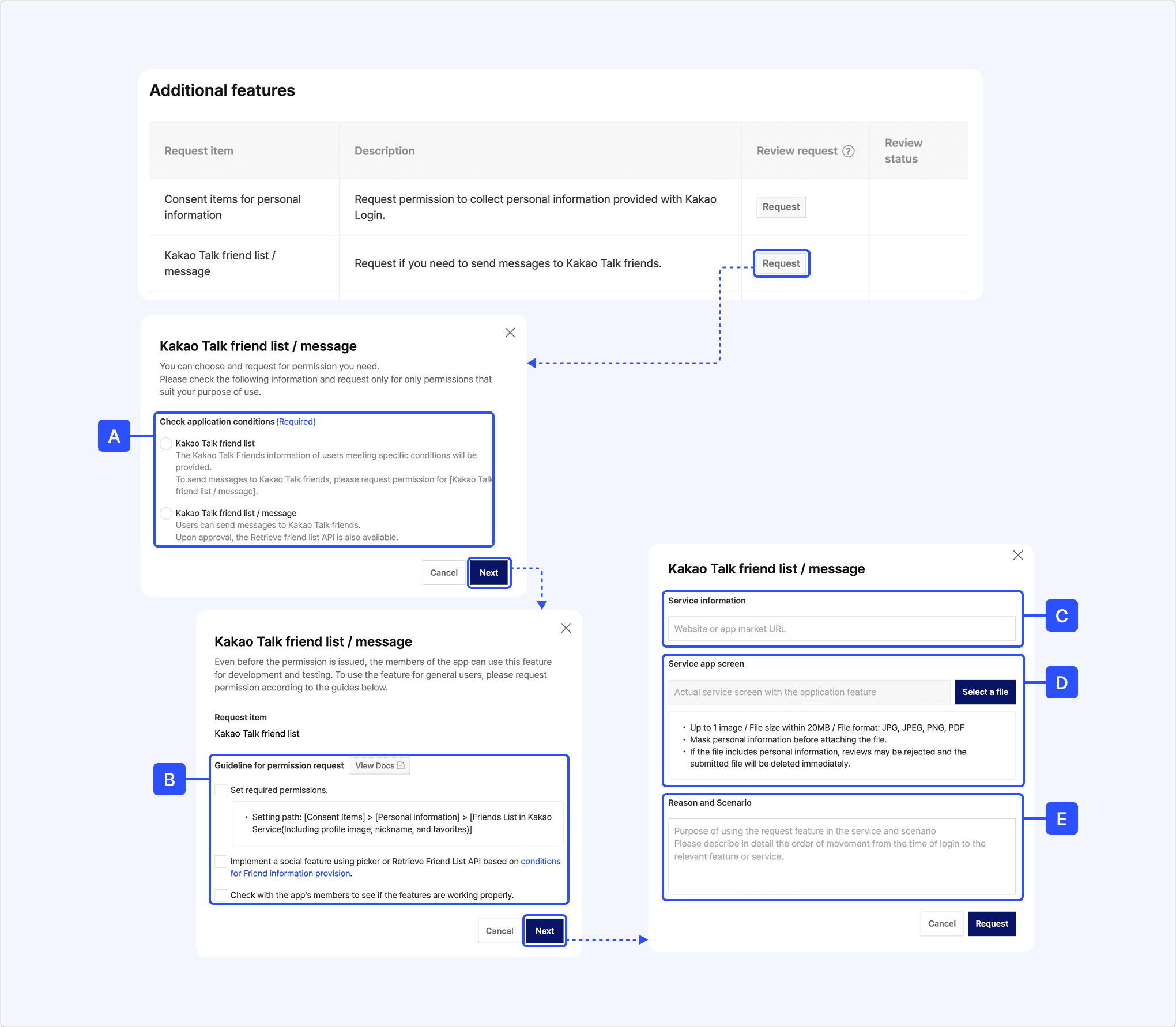
Mask personal information in screenshots and the request form before submitting. A request containing personal information is rejected.
The request materials must show the full flow in which a user logs in with Kakao Login, directly selects a friend, and sends a message. For the required request information and review criteria, see How to use in Kakao Talk Social.
| Problem | What to check |
|---|---|
| The Send Kakao Talk Message or Friends list in Kakao services consent item cannot be selected when issuing an access token. | Check whether the app's consent items are configured. |
| A test user cannot be linked to the app or cannot consent to consent items. | Check whether the user logged in and consented through [Get token] in the REST API Test Tool and whether friends and talk_message were selected.
|
elements in the friends list is empty. | Check the recipient's app linking, friends consent, Kakao Talk friend relationship, and Profile visibility settings. |
| Changes to the friends list are not reflected immediately. | Retry after the response cache expires. |
| The message sending API cannot find the template. | Check template_id, the selected app, whether the template was saved, and Purpose. |
${NAME} is displayed as-is in the message. | Check whether the NAME value is passed in template_args. |
| Message sending fails. | Check the access token's talk_message consent, the recipient's uuid, and Quota. |
| The page does not open when selecting a link. | Check web domain registration and link Path. |
For detailed error causes, see REST API error codes, Kakao Talk Message error codes, Kakao Talk Message FAQ, and Message Template FAQ.