
This document describes how to integrate Kakao Login APIs into your service with the Kakao SDK for Flutter.
To learn about each API in detail, refer to Concepts.
For a Kakao Login button, you can download the resources provided by Kakao or customize buttons according to your service user interface by referring to the Design guide.
To use the Kakao Login API on the native app service, you must set the Custom URL Scheme. See how to set up a project by device environment below.
Flutter SDK provides Kakao Login features using Kakao Talk or Kakao Account for each service environment (native app, web).
The service client can complete both authorization code and token issuance with a single request.
| API | Description |
|---|---|
| Login with Kakao Talk Recommended | Launches Kakao Talk to authenticate users. |
| Login with Kakao Account | Opens a pop-up page to log in with a Kakao Account on the default browser. |
Native app services cannot use the redirect method.
With the redirect method, the service client requests an authorization code, and the service server requests tokens using the authorization code.
| API | Description |
|---|---|
| Login with Kakao Talk: Web Recommended | Launches Kakao Talk to authenticate users. |
| Login with Kakao Account: Web | Moves to the Kakao Account login page from the service page without a pop-up to complete Kakao Login. |
Login with Kakao Talk or Login with Kakao Talk: Web is highly recommended for a user environment supporting Kakao Talk. To check if launching Kakao Talk is available, use isKakaoTalkInstalled(). The results are below.
true- Requested by a native app on a mobile device, and Kakao Talk is installed.
- Requested by a web browser or web view on a mobile device.
false- Requested by a native app on a mobile device, but Kakao Talk is not installed.
- Not requested on a mobile device.
For the services that support multiple accounts or user environments that do not support Kakao Talk, Login with Kakao Account or Login with Kakao Account: Web is recommended.
Determine which authentication method to use for the user environment and service flows. Two authentication methods can be used both. Refer to each document.
When using the Login with Kakao Talk: Web or Login with Kakao Account: Web for the redirect method, the service must request tokens from the service server to complete the Kakao Login process. The Kakao Login process using the redirect method is below.
Kakao Login process: Web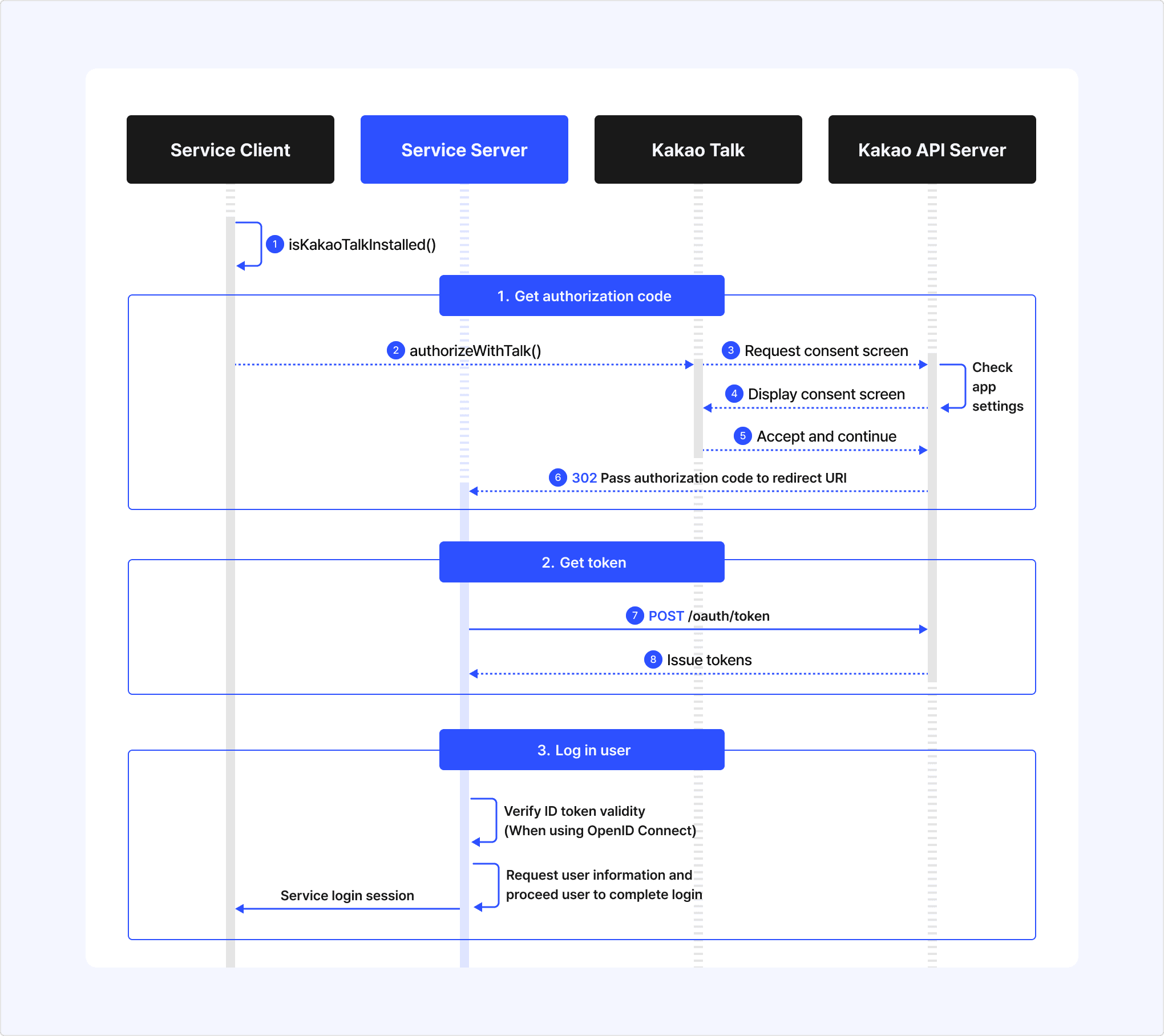
- Request
isKakaoTalkInstalled()to check if launching Kakao Talk is available.- If
trueis returned, use Login with Kakao Talk: Web. - If returned
false, use Login with Kakao Account: Web.
- If
- After requesting Login with Kakao Talk: Web, Kakao Talk is launched.
- If Kakao Talk is not installed, the install page is displayed.
- Kakao Talk requests authentication to the Kakao authentication server.
- Kakao authentication server requests users authorization for the consent items.
- The consent screen displays consent items that are set in the app.
- Users authorize required and desired consent items and select [Agree and Continue].
- Kakao authentication server passes the authorization code to the Redirect URI.
- Request tokens using the authorization code passed to the Redirect URI on the service server.
- Kakao authentication server issues tokens and returns them to the service server.
The service must implement the user's login process to the service. This document provides a guideline to implement the login process.
- Request Retrieve user information API using the access token on the service server. Map the user with the Service User ID in the response.
- Retrieve user information can be requested on the service client after setting tokens.
- Proceed with the login or sign-up process, depending on the mapping result.
- After the required login process, finish the user's Kakao Login to the service.
To use Select shipping address API, set a custom URL scheme in AndroidManifest.xml. Refer to the sample below.
| Reference | App setting |
|---|---|
isKakaoTalkInstalled()loginWithKakaoTalk()loginWithKakaoAccount()loginWithKakao()authorizeWithTalk()authorize()setToken()OAuthTokenKakaoException |
| Requirements | See also | |
|---|---|---|
| ||
Opens the Kakao Login page and the Consent screen to sign users in to your service with authentication information from Kakao Talk or Kakao Account.
From Flutter SDK v2, the web login behavior changed and Login with Kakao Talk is not supported in web environments. For web services, use Login with Kakao Talk: Web.
Call loginWithKakaoTalk(). Flutter SDK launches the Kakao Talk application and prompts the Consent screen asking for consent.
When a user consents, Kakao identifies the user with the user's Kakao Account information linked to Kakao Talk, and then issues tokens. The Flutter SDK provides the issued tokens through the OAuthToken class.
The issued tokens are stored through the TokenManagerProvider class. The stored tokens are automatically added to the authorization header when calling the token-based APIs.
From Flutter SDK v2, the web login behavior changed and Login with Kakao Talk is not supported in web environments. For web services, use Login with Kakao Account: Web.
Call loginWithKakaoAccount(). Flutter SDK opens a page to log in with a Kakao Account. Users can log in with an ID and password. After login, the Kakao Login consent screen is displayed.
When a user consents, Kakao identifies the user through the user's Kakao Account cookie stored on the default web browser and then issues tokens through the OAuthToken class.
Displays a login selection screen with Login with Kakao Talk and Login with Kakao Account buttons.
This feature is supported only on Android and iOS.
Call loginWithKakao() to display a login selection screen with Login with Kakao Talk and Login with Kakao Account buttons.
The Flutter SDK provides the login selection screen. When calling loginWithKakao(), pass the light or dark mode setting for the login screen in LoginUiMode.
Pass the parameter settings used for logging in with Kakao Account in AccountLoginParams.
prompts: Used to implement Reauthentication login, Log in after signing up for Kakao Account, and Kakao Account easy login features.loginHint: Used to implement Provide login hint feature.
The user logs in with Kakao Talk or Kakao Account depending on the selected login method. On successful login, tokens are returned. On failure, error information is provided.
Call authorizeWithTalk(). Flutter SDK launches Kakao Talk and displays the Kakao Login consent screen.
When the user agrees to all required consent items and selects [Agree and Continue], the authorization code is passed to the Redirect URI.
To get tokens, request tokens using the authorization code from the service server. Refer to Kakao Login process: Web.
Call authorize(). Flutter SDK opens the Kakao Account login page from the service page. Users can log in with an ID and password. After login, the Kakao Login consent screen is displayed.
When the user agrees to all required consent items and selects [Agree and Continue], the authorization code is passed to the Redirect URI.
To get tokens, request tokens using the authorization code from the service server. Refer to Kakao Login process: Web.
When requesting Kakao Login via Login with Kakao Talk: Web or Login with Kakao Account: Web, the service server must request the Get token API using the authorization code through the REST API to issue a token.
- There are three types of tokens: Access token, Refresh token, and ID token.
- If OpenID Connect is used, an ID token is issued along with them.
- The validity of the access token can be verified through the Retrieve access token information API, and the ID token can be verified through ID token validation.
After obtaining the token, the service server can call the Retrieve user information API using the access token to request the user information needed for signup and login. The access token can also be passed to the service client for Set token, allowing the service client to use the Kakao API with the Flutter SDK.
When making REST API requests such as the Get token API or the Retrieve user information API from the service server, the REST API key must be used.
To store the tokens issued from the Kakao authorization server into the token manager of the Flutter SDK, call the setToken() method.
Include two logics below when implementing Kakao Login with Flutter SDK.
- Check if a token has been issued.
- If an issued token exists, validate the access token to allow the user to skip the login process.
- Request
isKakaoTalkInstalled()to check whether Kakao Talk is available.- If available, use Kakao Talk as the authentication method to allow users to log in without any IDs and passwords.
- If not available, or Kakao Talk is not connected to a Kakao Account, use Kakao Account as the authentication method.
Refer to the sample below.
Call the loginWithNewScopes() method in the UserApi class by passing the scopes of user information you want to request additional consent as arguments.
Here is an example that checks which scopes are required to get additional consent by checking the value of ${FIELD_NAME}NeedsAgreement obtained through the Retrieve user information API.
loginWithNewScopes() presents the Consent screen asking for consent to the requested scope. When a user chooses to provide the scope and selects [Accept and Continue] on the Consent screen, new tokens are issued, and the scope information is updated in the OAuthToken class.
On the other hand, authorizeWithNewScopes(), used for a web app, only returns an authorization code.
This API is only allowed for the service that adopted Kakao Sync.
To request consent to specific scopes from a user, pass the list of service term tags through serviceTerms as an argument when you call loginWithKakaoTalk() or loginWithKakaoAccount().
If you do not add serviceTerms when requesting an authorization code, the general Kakao Login API proceeds. In this case, you cannot request consent to the desired service terms. Also, if a user has already consented to all required service terms, the user is logged in without the Consent screen prompted. For more details, refer to FAQ.
You can request reauthentication regardless of a user's login status to enhance security. Set prompts to [Prompt.login] when you call loginWithKakaoAccount(). Then, the login screen is prompted even though a user has already been logged in on the same web browser on the device.
You can request to prompt the Kakao Account sign-up page before Kakao Login. Set prompts to [Prompt.create] when you call loginWithKakaoAccount(). The Kakao Login consent screen is presented after signing up for Kakao Account.
To fill in the ID automatically, use the loginHint parameter. The value of the loginHint parameter will be entered in the Kakao Account login page.
To request Kakao Account easy login, set the prompt parameter to SelectAccount.
| Reference | App setting |
|---|---|
accessTokenInfo()AccessTokenInfo |
| Requirements | See also |
|---|---|
|
Checks if a user has obtained an access token through Kakao Login.
Call hasToken().
If the user has a valid access token, hasToken() returns the token information through the AccessTokenInfo class. Then, you can call the token-based APIs with the user's access token.
If false is returned, it means that the token is not valid, so you cannot retrieve the token information. For this case, implement a process for the user to log in to obtain tokens and the error handling process.
Note that calling hasToken() to check the token presence does not ensure the user's login status.
| Reference | App setting |
|---|---|
accessTokenInfo()AccessTokenInfo |
| Requirements | See also |
|---|---|
|
Retrieves the validity period of the access and refresh tokens in seconds, app ID and service user ID.
Call accessTokenInfo().
If the request is successful, accessTokenInfo() returns the token information through the AccessTokenInfo class. If the access token expires, the access token is refreshed and new token information is returned.
You cannot trust the token information on the client side because it may expire if:
- the user changes the Kakao Account password and invalidates tokens.
- the user unlinks from your app.
| Reference | App setting |
|---|---|
logout() |
| Requirements | See also |
|---|---|
|
Logs out the user by revoking the tokens stored in the Flutter SDK.
After logout, you cannot call Kakao APIs with the user's information.
Call logout().
Regardless of the result of the logout request, the Flutter SDK deletes the access token and refresh token so that the login session expires.
| Reference | App setting |
|---|---|
unlink()UserIdResponse |
| Requirements | See also |
|---|---|
|
Withdraws the user's consent and revokes the issued access and refresh tokens.
For more details, see Unlink.
Call unlink().
If the request is successful, the session between an app and a user is disconnected, and the user is logged out as the issued access token and refresh token are deleted.
| Requirements | See also | |
|---|---|---|
| ||
Retrieves Kakao Account information of a user who is logged into Kakao.
Call me().
me() returns the user information through the User class.
Here is an example of retrieving user information — Service user ID, email, nickname and profile thumbnail image URI.
| Reference | App setting |
|---|---|
updateProfile()User.properties |
| Requirements | See also | |
|---|---|---|
| ||
Saves values to the user properties that you defined for your service.
You can only save values to user properties that have been registered in Kakao Developers. For usage details, see User properties.
Call updateProfile(). You must pass the custom property keys and values that you want to update through properties in a key-value pair. For example, if you want to update a user's clothing size, set properties to {'clothing_size': 'small'}.
To check if the user information is successfully updated under the designated property keys, call the Retrieve user information API.
| Reference | App setting |
|---|---|
selectShippingAddress() |
| Requirements | See also | |
|---|---|---|
| ||
Prompts the shipping address picker to allow users to select a shipping address and returns the selected shipping address ID.
Call selectShippingAddress().
This API returns an addressId for the selected shipping address. Request Retrieve shipping address API with the addressId to get the detailed shipping address.
Refer to Error code for the error cause.
| Reference | App setting |
|---|---|
shippingAddresses()UserShippingAddresses |
| Requirements | See also | |
|---|---|---|
| ||
Retrieves shipping addresses saved in the user's Kakao Account.
Call shippingAddresses().
Specify the address ID to the addressId parameter.
shippingAddresses() returns the UserShippingAddresses object. Refer to Error code for the error cause.
If not using Select shipping address API, the response may not include the shipping address when the user did not consent to the [Shipping information]. Refer to No shipping address in the response.
| Requirements | See also | |
|---|---|---|
| ||
Retrieves the detailed information of the scopes (consent items) that a user has agreed to.
You can check all scopes set in [Kakao Login] > [Consent Items] on the app management page and the details of the scopes. If a user has consented to the scope before, the scope is included in the response even though your app is currently not using the scope.
Call scopes().
If the request is successful, the API returns the details of the scopes that you enabled in [Kakao Login] > [Consent Items] on the app management page and that the user has consented through the scopeInfo object. Even though your app is currently not using the scope but if a user has consented to the scope before, the scope is included in the response.
To retrieve the details of specific scopes only, you need to pass the scopes parameter as an argument when calling scopes().
| Reference | App setting |
|---|---|
revokeScopes()ScopeInfo |
| Requirements | See also | |
|---|---|---|
| ||
Revokes the consent for certain scopes that the user has previously agreed to.
Among the scope information retrieved by the Retrieve consent details API, only the scopes with the revocable value set to true can have their consent revoked.
If you request to revoke a scope that cannot be revoked, an error response is returned. Once a scope's consent has been revoked, the agreed value for that scope will be false in subsequent responses.
Call revokeScopes(). You must pass the list of scope ID through the scopes parameter when calling revokeScopes(). If you request to revoke the scope that is not revocable, an error is returned.
If the request is successful, the API returns the scopeInfo object that includes the changed details of each scope and whether a user has agreed to the scope.
This section provides guidelines on how to use the service terms-related APIs.
This feature is only available for services that have adopted Kakao Sync.
- User consent for service terms must be managed directly by the service in accordance with the Service terms management policy.
- You can obtain consent for required service terms that the user has not agreed to or has revoked consent by the Get consent to desired service terms.
- It is recommended to obtain consent for service terms not agreed to through Kakao Sync Simple Signup via a separate consent procedure.
| Reference | App setting |
|---|---|
serviceTerms()UserServiceTermsServiceTerms |
| Requirements | See also | |
|---|---|---|
| ||
Retrieves the service terms that a user has consented to.
Call serviceTerms().
serviceTerms() returns the UserServiceTerms object.
| Reference | App setting |
|---|---|
revokeServiceTerms()UserRevokedServiceTermsRevokedServiceTerms |
| Requirements | See also | |
|---|---|---|
| ||
Revokes a service terms that a specific user has agreed to.
You can revoke only service terms with the revocable (revocable) value of true in the response of the Retrieve consent details for service terms API. If the request succeeds, the response returns a list of service terms for which consent was revoked successfully. Service terms not agreed to by the user for which consent cannot be revoked are not included.
Call revokeServiceTerms(). Specify the tags of the service terms you want to revoke consent for in tags.
revokeServiceTerms() returns the UserRevokedServiceTerms object.
| Reference | App setting |
|---|---|
signup() |
| Requirements | See also | |
|---|---|---|
| ||
Manually links the app and user for apps that do not use Auto-link.
The Manual signup API is only for the app with the Auto-link option disabled. Before using this API, check out when to use this API and the cautions in REST API.
The Manual signup API manually links a user with your app to complete signup when the Auto-link is disabled. To figure out if the currently logged-in user needs to be linked with your app, check the value of hasSignedUp by calling the Retrieve user information API and handle each case:
| Return value | Status | Action |
|---|---|---|
true | The user is already linked with your app. | You do not need to call the Manual signup API. |
false | The user is not linked with your app. | You must call signup() to link the user with your app manually. |
null | Your app is using the Auto-link feature. | You do not need to call the Manual signup API. |
If the return value of hasSignedUp is false and the user is ready to sign up, call the signup() method to complete the signup. You can also request to store user information needed for your service with the properties parameter.
If the request is successful, the user's service ID is returned.
Because the user's linked status is not provided even when the request is successful, request the Retrieve user information API again and check the value of hasSignedUp to check the request result.
If you want to store the user's information when the user is linked to your app, pass properties.