
This document introduces the features of the Kakao Talk Channel API.
Kakao Talk Channel API helps you make better use of Kakao Talk Channel, the business home of Kakao Talk. It provides a connection page that allows users to easily navigate to the Kakao Talk Channel add page or start a 1:1 chat from your service.
Kakao Talk Channel Overview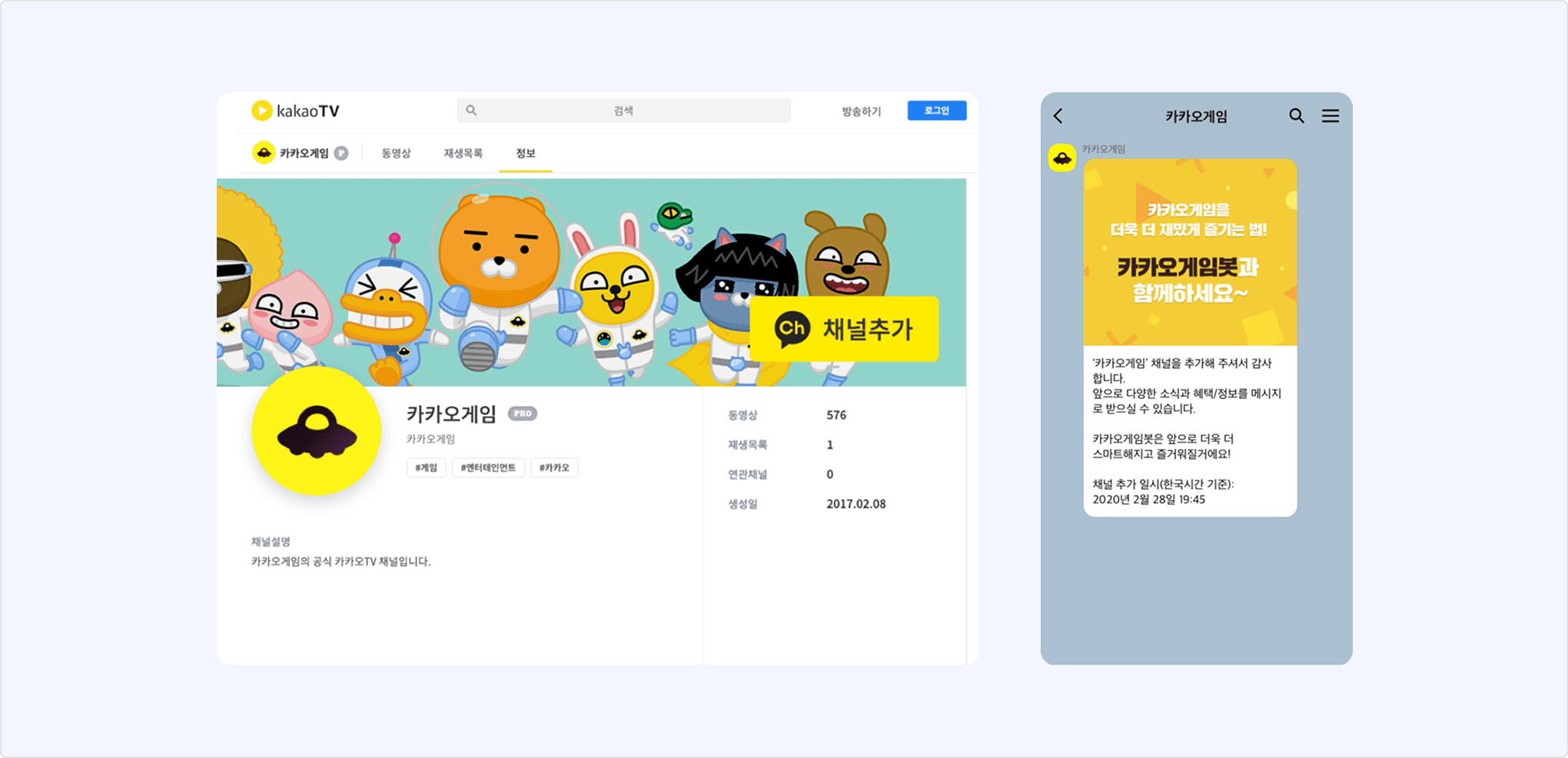
To use the Kakao Talk Channel API, the app must be connected to a Kakao Talk Channel and user consent to the [Kakao Talk Channel addition status and details] consent item is required. For instructions on connecting a Kakao Talk Channel, see Connect Kakao Talk Channel to app. For consent item settings, see Kakao Talk Channel consent item settings.
Kakao Talk Channel provides the following APIs.
- Add Kakao Talk Channel: Easy addition of Kakao Talk Channel using Kakao SDK
- Start Kakao Talk Channel chat: Open a 1:1 chat room with a Kakao Talk Channel using Kakao SDK
- Manage Kakao Talk Channel customers: Convenient customer group management for administrators
- Manage Kakao Talk Channel relationship: Efficient friend management for administrators
Process of sending a targeted message using Kakao Talk Channel customer management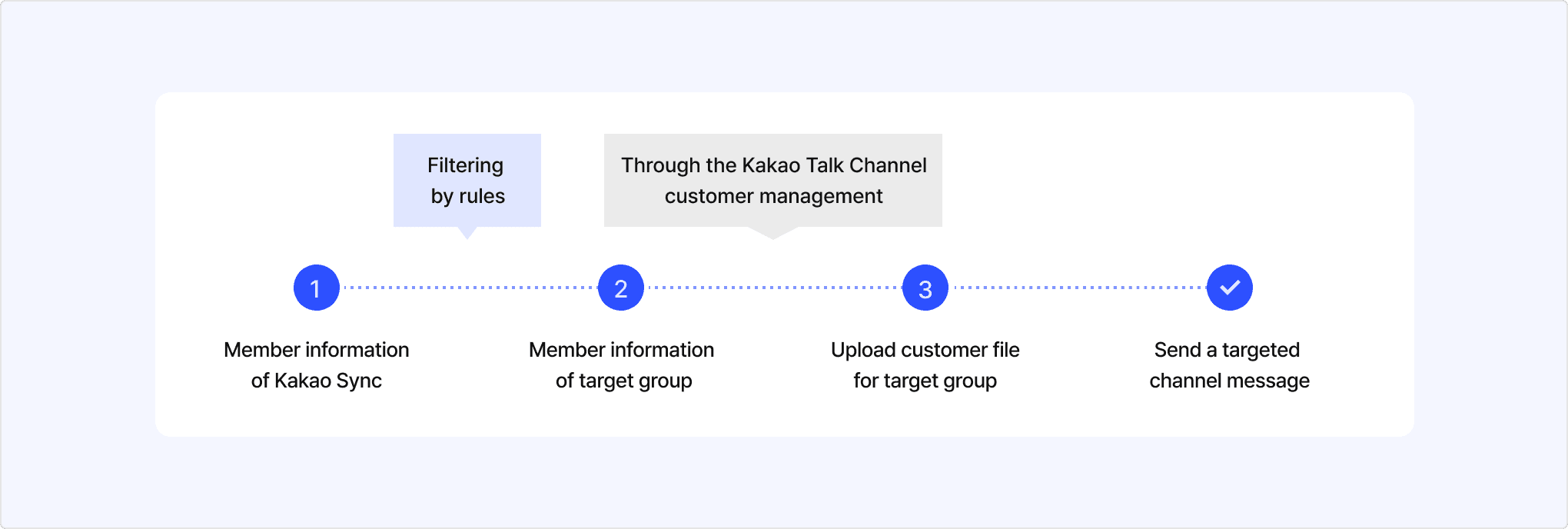
This section explains how to connect a Kakao Developers app and a Kakao Talk Channel. For how to disconnect a channel, see Connected Kakao Talk Channel.
You can connect a Kakao Talk Channel only to an app owned by the same business operator. Register identical business information in both the app and the Kakao Talk Channel, and convert them to a Biz app and a Business Channel respectively. After converting to a Biz app and Business Channel, connect the Kakao Talk Channel to the app through Request additional features. See the steps below.
You can create a Kakao Talk Channel in the Kakao Talk Channel Partner Center. For details, see Business guide > Create a channel.
To connect it to a Biz app, register the same business information as the Biz app.
- A Business Channel is a Kakao Talk Channel that Kakao has reviewed for business information and certified as a trustworthy channel.
- A verification mark is added next to the Kakao Talk Channel name to help prevent impersonation of businesses, brands, organizations, or public figures, and to build customer trust.
- Some industries—such as private loans, adult products, alcohol, tobacco, and industries harmful to minors—are restricted from Business Channel conversion to protect users.
You can convert to a Business Channel in the Kakao Talk Channel Partner Center. You can download the detailed application method and review guide from the Kakao Business Partner Center Help Center.
The Kakao Business Partner Center reviews Business Channel applications. The review takes about 3 to 5 business days. For Business Channel inquiries, contact the Kakao Business Partner Center Help Center.
To convert a Kakao Talk Channel of a foreign business operator (United States) to a Business Channel, see the documents below.
- Kakao Business guide
- Request overseas Business Channel conversion
- Official Kakao agencies in the United States
Log in with an account that has the Owner or Editor role for the app. On the app management page, go to [App] > [Request additional features] and select [Check eligibility]. Review the eligibility requirements, then agree to them.
Confirm qualifications screen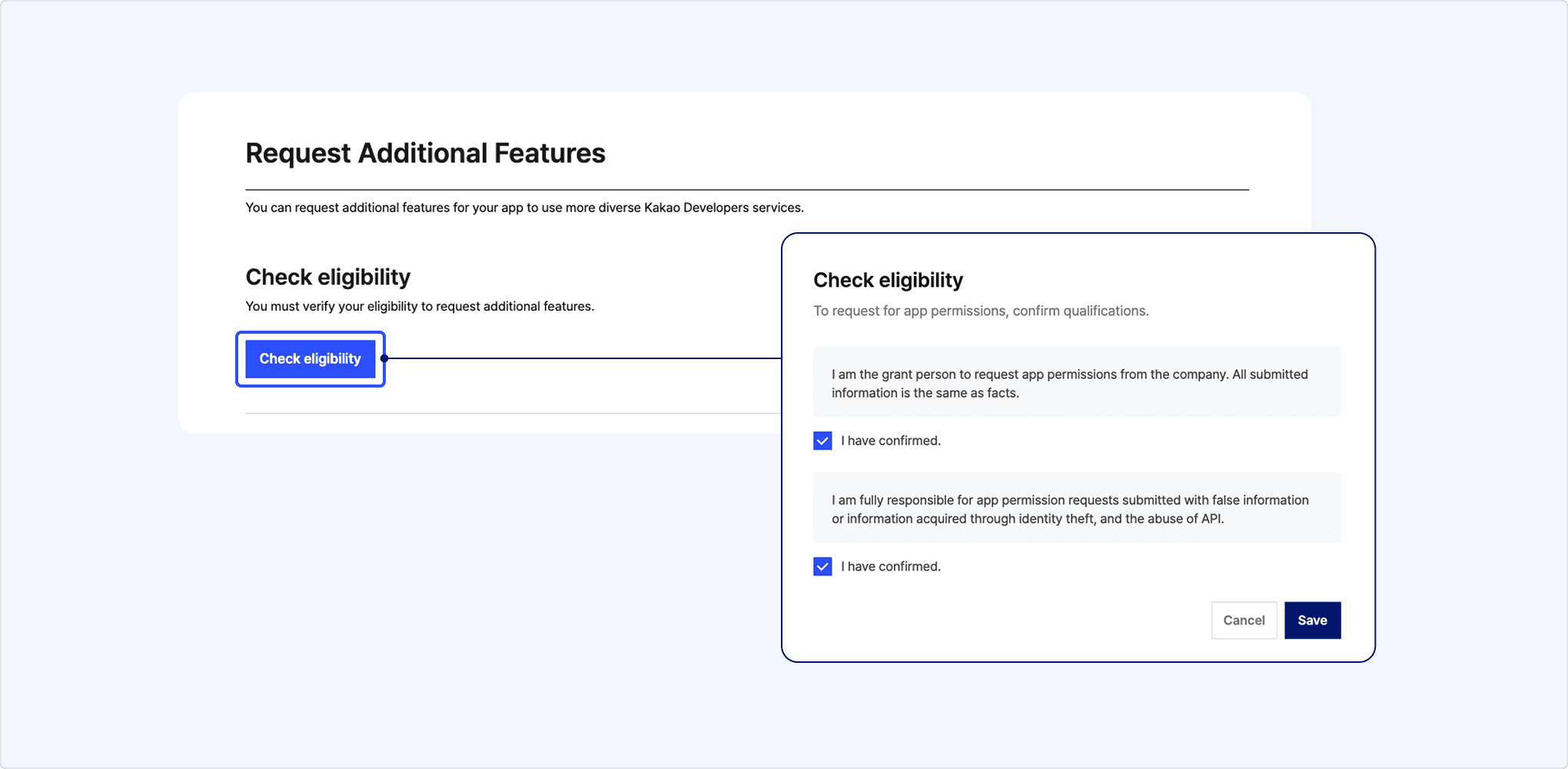
In [App] > [Request additional features] > [Additional features], select [Request] for [Connect Kakao Talk Channel]. The Connectable Kakao Talk Channel list appears. Select the desired channel to complete the application. The review takes 3 to 5 business days.
You can check connected channels in Connected Kakao Talk Channel and disconnect them if needed.
Kakao Talk Channel connection request screen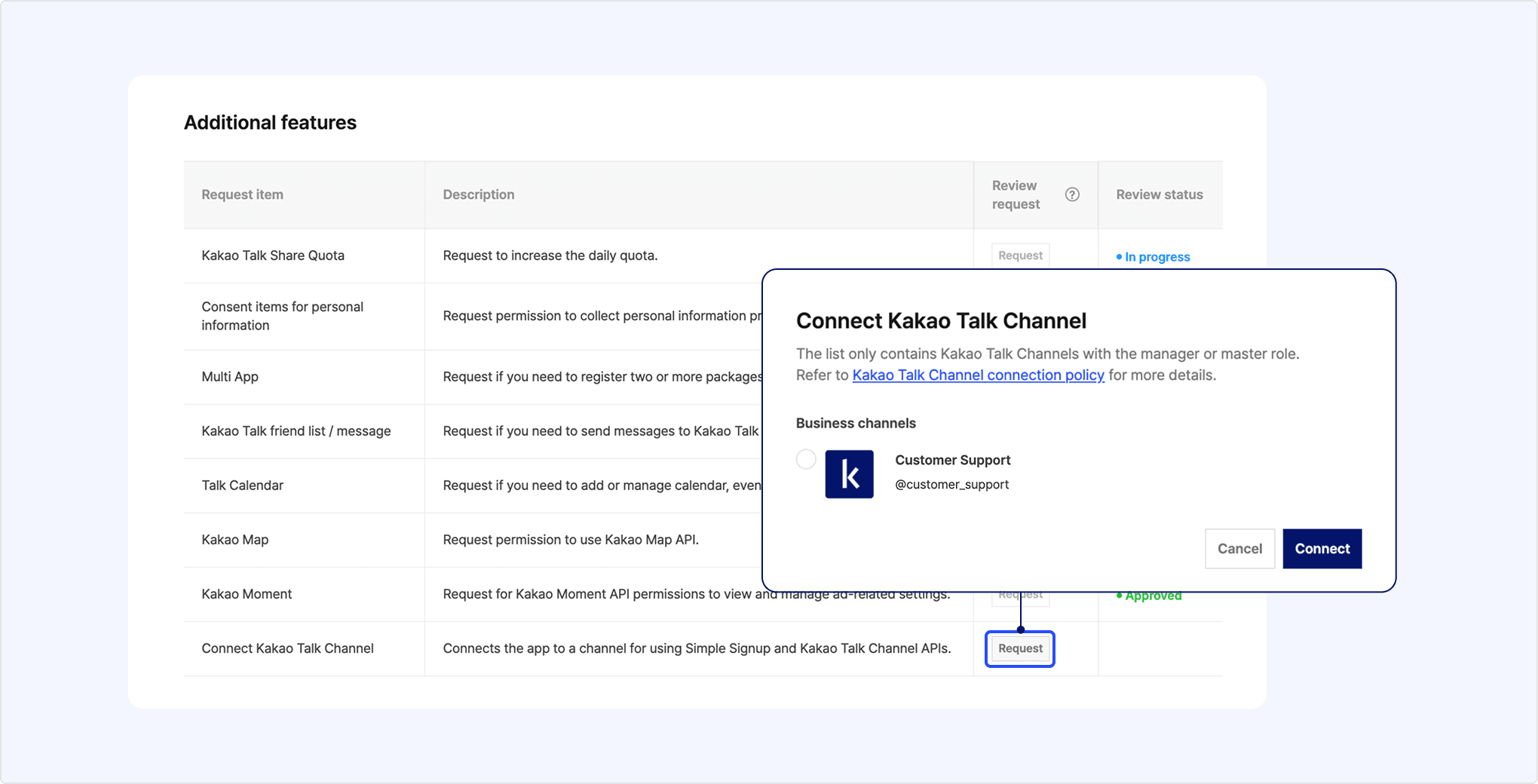
You can connect a Kakao Talk Channel to your app if it meets the conditions below.
- A channel for which you have master or manager permission.
- A channel converted to a Business Channel by registering business information.
- For Business Channels that use Kakao services such as Talk Store but do not have business information registered, register the information in [채널(Channel)] > [비즈니스 심사(Business verification)] in the Kakao Talk Channel Partner Center
- A channel with the same business information as the app.
- A channel that is not already connected to other apps.
This feature adds a specified Kakao Talk Channel and is available only through Kakao SDK. For implementation instructions by platform, see JavaScript, Android, iOS, and Flutter.
Kakao SDK provides two methods for adding a Kakao Talk Channel depending on your service environment. See the details of each method below.
| Implementation method | Method name | Service page retention | Result check |
|---|---|---|---|
| Follow Kakao Talk Channel (Recommended) | followChannel() | Directly displays the channel add screen within the service page | Result can be checked in the response of the request |
| Add Kakao Talk Channel | addChannel() | Redirects to the channel page in Kakao Talk via a connection page, and adds the channel after leaving the service page with user consent | Requires a separate check via the Retrieve Kakao Talk Channel relationship request |
Follow Kakao Talk Channel(followChannel()) is a convenient feature for adding a Kakao Talk Channel and receiving the result with only one API request. Any additional process to know the result is not required since the addition result is provided in the response.
Use the Check Kakao Talk Channel relationship API before requesting Follow Kakao Talk Channel to avoid unnecessary process and improve user experience. (Example: Service pages for the users who added the Kakao Talk Channel)
If the user is not available to add the Kakao Talk Channel, a guidance screen for each status will be provided.
Refer to the screens and guidelines below.
Display screens for follow Kakao Talk Channel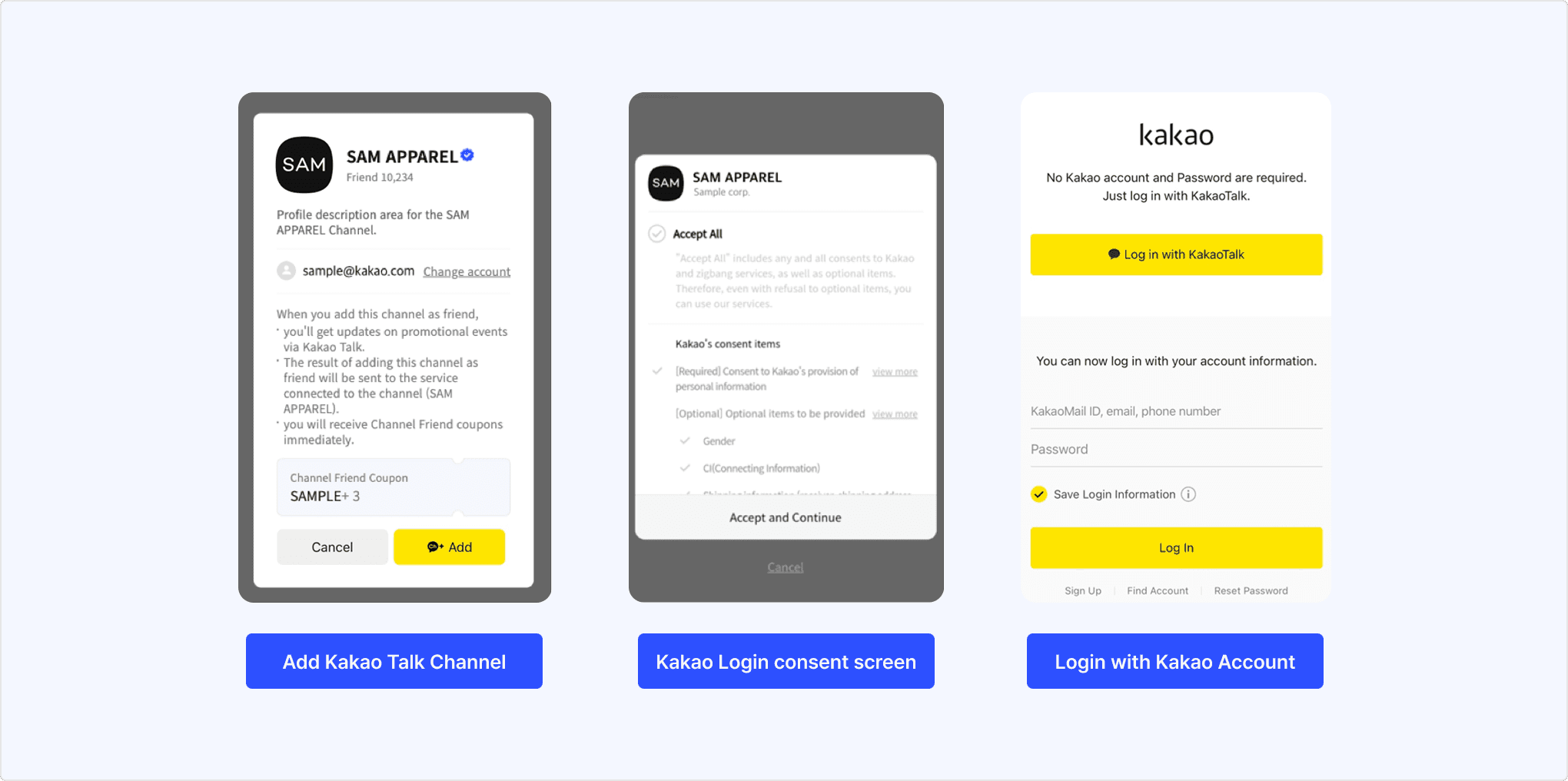
To display coupons on the Add Kakao Talk Channel screen, set [친구 모으기(Gathering friends)] > [채널추가 팝업 쿠폰(Coupons for the addition pop-up)] in Kakao Talk Channel Partner Center. After setting, users will get the coupon automatically when adding the Kakao Talk Channel.
If the service uses Kakao Login, process the request for adding Kakao Talk Channel according to the user's login status.
- Request
followChannel(). - Add Kakao Talk Channel screen will be displayed.
- Response informs whether the user added the Kakao Talk Channel.
- Request Kakao Login.
- Kakao Login consent screen will be displayed.
- Users can add the Kakao Talk Channel on the Kakao Login consent screen.
- Check Kakao Talk Channel relationship to figure out whether the user added the Kakao Talk Channel.
- If added, provide features appropriate for the situation. (Example: Promotion page for users who added the Kakao Talk Channel).
- If not added, Request Follow Kakao Talk Channel as Logged in users.
If the app has set a primary channel, users can consent to adding the Kakao Talk Channel on the Kakao Login consent screen.
If the service is not using Kakao Login, process the request for adding Kakao Talk Channel as below.
- Request
followChannel(). - Login with Kakao Account screen is displayed.
- After login, Add Kakao Talk Channel screen is displayed.
- Response informs whether the user added the Kakao Talk Channel.
Kakao Talk Channel API provided by Kakao SDK displays a bridge page for users to go to a Kakao Talk Channel. When the user accesses the bridge page, a pop-up that asks whether to move to the Kakao Talk Channel is presented. If the user accepts, the Kakao Talk app is launched through the Custom URL Scheme and moves to the corresponding Kakao Talk Channel. Users can add the Kakao Talk Channel as a friend or start a chat on the Kakao Talk Channel.
According to OS policy, some platforms restrict users from being redirected to a specific application. To avoid bad situations such as app review rejection to register in an store due to OS policy issues, this API only allows opening a bridge page.
We recommend using Follow Kakao Talk Channel instead of Add Kakao Talk Channel for more convenience in implementation.
Kakao Talk Channel chat provides a bridge page that allows users to enter a 1:1 chat room with the specified Kakao Talk Channel from your service.
This feature is available only through Kakao SDK. For implementation instructions by platform, see JavaScript, Android, iOS, and Flutter.
This section explains the Kakao Talk Channel management features provided by Kakao Developers.
You can use the Kakao Talk Channel customer file registration and management features provided in the Kakao Talk Channel Manager Center with the below API.
- Customer management: Register customer file
- Customer management: View customer file
- Customer management: Add user
- Customer management: Delete user
By uploading customer files based on user information obtained through Kakao Login or Kakao Sync Simple Signup with the Kakao Talk Channel customer management API, you can create condition-based friend groups in the Kakao Talk Channel Manager Center and send more targeted messages. For more details, see the Kakao Talk Channel Manager Center notice.
To use the Kakao Talk Channel customer management API, you must first agree to the relevant policies. For the agreement method, see Customer Management API Policy Agreement.
The Kakao Talk Channel customer management API must be called only from the server. Developer documentation can be found in REST API.
This section explains the features for checking the status and receiving notifications regarding addition and blocking of Kakao Talk Channels.
Use Check Kakao Talk Channel relationship API to figure out whether the user added the Kakao Talk Channel. This API helps to Add Kakao Talk Channel or Manage Kakao Talk Channel customers according to the addition status. Refer to the guides below.
To use Check Kakao Talk Channel relationship API, a consent item [Kakao Talk Channel addition status and details] is required, and the user must consent to the same consent item.
Use Kakao Talk Channel webhook to get notifications when the user adds or blocks the Kakao Talk Channel. This feature helps the services manage the friend list more precisely for the relationship changes out of the service.
You can check the KakaoTalk Channel ID in [채널 (Channel)] > [채널 정보 (Channel Info)] > [채널 URL (Channel URL)] on the [KakaoTalk Channel Partner Center]. The value after excluding the https://pf.kakao.com/ part of the channel URL is the profile ID of the KakaoTalk Channel. See the example below.
- Channel URL:
https://pf.kakao.com/_ZeUTxl - Channel ID:
_ZeUTxl
If you need a test Kakao Talk Channel that does not affect the service, you can create a developer channel by selecting [개발자용 채널 만들기(Create developer channel)] in the Kakao Talk Channel Partner Center. At least one Business Channel is required for the button to be displayed. Connect the developer channel to the test app, and set it as the primary channel for use.
To use the Check Kakao Talk Channel relationship API after connecting Kakao Talk Channel to the app, set up consent items and obtain the user's consent. In the app management page [App] > [Kakao Login] > [Consent Items], set [Kakao Talk Channel addition status and history (plusfriends)] to [Required consent] or [Optional consent] as the consent level. This consent item can only be set when a Kakao Talk Channel is connected to the app.
Refer to Scope of support to know whether each Kakao SDK supports each feature.
| API | Method | URL | Description |
|---|---|---|---|
| Check Kakao Talk Channel relationship | GET | https://kapi.kakao.com/v2/api/talk/channels | Returns the relationship between the current user and Kakao Talk Channels connected to your app. |
| Check multiple users' Kakao Talk Channel relationship | GET | https://kapi.kakao.com/v2/api/talk/channels/multi | Returns the relationships between multiple users and Kakao Talk Channels connected to your app. |
| Customer management: Register customer file | POST | https://kapi.kakao.com/v1/talkchannel/create/target_user_file | Registers a new customer file. |
| Customer management: View customer file | GET | https://kapi.kakao.com/v1/talkchannel/target_user_file | Returns customer file information registered for a Kakao Talk Channel. |
| Customer management: Add user | POST | https://kapi.kakao.com/v1/talkchannel/update/target_users | Adds user information to the customer file. |
| Customer management: Delete user | POST | https://kapi.kakao.com/v1/talkchannel/delete/target_users | Deletes a specific user from one of your customer files registered in the Kakao Talk Channel. |