
This document guides you on how to use the Kakao Sync Simple Setup popup for e-commerce platforms (E-Commerce Platform, hereinafter hosting services) that provide shopping mall hosting services.
This document includes How to use the Kakao Sync Simple Setup popup for shopping malls that adopt Kakao Sync through a hosting service, and a Development guide for the hosting service's prerequisite integration work. If you encounter issues during development or setup, see FAQ.
Adopting Kakao Sync for shopping malls based on a hosting service is available only through hosting services that have completed the prerequisite integration. Each shopping mall can apply Kakao Sync through the Simple Setup popup by referring to the hosting service's setup guide.
The following are hosting services that support the Kakao Sync Simple Setup popup and their setup guide information.
| Hosting service | Setup guide |
|---|---|
| Cafe24 | Go |
| Makeshop | Go |
| Sixshop | Go |
| Wisa | Go |
| Imweb | Go |
| Gabia | Go (Firstmall) Go (Clickn) |
| NHN COMMERCE | Go (Shopby Premium) Go (Shopby Basic/Pro) Go (Godomall) |
| Sellerhub | Go (Sixshop Pro) |
The Kakao Sync Simple Setup popup is a popup-style web page that helps shopping mall operators easily adopt Kakao Sync from the hosting service's settings menu. With the Simple Setup popup, shopping mall operators can use the following features.
- Kakao Business integrated signup
- Create a Kakao Developers app
- Create a Kakao Talk Channel
- Apply Kakao Sync
Each shopping mall operator can launch the Kakao Sync Simple Setup popup by selecting Use Kakao Sync in the hosting service's settings menu. You can complete Kakao Sync adoption with a simple three-step process, and Kakao receives basic application information from the hosting service through the Retrieve shopping mall information API to guide the procedures required for the Kakao Sync application.
After Kakao Sync adoption is completed through the Kakao Sync Simple Setup popup, you can use the Kakao Simple Signup service on that shopping mall's homepage.
A webhook feature is also provided so that shopping mall information changed in the hosting service's settings menu can be reflected in the Kakao Sync settings. With this feature, shopping mall operators can adopt Kakao Sync or change shopping mall information without visiting the Kakao platform.
Shopping mall operators can easily adopt Kakao Sync through the Kakao Sync Simple Setup popup. The Kakao Sync Simple Setup popup is available only through hosting services that have completed the prerequisite integration.
Shopping mall operators can open the Kakao Sync Simple Setup page by selecting [Use Kakao Sync] in the settings menu of the hosting service they use. After that, they can easily complete Kakao Sync adoption through a simple three-step process, and Kakao Simple Signup is applied to the shopping mall homepage immediately upon completion.
Kakao Sync Simple Setup popup integration process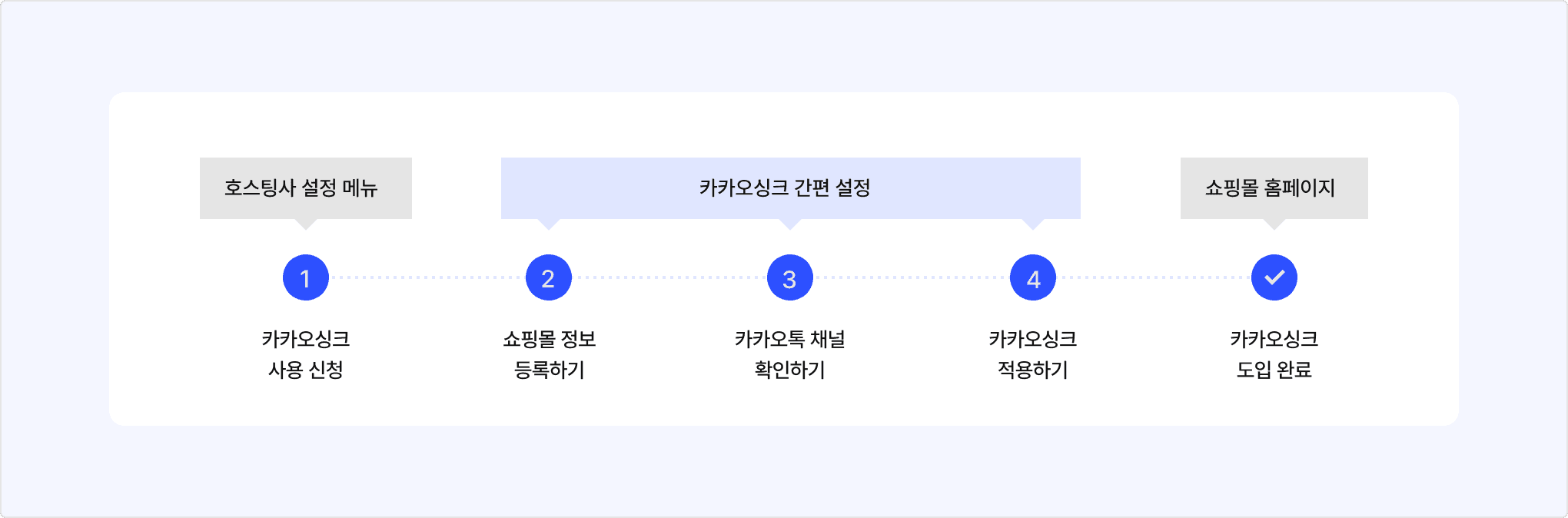
Below is a detailed guide for each step. If you have questions or need help during setup, see FAQ or request 1:1 consultation with the [Contact us] button on the Simple Setup page.
This step registers the shopping mall information to which Kakao Sync will be applied. The registered shopping mall information is displayed as-is on the Kakao Simple Signup Consent screen, so make sure the shopping mall information is set correctly.
If shopping mall information is already registered, the following screen appears.
Simple Signup settings screen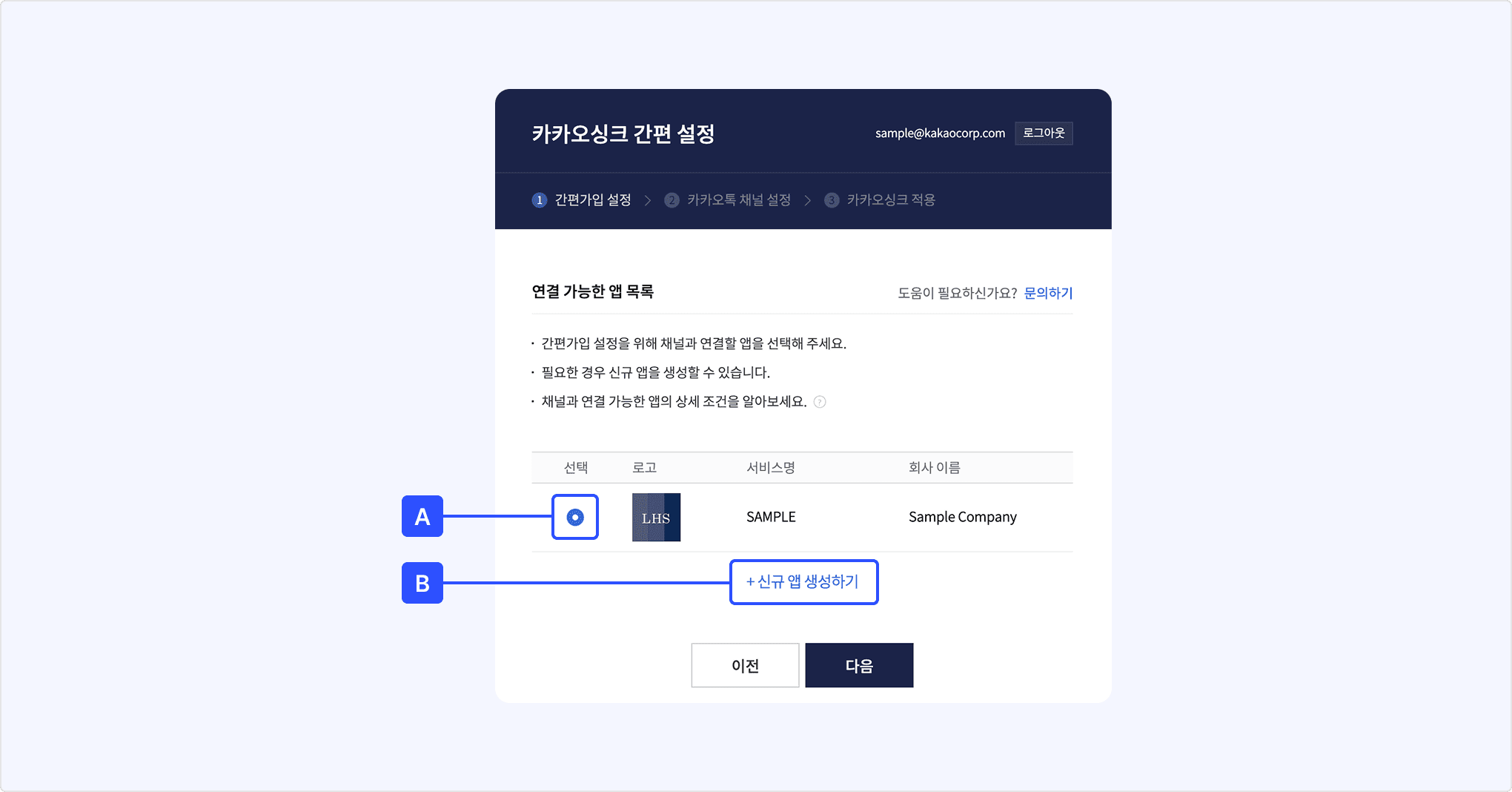
[A] Select the shopping mall information to apply Kakao Sync to, then proceed to the next step.
[B] You can also create a new app by selecting the [Create new app] button. However, creating a new app is recommended only when necessary. You can operate a maximum of 10 apps with Owner permission per account.
If no shopping mall information is registered, or if you select [B] [Create new app], the following screen appears.
Create new app screen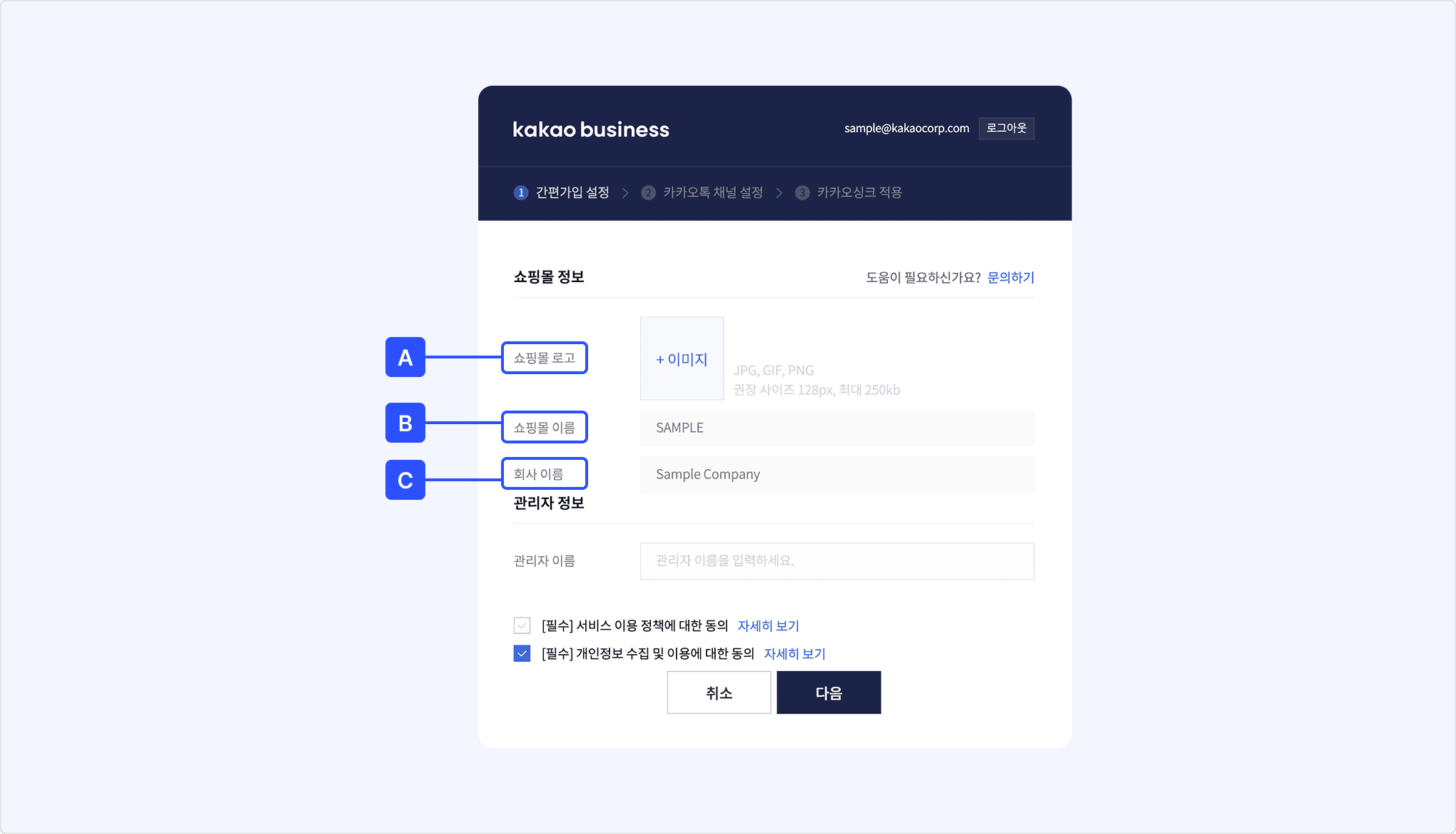
[A] Shopping mall logo: Register the shopping mall logo according to the guide. Use the shopping mall's representative image whenever possible.
[B] Shopping mall name: Automatically filled with the name of the shopping mall you operate. You can edit the name as needed.
[C] Company name: Automatically filled with the company name (trade name, corporation, or organization name) of the shopping mall you operate. You can edit the name as needed.
This step selects the channel to display on the Kakao Simple Signup Consent screen. The selected channel information is displayed as-is on the Simple Signup Consent screen, so make sure the channel information is set correctly.
If you already operate a Kakao Talk Channel, the following screen appears.
Kakao Talk Channel settings screen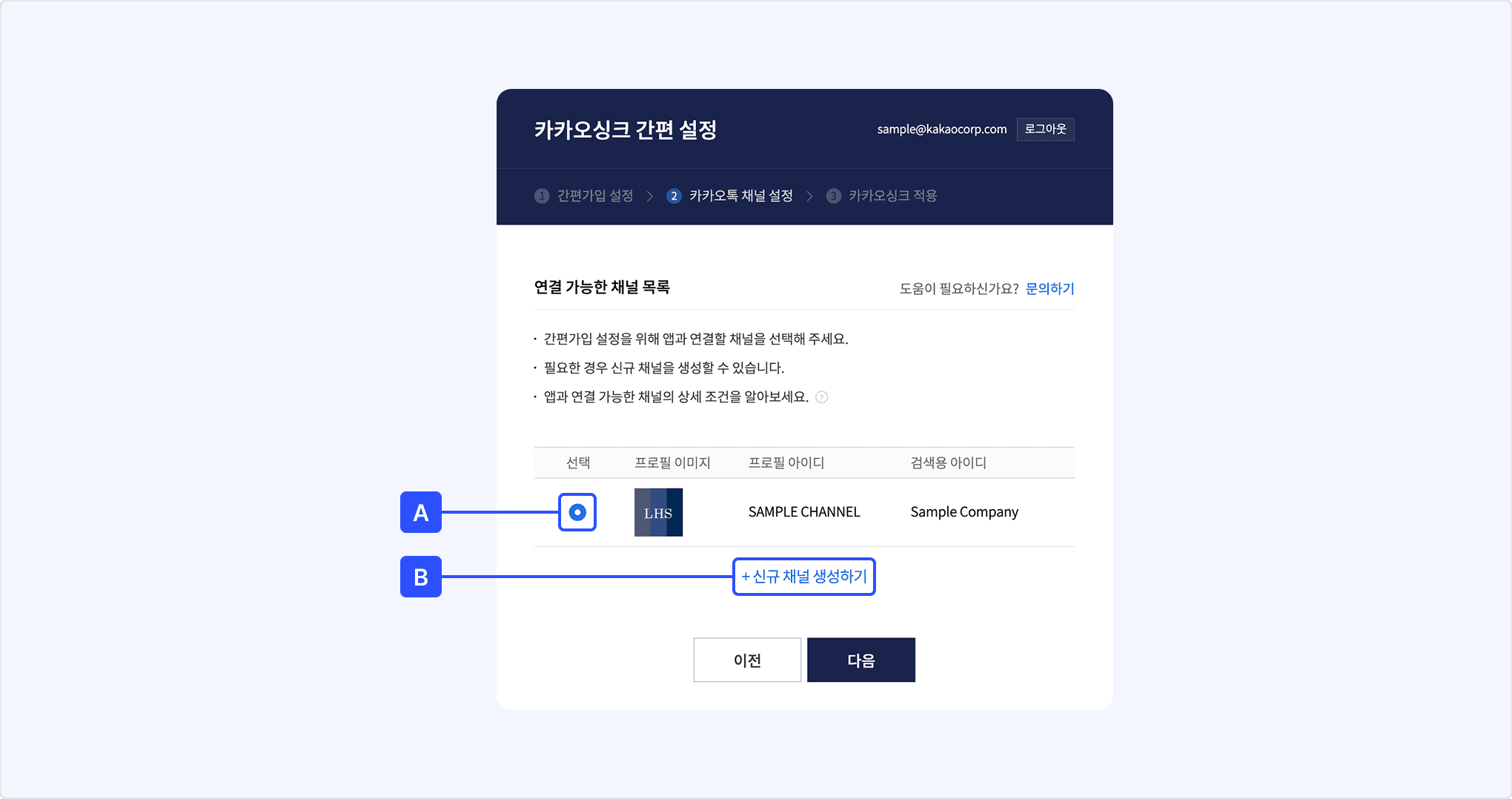
[A] Select the channel information to display on the Simple Signup Consent screen, then proceed to the next step.
[B] You can also create a new channel by selecting the [Create new channel] button. However, creating a new channel is recommended only when necessary. You can operate a maximum of 10 channels with Master permission per account.
If you do not operate a Kakao Talk Channel, or if you select [B][Create new channel], the following screen appears.
Create Kakao Talk Channel screen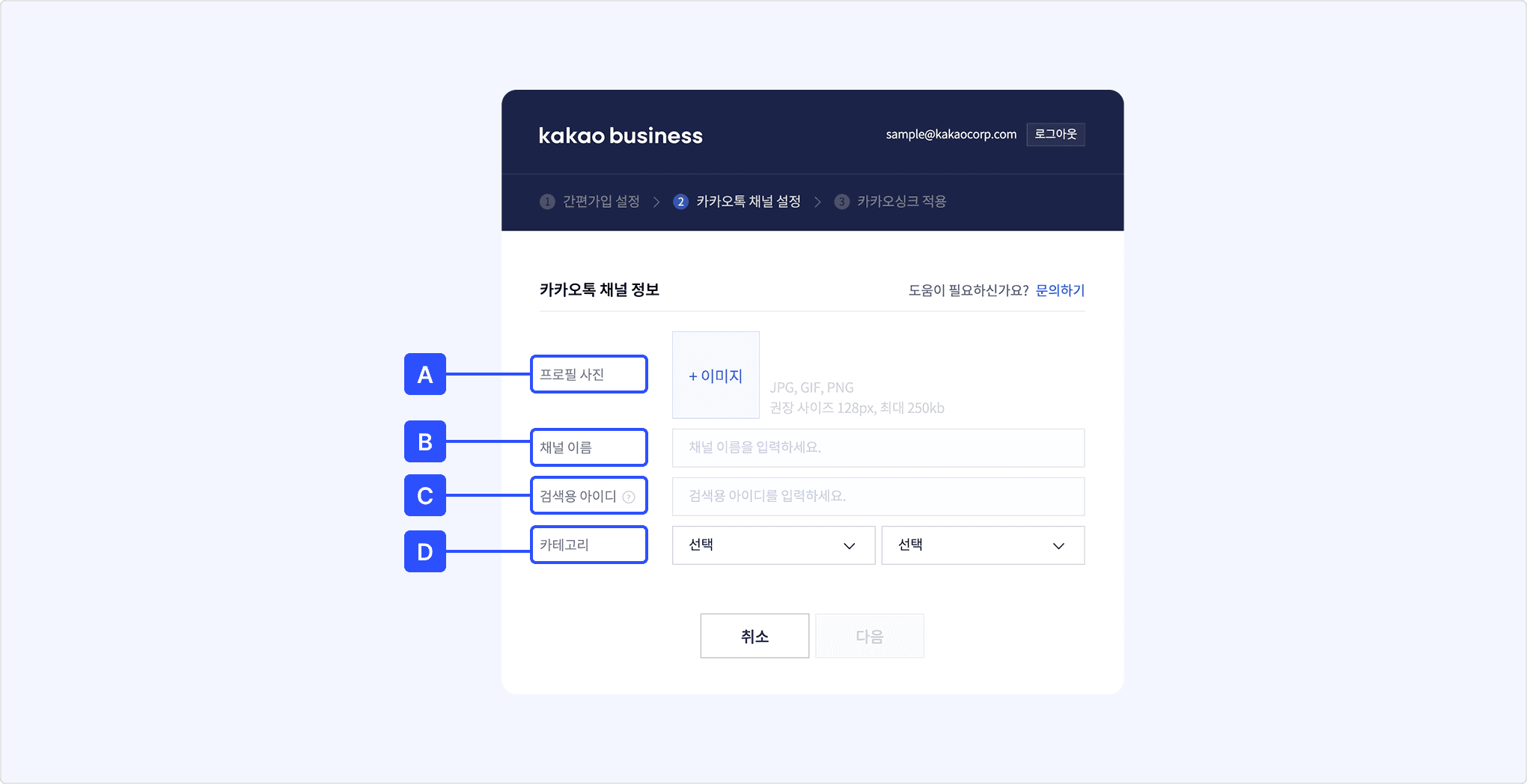
[A] Profile photo: Register the shopping mall logo according to the guide. Use the shopping mall's representative image whenever possible.
[B] Channel name: Automatically filled with the name of the shopping mall you operate. You can edit the name as needed.
[C] Search ID: The unique ID of the shopping mall channel. It is used when searching for the channel, and creating the same ID is not allowed.
[D] Category: Set the category of the shopping mall channel to match the business type.
After completing Simple Signup settings and Kakao Talk Channel settings, you can apply Kakao Sync.
Check the shopping mall information, Business channel, and automatic setup details to apply Kakao Sync, then complete the Kakao Sync Simple Signup settings. Kakao Simple Signup is applied to the shopping mall homepage immediately upon completion.
Apply Kakao Sync screen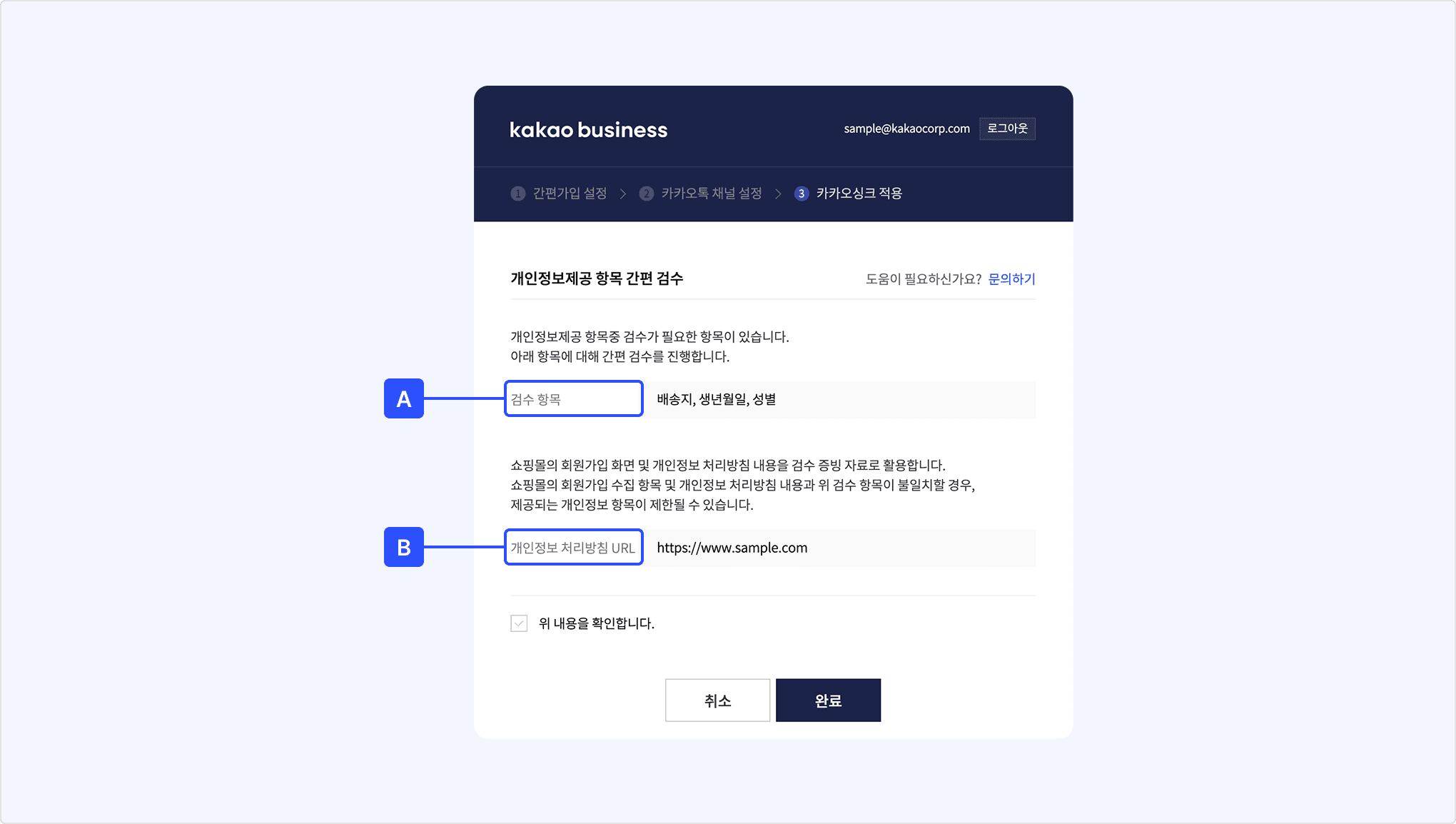
[A] This screen appears if any of birthday, shipping address, gender, age range, name, or phone number is set as optional or required collection for shopping mall signup. It is displayed based on the personal information collection items set for the shopping mall in each hosting service, and you cannot edit these items directly in the Kakao Sync Simple Setup popup.
[B] Enter the shopping mall's Privacy Policy URL to confirm the collection items. It is displayed based on the service terms URL of the shopping mall managed by each hosting service, and you cannot edit the Privacy Policy URL directly in the Kakao Sync Simple Setup popup.
Confirm Kakao Sync application details screen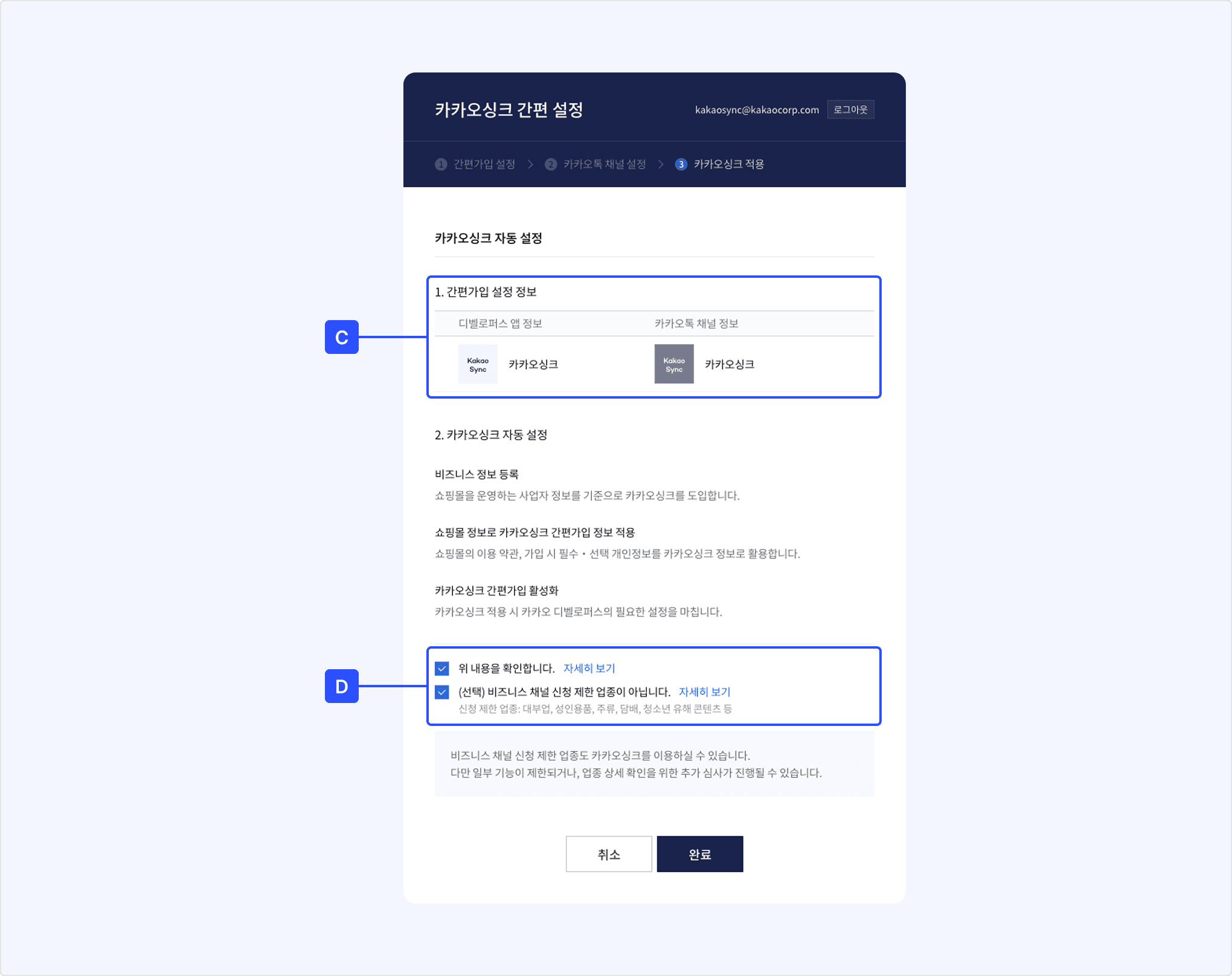
[C] Check that the shopping mall information (Kakao Developers app information) and Kakao Talk Channel information to apply Kakao Sync to are correct. If the app or channel selection is wrong, select [Cancel] to go back to the previous step and edit the selection, or create a new app or channel.
[D] If there are no issues when checking the settings, select the checkbox and then select [Complete] to apply Kakao Sync to the shopping mall.
This section guides you on how to develop Kakao Sync for hosting services that provide the Kakao Sync Simple Setup popup feature.
To support Kakao Sync Simple Setup, a hosting service must implement the following features and complete the prerequisite integration development. See each item for detailed development guides.
| Feature | Description |
|---|---|
| Retrieve shopping mall information API | Provides an API that delivers shopping mall information to Kakao to support Kakao Sync Simple Setup. Through this API, you deliver to Kakao each shopping mall's signup information items and service terms information that are required when configuring Kakao Simple Signup consent items. |
| Call the Kakao Sync Simple Setup popup | Enables each shopping mall operator to call the Kakao Sync Simple Setup page from the hosting service's settings menu. |
| Kakao Sync setup result webhook | Receives and processes the webhook that notifies the Kakao Sync Simple Setup result. |
| Kakao Sync information change webhook | A webhook used to also change the Kakao Sync settings registered with Kakao when shopping mall settings are changed in the hosting service's settings menu. |
| Retrieve app information API | Used when the hosting service wants to retrieve the shopping mall's Kakao Sync app settings. You can optionally use this when the hosting service settings and Kakao settings do not match, such as when a shopping mall operator changes settings in Kakao Developers instead of the hosting service's settings menu. |
In addition, each shopping mall needs the following features to use Kakao Simple Signup, so the hosting service must support them through the prerequisite integration so that shopping malls can use the required features.
| Feature | Description |
|---|---|
| Kakao Login | You must support Kakao Login and Kakao Simple Signup as shopping mall login methods. |
| Retrieve consent details for service terms API | Call this API to check the service terms the user consented to in order to use the shopping mall, and to allow signup or login only when the required consents are completed. |
| Retrieve user information API | Call this API to receive information about users who logged in through Kakao Login and Kakao Simple Signup. |
| Retrieve shipping address API | Call this API to receive shipping address information of users who logged in through Kakao Login and Kakao Simple Signup. |
| Auto-login from Kakao Talk | A convenience feature that automatically logs the user in with Kakao Login when the user accesses the shopping mall from the Kakao Talk in-app browser, so that the product purchase flow is shortened. |
The following is the process by which a shopping mall applies for Kakao Sync through the Kakao Sync Simple Setup popup.
Process for a shopping mall to apply for Kakao Sync through the Kakao Sync Simple Setup popup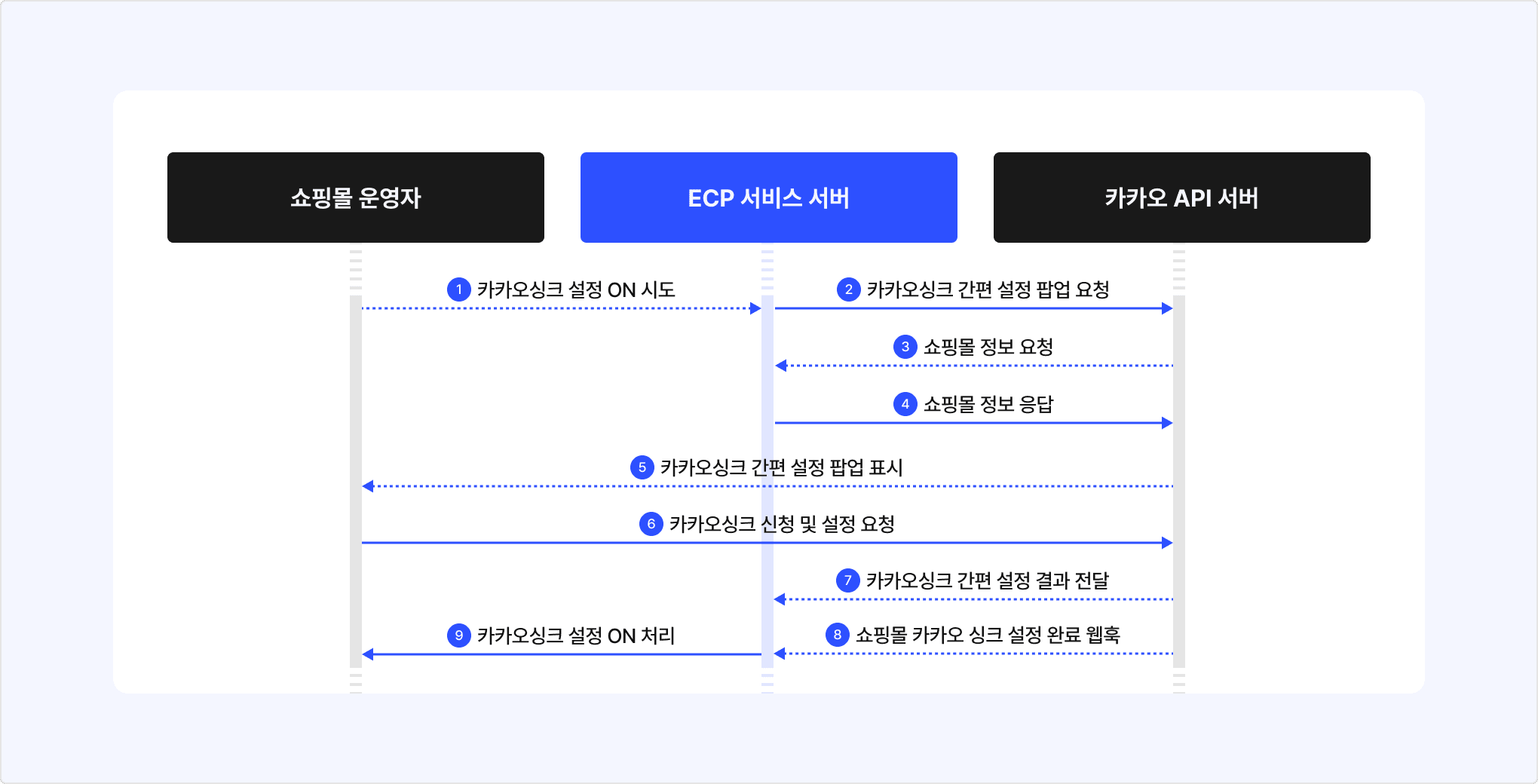
- The shopping mall operator requests Kakao Sync application from the hosting service's settings menu.
- The hosting service calls the Kakao Sync Simple Setup popup.
- Kakao requests the shopping mall's app information from the hosting service.
- The hosting service delivers the shopping mall's app information to Kakao.
- Kakao displays the Kakao Sync Simple Setup popup to the shopping mall operator.
- The shopping mall operator requests Kakao Sync application by following the guidance.
- Kakao delivers the Kakao Sync Simple Setup popup result to the hosting service.
- Kakao delivers a webhook containing the shopping mall's Kakao Sync application review result to the hosting service server.
- The hosting service updates the shopping mall's Kakao Sync settings information.
When supporting Kakao Sync integration, there are items that require discussion between Kakao and the hosting service. Discuss them in advance between both parties because they may affect integration policies and development work. The items that require discussion are as follows.
- Agree on shopping mall service terms tag criteria (consent processing support).
- Kakao Sync settings UI on the shopping mall admin screen, and notifications when setup is completed or canceled.
- Confirm whether Kakao Account profile (nickname, profile photo) is used and how user information is collected.
- Agree on policies for Connecting Information (CI).
- Kakao Sync signup and login button wording.
- Shopping mall Redirect URI rules.
- Policy when a required shopping mall signup value is not in the Kakao Account user information.
- Account mapping policy for existing members (regular signup members, Kakao Login signup members).
- User information update policy when Kakao Account user information changes.
- Policy when a shopping mall member unlinks from the shopping mall app in Kakao Developers.
- Processing policy in the shopping mall app when a shopping mall member withdraws.
- Use of auto-login that skips shopping mall login in the Kakao Talk in-app browser.
- Select Kakao Pay as the default payment method when displaying the shopping mall order form in the Kakao Talk in-app browser.
| Method | URL | Authorization |
|---|---|---|
GET | https://sync4ecp.kakao.com/dialog/connect |
| Requirements | See also |
|---|---|
When a shopping mall operator requests Kakao Sync application from the hosting service's shopping mall management menu, call the Kakao Sync Simple Setup popup using a URL in the following format.
- Before calling the popup, create a Developers app for the hosting service and request usage permission from your Kakao contact. After the permission is applied, save the site domain information for calling the popup in the app platform information.
storeKeyis the shopping mall's unique code and is an identifier used between Kakao and the hosting service to identify a specific shopping mall. Kakao uses thestoreKeyvalue in the Kakao Sync Simple Setup popup call URL for the Kakao Sync setup result webhook.- Before displaying the popup, Kakao requests the target shopping mall information from the hosting service through the Retrieve shopping mall information API. The hosting service must deliver the shopping mall information registered with the hosting service to Kakao in the specified response format.
- With this popup, shopping mall operators can complete Kakao Sync preparation and setup by following Kakao's guidance. When the Kakao Sync Simple Setup popup closes, it delivers success or failure to
openerwithwindow.opener.postMessage({data}, targetOrigin). Refer to the samples below.
| Method | URL | Authorization |
|---|---|---|
GET | https://${전자상거래플랫폼URL}/.../${storeKey} |
|
| Requirements | See also |
|---|---|
| - |
The Retrieve shopping mall information API is an API through which Kakao requests the target shopping mall's Kakao Sync settings information from the hosting service.
- Used to enter basic information when applying for Kakao Sync through the Kakao Sync Simple Setup popup.
- Used to retrieve the shopping mall's latest Kakao Sync settings information when the Kakao Sync information change webhook is received.
| Name | Type | Description |
|---|---|---|
| appKey | String | REST API key of the shopping mall |
| business | Business[] | Shopping mall business information |
| siteData | SiteData[] | Shopping mall information |
| sync | Sync[] | Kakao Sync settings information |
| Name | Type | Description |
|---|---|---|
| identificationNumber | String | Business registration number or unique number |
| name | String | Shopping mall company name (trade name, corporation, or organization name) |
| representativeName | String | Representative name |
| category | String | Business type |
| categoryItem | String | Business item |
| address | Address | Business address |
| Name | Type | Description |
|---|---|---|
| zipcode | String | Postal code of the business address |
| baseAddress | String | Address line 1 of the business address |
| detailAddress | String | Address line 2 of the business address |
| Name | Type | Description |
|---|---|---|
| name | String | Shopping mall name |
| url | String | Shopping mall representative domain |
| image | String | Shopping mall logo image URL |
| Name | Type | Description |
|---|---|---|
| items | Item[] | List of shopping mall signup information items User information that must be provided for Kakao Login and Kakao Simple Signup, used for the shopping mall's consent item settings |
| privacyPolicyUrl | String | Shopping mall Privacy Policy URL |
| terms | Term[] | List of service terms |
| url | String[] | Shopping mall domains All domains used by the shopping mall |
| redirectUri | String[] | Shopping mall Redirect URI to receive the authorization code (authorize_code) |
| Name | Type | Description |
|---|---|---|
| type | Enum | Shopping mall signup information item
|
| required | Boolean | Whether the shopping mall signup information is required or optionaltrue for a required consent item,false for an optional consent item |
| Name | Type | Description |
|---|---|---|
| title | String | Title of each service term (Korean and English separately) |
| url | String | Detail page URL of each service term May be empty if there is no separate detail page, such as for SMS consent or email marketing consent |
| tag | String | Tag of each service term |
| required | Boolean | Whether each service term is required or optionaltrue for a required consent service termfalse for an optional consent service term |
If a consent item for verifying user age information (14 years of age or older) is required, you must deliver the service terms tag as user_age_check. Discussion on this tag is not allowed.
| Method | URL | Required response format | Authorization |
|---|---|---|---|
POST | Webhook URL agreed upon in advance between Kakao and the hosting service | - |
|
| Requirements | See also |
|---|---|
| - |
This is a webhook that Kakao sends to the hosting service, delivering Kakao Sync application, information change, and cancellation details to the hosting service.
- The webhook includes the shopping mall's primary platform key, the shopping mall unique code or ID, the shopping mall's Kakao Sync information change details, and the setup result.
- Use a webhook URL agreed upon in advance between Kakao and the hosting service.
- Check the response code that the hosting service returns to Kakao to complete the Kakao Sync setup.
POSTmethod- Use the pre-agreed webhook URL
| Name | Type | Description | Required |
|---|---|---|---|
| restApiKey | String | Shopping mall primary REST API key value | O |
| jsAppKey | String | Shopping mall primary JavaScript key value | O |
| storeKey | String | Shopping mall unique code or ID | O |
| data | Data | Detailed setup result information | O |
| Name | Type | Description | Required |
|---|---|---|---|
| type | String | Fixed to KAKAO_SYNC. | O |
| action | String | connect when setting up Kakao Syncdisconnect when canceling setupedit when changing information | O |
| result | String | success | O |
| Method | URL | Required response format | Authorization |
|---|---|---|---|
POST | https://sync4ecp.kakao.com/api/v1/sync4ecp/sync/modification | - |
| Requirements | See also |
|---|---|
This is a webhook that the hosting service sends to Kakao, delivering the change when the shopping mall's Kakao Sync information changes due to changes in the hosting service's settings menu.
- The webhook is called in the following cases.
- Change to the shopping mall's signup collection items
- Change to the shopping mall's signup service terms
- Change to the shopping mall's domain and Redirect URI
- Cancellation of Kakao Sync setup
- The webhook must include the shopping mall's primary REST API key, the shopping mall unique code or ID, and the shopping mall's Kakao Sync information change details.
- Only the information that the shopping mall's Kakao Sync settings were changed (
edit) or canceled (disconnect) is delivered. Kakao checks the detailed Kakao Sync settings changes of the shopping mall by calling the Retrieve shopping mall information API and then reflects them on the Kakao platform.
| Name | Type | Description | Required |
|---|---|---|---|
| storeKey | String | Shopping mall unique code or ID | O |
| appKey | String | REST API key linked to the shopping mall | O |
| data | Data | Detailed change information | O |
| Name | Type | Description | Required |
|---|---|---|---|
| type | String | Fixed to KAKAO_SYNC. | O |
| action | String | edit when changing Kakao Sync settingsdisconnect when canceling setup | O |
| Method | URL | Authorization |
|---|---|---|
GET | https://kapi.kakao.com/v1/ecp_app |
| Requirements | See also |
|---|---|
You can directly retrieve the Kakao Sync settings of a shopping mall app using the Retrieve app information API. This is not required.
Use the hosting service's app Admin key in the request header, and use the shopping mall app's REST API key or JavaScript key received through the Kakao Sync setup result webhook in the request parameter.
| Name | Description | Required |
|---|---|---|
| Authorization | Authorization method, request authorization with the hosting service app Admin keyAuthorization: KakaoAK ${ECP_APP_ADMIN_KEY} | O |
| Content-Type | Request data typeContent-Type: application/x-www-form-urlencoded;charset=utf-8 | O |
| Name | Type | Description | Required |
|---|---|---|---|
| target_app_key | String | REST API key or JavaScript key of the shopping mall app received through the Kakao Sync setup result webhook | O |
| Name | Type | Description |
|---|---|---|
| ecp_type | String | Hosting service MAKESHOP/SIXSHOP/CAFE24, etc. |
| ecp_key | String | Service key managed by the hosting service Retrieved from the Kakao Sync Simple Setup popup |
| ecp_on | Datetime | Time when the shopping mall app was last modified and completed through the Kakao Sync Simple Setup popup |
| app_id | Integer | ID of the shopping mall app registered in Kakao Developers |
| app_name | String | Service name |
| company | String | Service company name |
| biz_registration_num | String | Business registration number |
| website_domains | String[] | Web domains Referrer check when using Kakao Talk Share with a JavaScript key |
| redirect_uris | String[] | Redirect URI to navigate to after Kakao authentication is completed |
| app_keys | AppKey | Primary keys of the shopping mall app |
| app_scopes | AppScope[] | List of consent items used by the app |
| service_terms | ServiceTerm[] | Simple Signup settings (tag, title_ko, title_en, required, order) |
| kakao_talk_channels | KakaoTalkChannel[] | Plus Friend information shown on the Consent screen (public_id, name, uuid) |
| Name | Type | Description |
|---|---|---|
| JAVASCRIPT_KEY | String | Primary JavaScript key |
| REST_API_KEY | String | Primary REST API key |
| NATIVE_APP_KEY | String | Primary native app key |
| Name | Type | Description |
|---|---|---|
| id | String | Consent item ID |
| display | String | Korean name representing the consent item |
| level | Enum | Consent item setting status
|
| collecting | Boolean | Whether [Collect and provide information with Kakao Account] is turned on |
| Name | Type | Description |
|---|---|---|
| tag | String | tag of the service term |
| title_ko | String | Korean title of the service term |
| title_en | String | English title of the service term |
| required | Boolean | Whether consent to the service term is required |
| order | Integer | Display order of the service term |
| Name | Type | Description |
|---|---|---|
| public_id | String | public id of the Kakao Talk Channel |
| name | String | Name of the Kakao Talk Channel |
| uuid | String | Search id of the Kakao Talk Channel |
For frequently asked questions during Kakao Sync Simple Setup integration for hosting services, see FAQ.