
This document explains how to use the Kakao Sync Plugin (hereinafter Sync Plugin).
Kakao Sync is more effective when used together with various platform services, including Kakao Talk Channel. In particular, using it with Kakao Talk Channel—an essential element of Kakao Sync—enables efficient member management and marketing.
A chatbot is one of the features supported by Kakao Talk Channel. Services can easily create a Kakao Talk chatbot using the Chatbot Partner Center, and users can use the service in a Kakao Talk chat room through the chatbot. Applying Kakao Sync Simple Signup to a chatbot lets users conveniently sign up for and use the service through the chatbot.
The Sync Plugin is an additional feature that provides a smooth signup flow when using Kakao Sync in a chatbot. When a user chatting with a chatbot requests a feature that requires service member login, it lets the user easily log in and sign up through a Half-View Consent screen that appears inside the chat room, then continue the conversation.
Sync Plugin example screen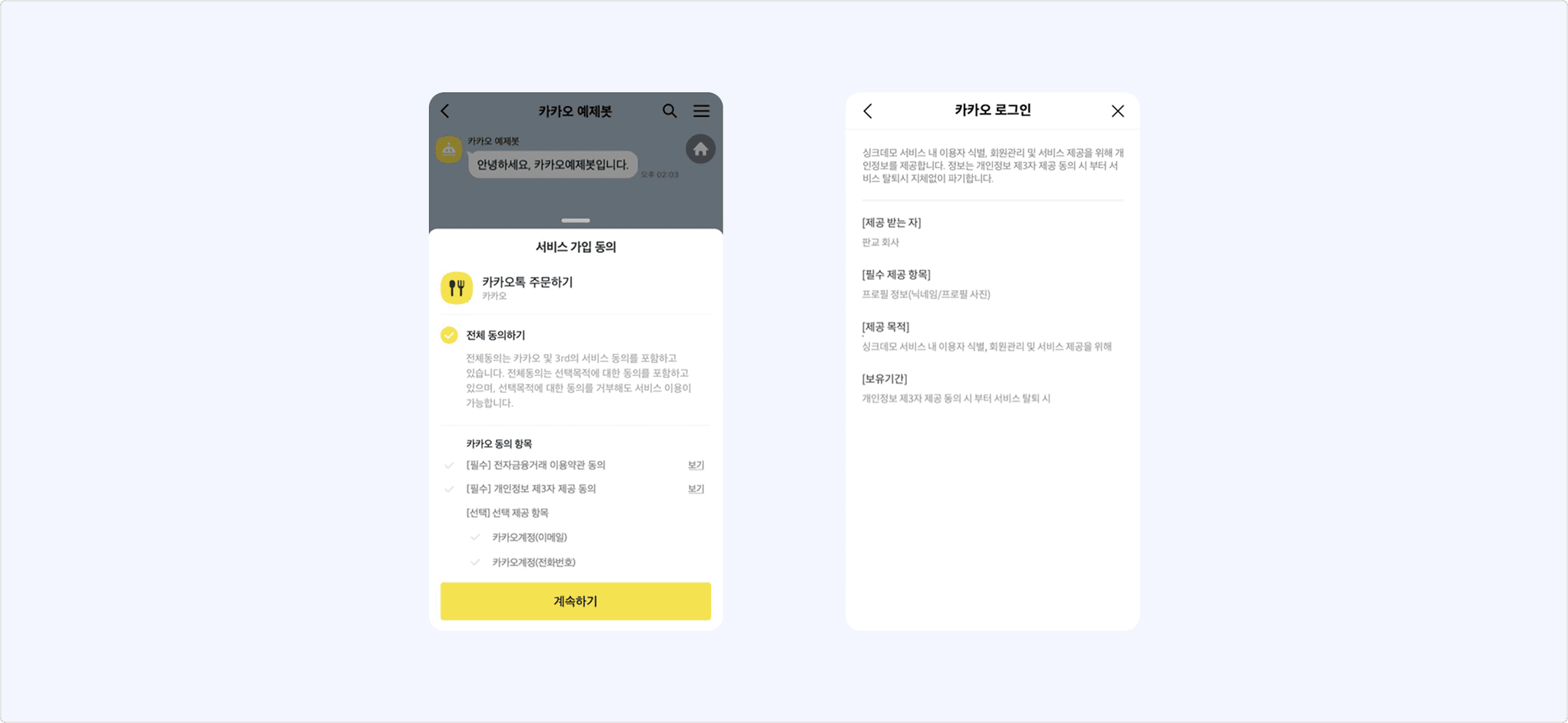
This feature completes the login process inside a Kakao Talk Channel chat room by using specific parameters in the Kakao Login request. Because it works similarly to the Kakao Login REST API that follows the OAuth 2.0 standard, services that have already implemented Kakao Login can apply the Sync Plugin more easily.
To apply the Kakao Sync Plugin to your service's Kakao Talk Channel chatbot, you must basically use Kakao Login and the Kakao Sync Simple Signup feature.
Simple Signup is a feature that gets consent to service terms and third-party information provision on the Kakao Login Consent screen. See Kakao Sync to check the application process.
Kakao Login is a social login using a Kakao Account. You can enable it in the [Kakao Login] menu on the app management page. If Kakao Login is not turned on (ON), Kakao Sync Simple Login and signup are also unavailable, so you must enable it.
Simple Signup settings screen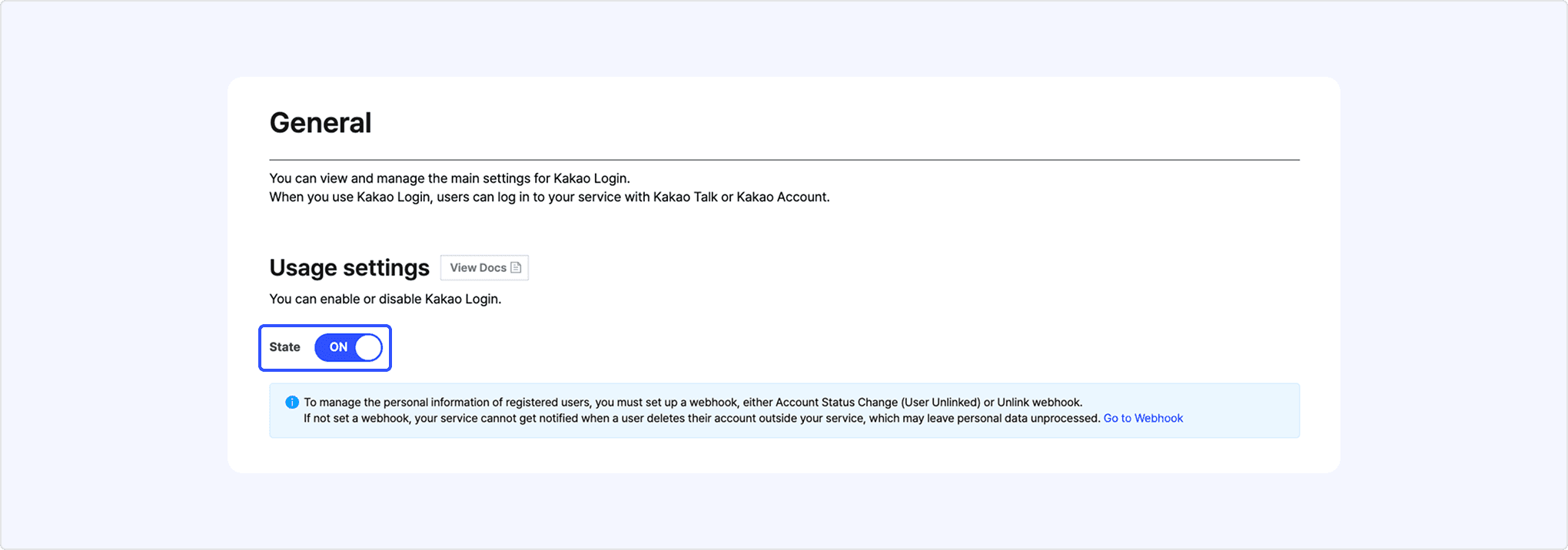
Enable it in [Kakao Login] > [Simple Signup] on the app management page. For detailed settings, see Simple Signup.
For the types and descriptions of items that require consent during Simple Signup, see User information and Consent items.
Simple Signup page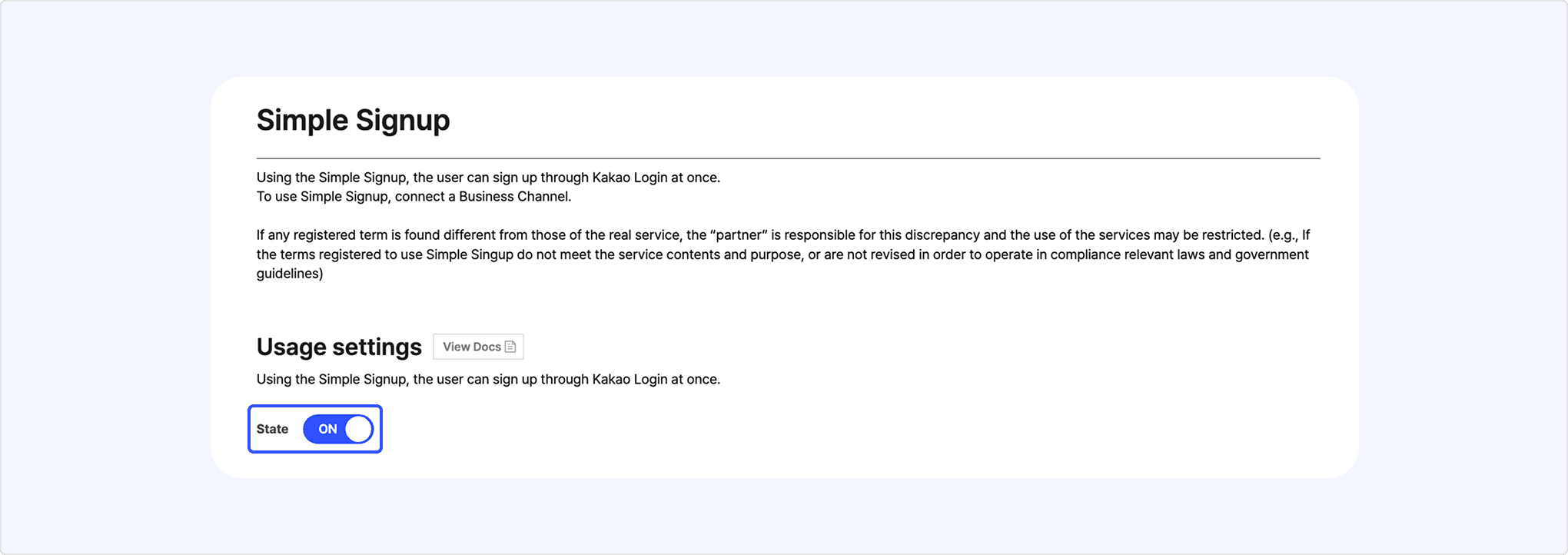
On the app management page, go to [Kakao Login] > [Advanced], select [Edit], and register a Redirect URI. The Redirect URI set in this menu is separate from the one registered in the [Kakao Login] menu; it is the Sync Plugin redirect_uri used when requesting Kakao Login through the Sync Plugin.
Sync Plugin settings edit screen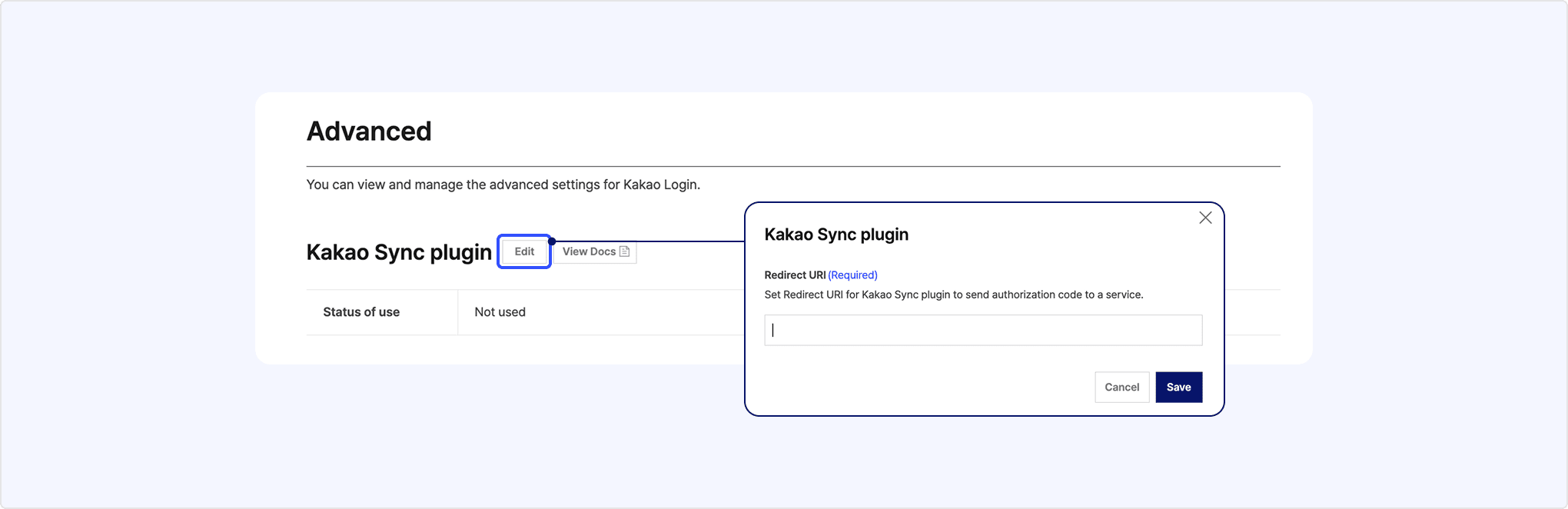
To modify app and Kakao Talk Channel settings during development without affecting the live service, use a test app and a Kakao Talk Channel for developers. See Prerequisites.
After completing settings in Kakao Developers, you must register the Sync Plugin and issue an ID in the Kakao Business Partner Center. Issuing a Sync Plugin ID is a required setting for the Sync Plugin to work correctly in Kakao Talk Channel, and you must complete it before development.
This process consists of the following two steps.
- Connect the Kakao Sync app and the Kakao Talk Channel where the Sync Plugin will be applied.
- Register the Sync Plugin for the Kakao Sync app.
The Sync Plugin can only be used with apps that have adopted Kakao Sync and been granted personal information consent item permissions. For apps that have not adopted Kakao Sync, selecting [Sync Plugin] among plugin purposes is restricted, so you cannot complete Sync Plugin ID issuance.
For step 1, switch to a Biz app in [App] > [General] > [Business information] on the app management page, then configure the settings in [App] > [Request additional features] on the app management page. For details, see Switch to a Biz app and Connect Kakao Talk Channel to app.
For step 2, configure the settings in [서비스/도구(Service/Tools)] > [비즈도구(Biz Tools)] > [비즈플러그인(Biz Plugin)] in Kakao Business.
If no plugin has been registered yet, the screen below appears. Select [비즈플러그인 등록하기(Register Biz Plugin)] to start registering a new plugin.
Sync Plugin registration screen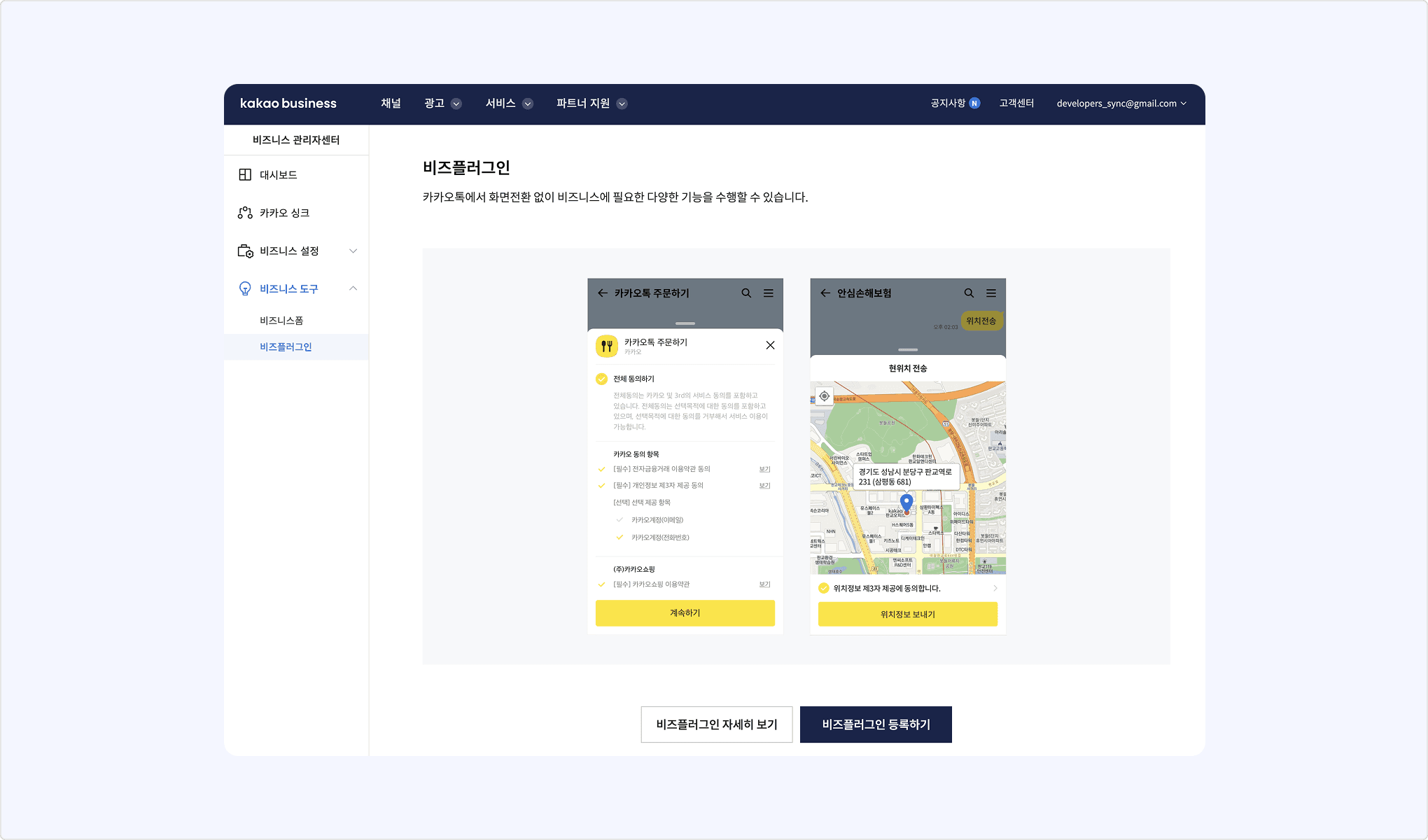
If plugins are already registered, the list of registered plugins appears. Select [플러그인 등록(Register plugin)] to register a new plugin.
List of plugins in use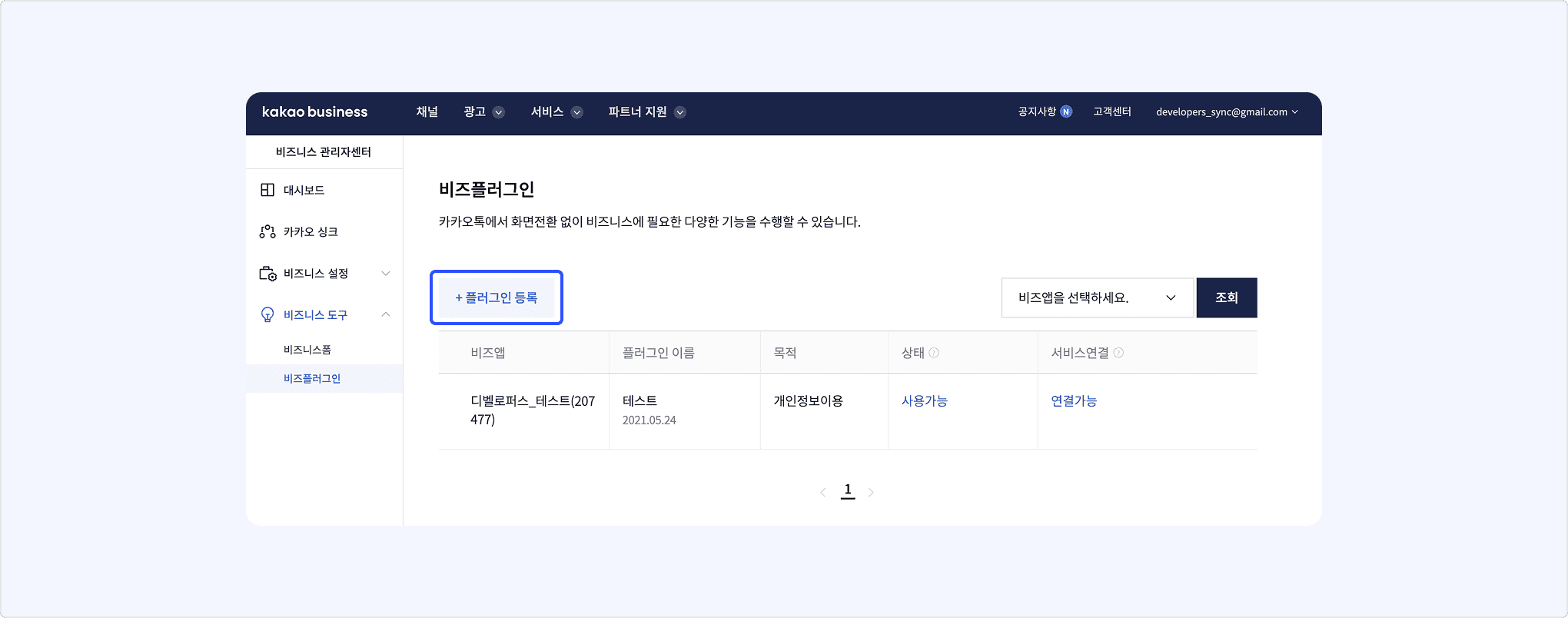
When you select [비즈플러그인 등록하기(Register Biz Plugin)] or [플러그인 등록(Register plugin)], the Biz app list below appears. Select the Biz app for which to register the plugin, then select [다음(Next)].
Screen to select the app that will use the plugin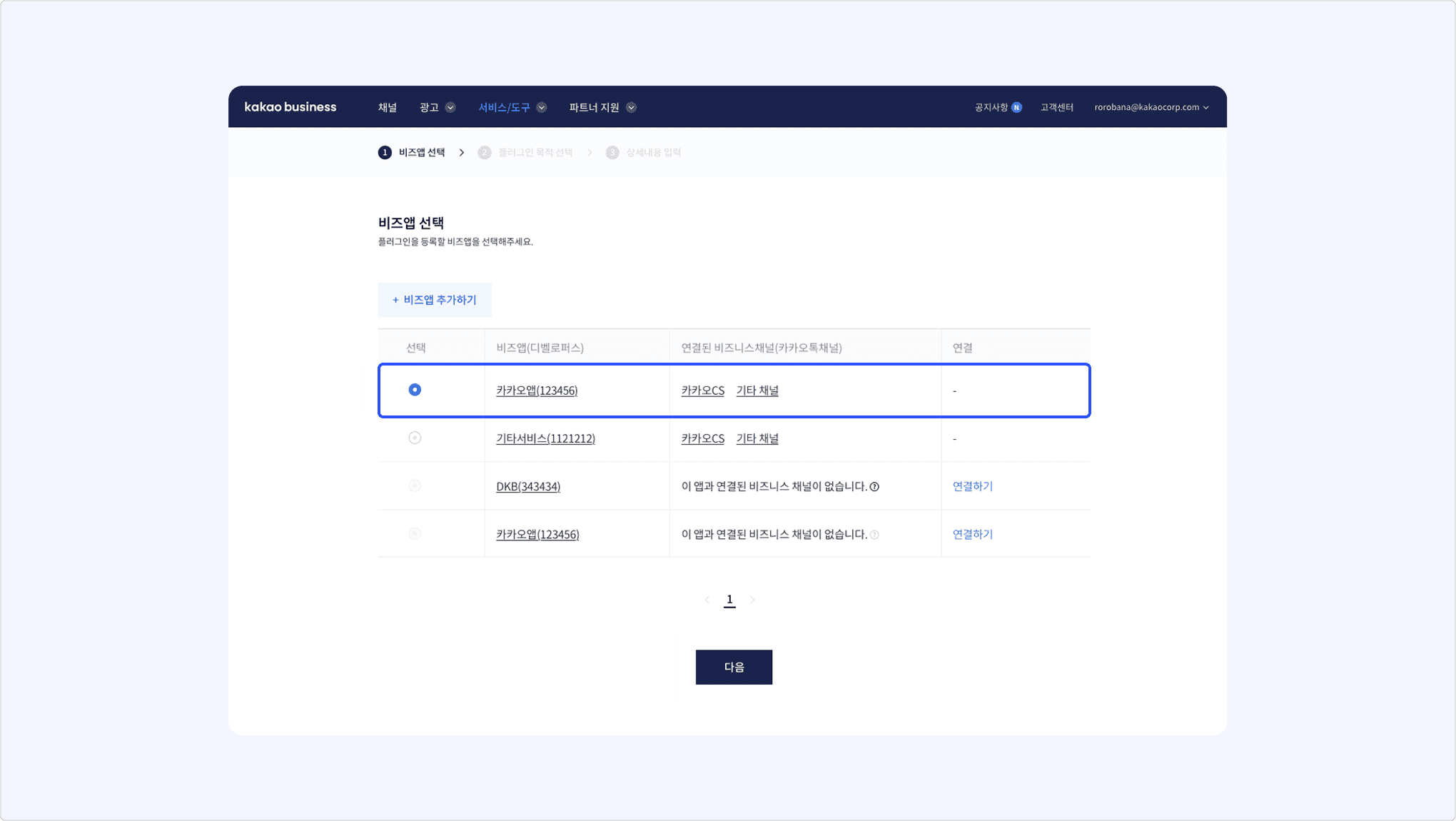
On the [플러그인 목적 선택(Select plugin purpose)] screen, select [카카오싱크(Kakao Sync)], then select [다음(Next)].
Screen to select the plugin type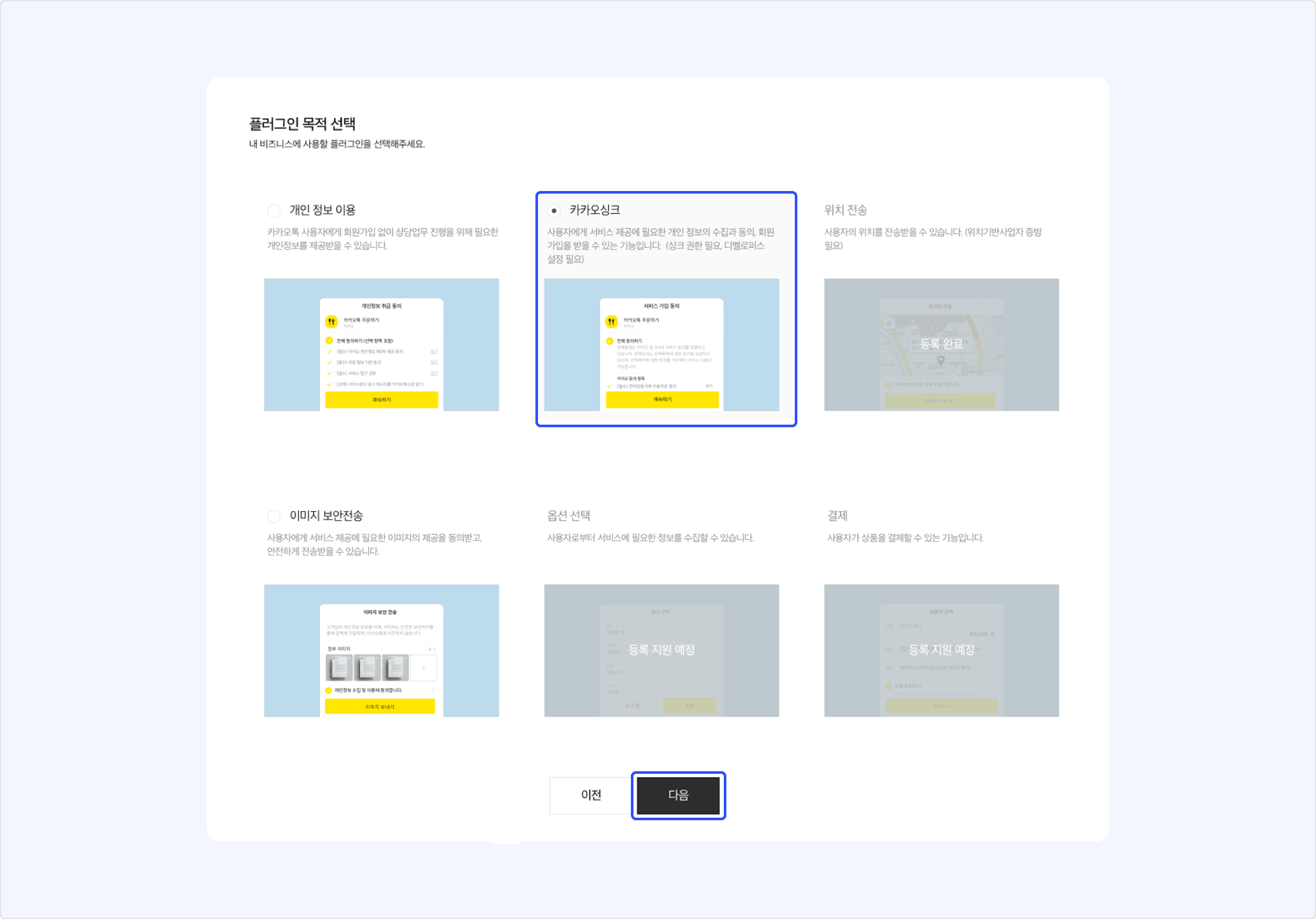
In the following cases, you cannot select [Kakao Sync] among plugin purposes.
- Apps that have not completed Business information verification.
- Apps that have not completed Kakao Developers app settings.
- Apps that already have a Sync Plugin registered.
Finally, enter the plugin name and select [등록(Register)].
Afterward, you can check and edit the ID and details of the registered Sync Plugin in [서비스/도구(Service/Tools)] > [비즈도구(Biz Tools)] > [비즈플러그인(Biz Plugin)] in Kakao Business.
For the development guide on integrating a chatbot with the Kakao Sync Plugin, see Biz Plugin.
The step that starts Sync Plugin login is performed by the chatbot's authentication block. If you have completed the Sync Plugin redirect_uri and authentication block settings described in App settings, and have completed authentication block configuration by referring to Biz Plugin, no additional development is required at the login start step.
Kakao Login using the Sync Plugin works as follows.
Kakao Sync Plugin login process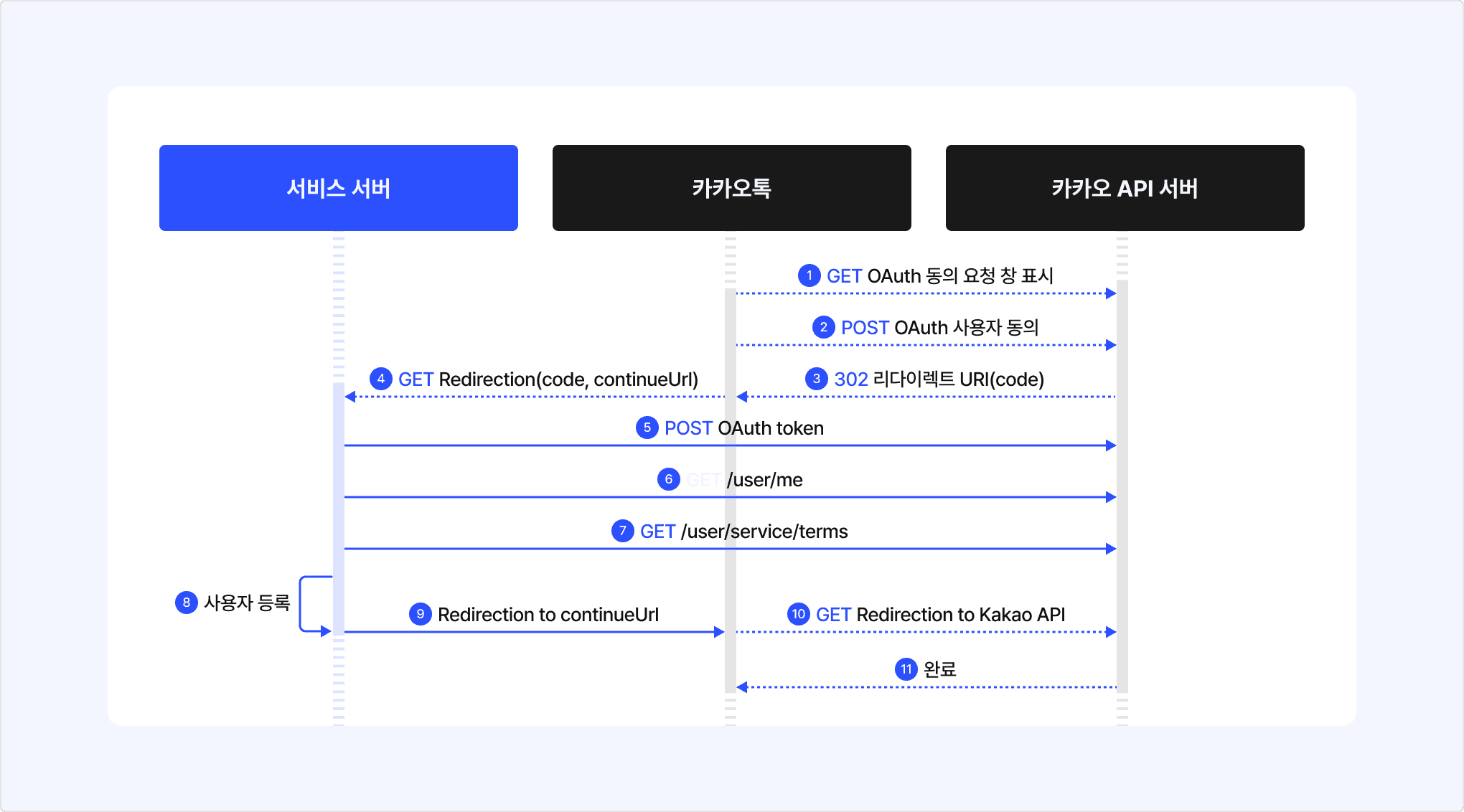
- The user requests Kakao Login with the Kakao Sync Plugin from an authentication block in a Kakao Talk Channel chat room.
- The user consents to the contents of the Kakao Consent screen that appears in the chat room.
- The Kakao API redirects the Redirect Continue URL together with a
codevalue for user authentication to the service's Sync Plugin-dedicated Redirect URI. - The service receives the
codeandcontinueparameter values delivered to the login Redirect URI. - The service requests an access token with the received
codevalue. - The service requests user information using the received access token.
- The service checks the user's service terms consent details using the received access token.
- The service processes service membership signup with that Kakao Account user information, or if the user is identified as an existing member, maps the account so the user can also use the service with existing information through Kakao Login.
- After completing user registration, the service performs a 302 redirect to the
Redirect Continue URL, which is the value ofcontinuedelivered to the Redirect URI. - Kakao receives the service's response and completes login processing with the Sync Plugin.
When a user requests login and signup through a Sync Plugin authentication block in a Kakao Talk Channel chatbot, an authorization code is issued based on Kakao Talk authentication information. Then the Kakao Sync Consent screen opens as a Half-View at the bottom of the screen inside the chat room. On that screen, the user can consent to the service terms and third-party information provision, then request login.
Because Sync Plugin login takes place inside Kakao Talk, it uses the authentication information of the Kakao Account logged in to Kakao Talk. Therefore, the user does not need to enter additional Kakao Account information or move to another web browser or service app, and does not leave the chat room.
When the user consents to the service terms and information provision, Kakao Talk requests authorization code issuance from the Kakao authentication server. Kakao Talk delivers the authorization code received in the response and the Redirect Continue URL value to the Sync Plugin redirect_uri of the service server. At this time, the redirect_uri value previously registered in [Kakao Login] > [Simple Signup] on the app management page is used.
Kakao Talk delivers the details of the Redirect Continue URL to the service server as the continue parameter value. Because the Redirect Continue URL already includes all required query parameters and values, the service can complete the Sync Plugin login request by performing a 302 redirect to the URL in the continue value.
| Method | URL | Authorization |
|---|---|---|
GET | https://talk-plugin.kakao.com/sync/complete | - |
| Requirements | See also | |
|---|---|---|
| Name | Type | Description | Required |
|---|---|---|---|
| client_id | String | REST API key issued when the app was created | O |
| state | String | Sync Plugin request information | O |
| complete | Boolean | Whether Sync signup is complete (Default: true) | X |
| user_match_url | String | URL of the input page when additional user information is required | X |
Through the process in STEP 1, the service server has received an authorization code and a Redirect Continue URL from Kakao Talk. You must call Request token with the received authorization code to complete login and obtain a token value.
The service server sends a Retrieve user information API request with the issued token to retrieve the user information required for login and signup. It also sends a Retrieve consent details for service terms API request to check which service terms the user consented to. Based on this, you can obtain the information required for membership signup and process signup, or receive information needed for the conversation.
When checking user information and service terms, if the user is a new member and signup is required, process signup based on the received user information. If comparing the user information with the membership database (DB) shows that the user is an existing member logging in with Kakao for the first time, map the member information by referring to Mapping.
If signup cannot be completed with only the Retrieve user information API response and you need the user to enter additional information, proceed to the next step, [3. Request additional user information].
If you complete login and signup without requesting additional information, perform a 302 redirect to the Redirect Continue URL received from Kakao to request login completion. After the redirect, the Kakao API server notifies the Kakao Talk Channel chatbot chat room that login and signup have been completed, finishing the Sync Plugin login and signup process.
If service membership signup or member information mapping requires items beyond the information included in the Retrieve user information API response, additional work is needed before completing login. The Sync Plugin login flow when requesting additional user information is as follows.
Signup process when requesting additional user information during Sync Plugin signup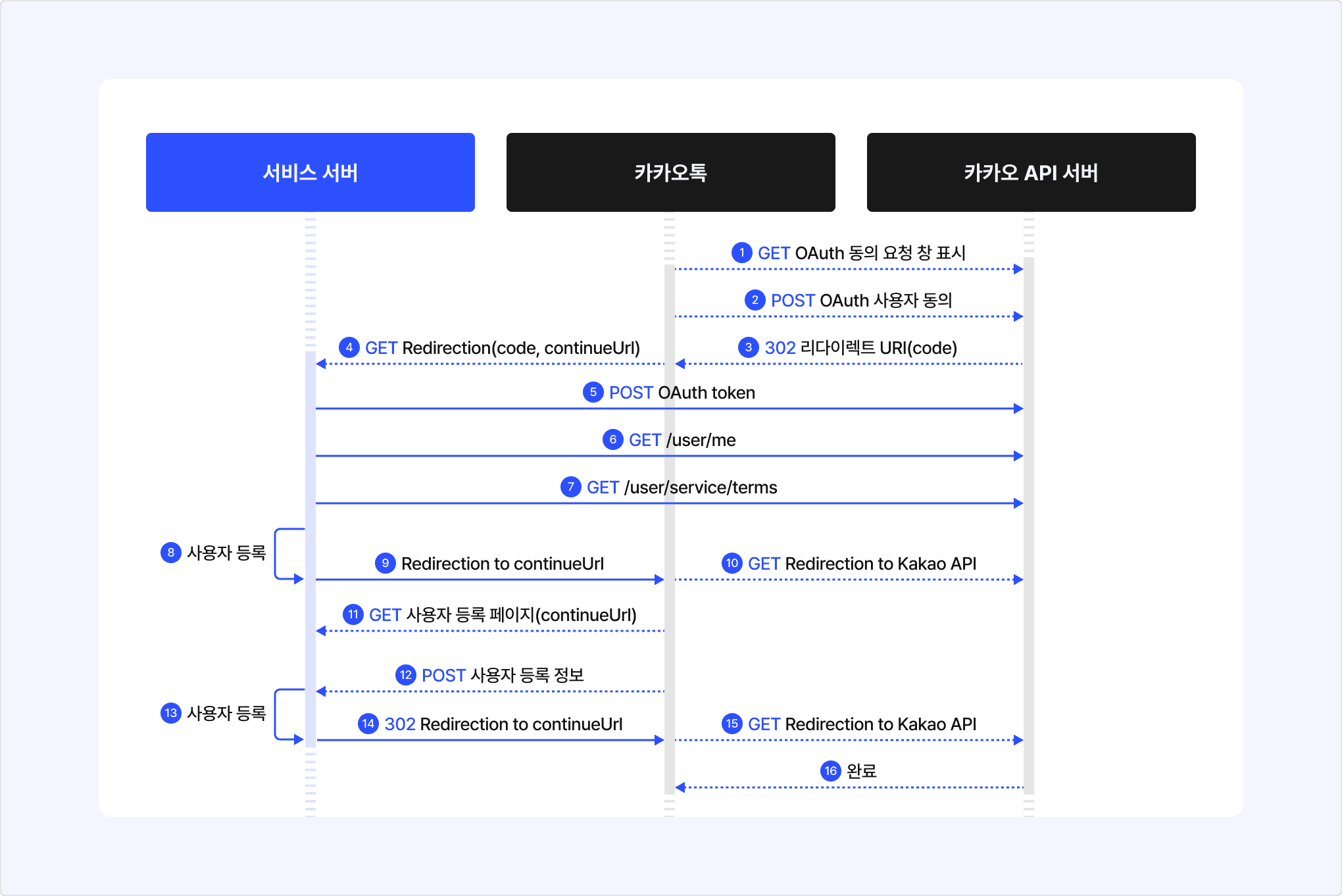
- The flow from [1] to [7] is the same as the basic Kakao Sync Plugin login process. However, if at the [8] member registration step the service cannot automatically register the user who wants to sign up through the Sync Plugin in its internal system, process as follows.
- The service adds the following
URL Query Parameters for additional mapping to the receivedRedirect Continue URLand performs a 302 redirect.user_match_url: Address of the service web page for additional mapping.complete: Whether signup is complete; passfalsebecause signup is not complete.- See: Redirect Continue URL details.
- Kakao receives the service's response and processes automatic signup as failed.
- Kakao calls the additional mapping web page received from the service together with the
Redirect Continue URLparameter. - The user enters additional information for membership signup and information mapping in the webview inside the chat room.
- The service processes membership signup or mapping with the Kakao Account information and the additional information.
- After completing user registration, the service performs a 302 redirect to the
Redirect Continue URLreceived in step 4 above. - Kakao receives the service's response and completes login with the Kakao Sync Plugin.
To display the web page that collects additional information from the user in the Kakao Talk in-app browser, add parameters to the Redirect Continue URL previously received from Kakao and perform a 302 redirect together.
The parameters to add at this time are user_match_url and complete. user_match_url is the address of the service web page where additional user information will be entered, and Kakao Talk displays that web page as an in-app browser in the chat room.
After receiving the additional user information and completing service signup or member information mapping, the service server again adds the complete parameter as true to the Redirect Continue URL and performs a 302 redirect. After the redirect, the Kakao API server notifies the Kakao Talk Channel chatbot chat room that login and signup have been completed, finishing the Sync Plugin login and signup process.
When users use a service through a Kakao Talk Channel chatbot, login or membership signup may not complete correctly. Examples include leaving the chat room during signup or switching to another app through multitasking. In such cases, the user and the service are linked on the Kakao platform, but the user has not been properly registered as a service member, which causes inconvenience.
If the link status between the user and the service and the membership signup status do not match, use the Unlink API feature. This feature disconnects the user from the service so that the membership signup process can be started again. When using the Kakao Sync Plugin, implementing this feature is required.
When a user who signed up through Kakao Sync deletes their account, Unlink API processing is also required. When you process account deletion in the service membership database (DB), you must send an unlink request so that user information can also be deleted on the Kakao platform.