
This document describes the major changes to Kakao Developers app and app keys that have been updated on December 3, 2025.
The changes are automatically migrated, so you can use existing features without any additional action. However, menu locations and usage methods have changed significantly, so check your settings by referring to this document.
If you are using the services below, you must check the relevant information.
You can now configure platform information and product-specific information registered in the Kakao Developers app by app key. The major changes are as follows.
- You can create up to 5 app keys per platform environment in an app.
- (Note: 1. Add app keys by environment)
- The configuration location of some platform information (web domain, redirect URI, etc.) has changed to under app keys.
- You can allow or disallow the APIs that can be called with Admin key.
- Link configuration location has changed by purpose. API call validation is managed in [Platform Key], and Kakao Talk Message link configuration is managed in [Product Link].
- App scheme selection options and link preview features have been added to the message template tool.
- Target: REST API key, JavaScript key, Native app key, Admin key
| Target | Before update | After update |
|---|---|---|
| App creation limit | 1 per app key | 5 per app key |
| App key management | 1 key issued per type when creating an app | Same as before (1 key issued per type when creating an app), but you can register up to 5 keys per app key. You can set a primary key per app key. You can delete app keys. You can name app keys. |
| Configuration location | All 4 types of app keys configured in [App] > [General] > [App keys]. | Configuration location differs by key type.
|
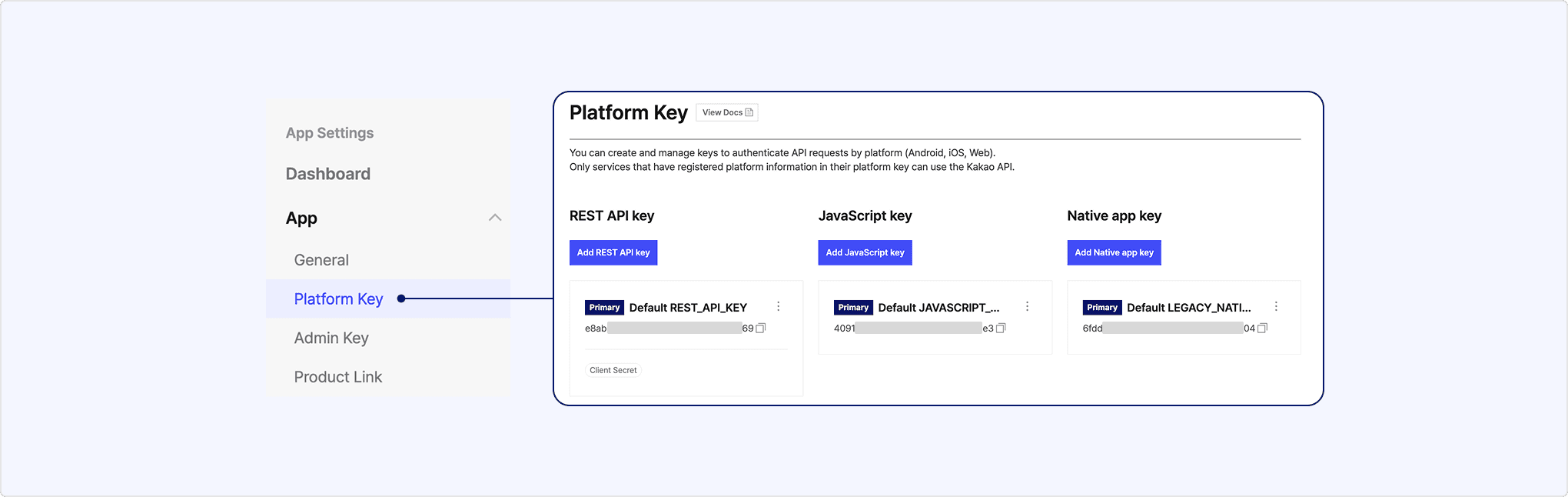
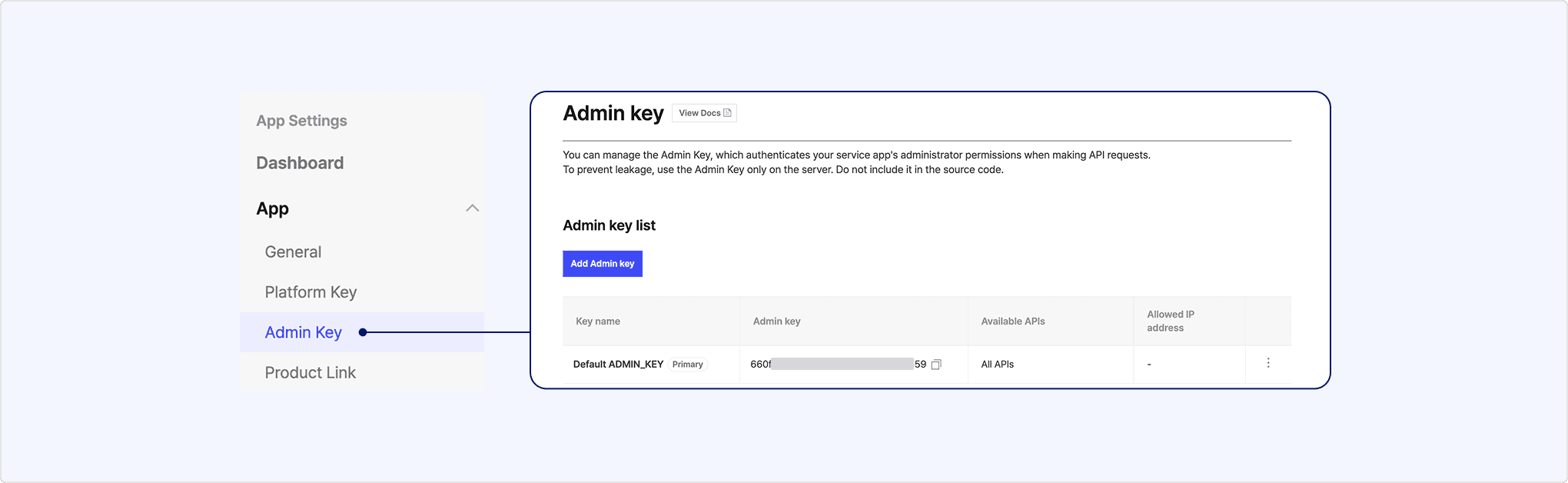
- App key types remain unchanged.
- App keys created before the update have been migrated and set as primary keys.
- Even after the update, 4 types of app keys are automatically created (1 each) when creating an app, same as before. The first created key is set as the primary key.
- Target: Web domain, native app platform information, redirect URI, client secret, allowed IP configuration
| Before update | After update |
|---|---|
| Platform information registered in the app applied to all app keys. | You can configure platform settings per app key.
|
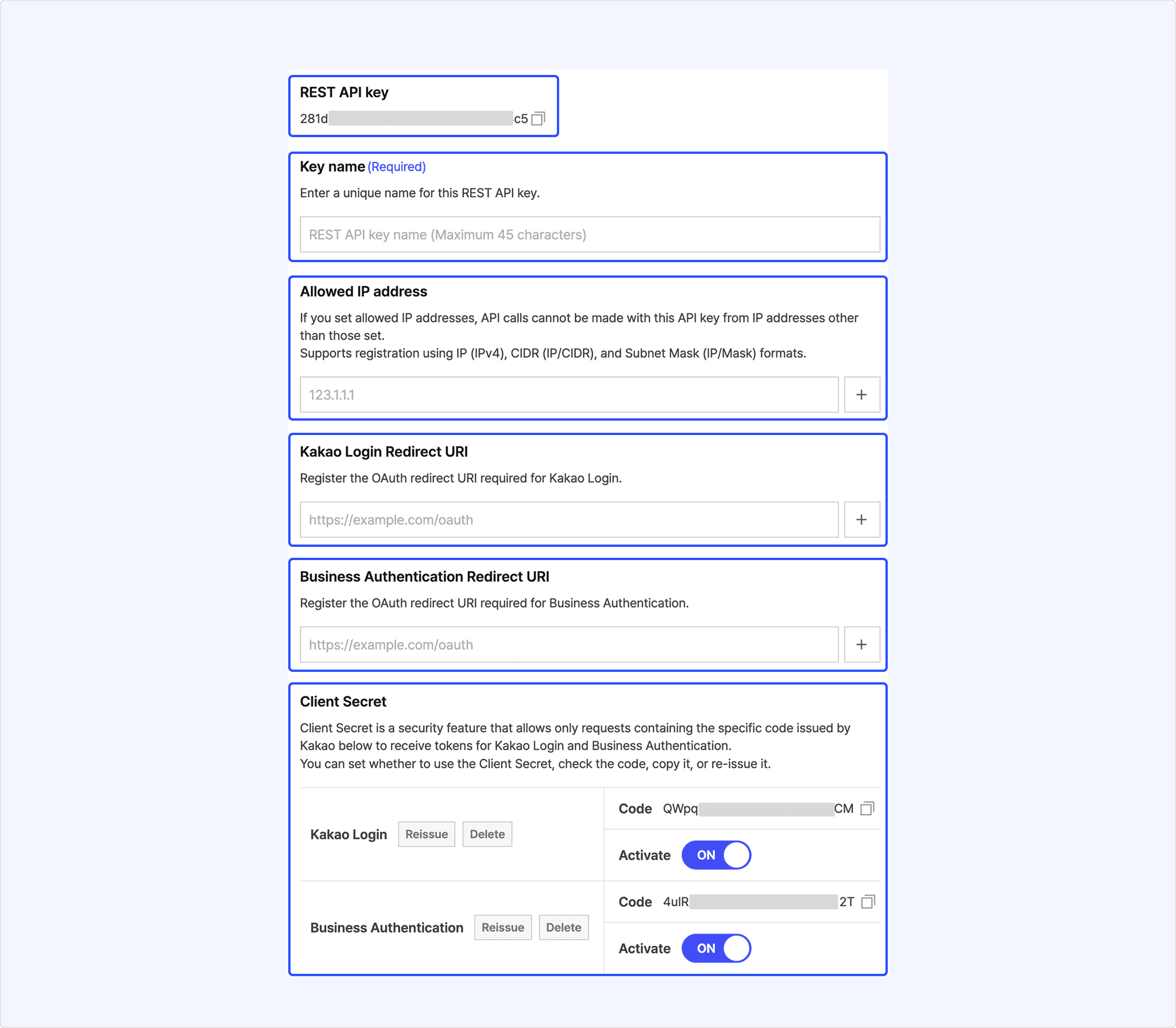
You can use existing features without any additional configuration, but if you need to modify settings, you must modify the information under the key that matches your platform environment. For example, if you need to modify the redirect URI in a service using Kakao Login with JavaScript SDK, modify the redirect URI under JavaScript key.
| Configuration in use | Before update | After update |
|---|---|---|
| Redirect URI (Kakao Login/Business authentication) | Configured under [Product settings]. | Configured under REST API key, JavaScript key. |
| Client secret | Configured under [Product settings]. | Configured under REST API key. |
| Allowed IP configuration | Configured in [App] > [Advanced]. | Configured under REST API key, Admin key. |
| Site domain | Configured in [App] > [Platform] > [Web]. | Name and configuration location changed to allow separate use by purpose.
|
| Android platform information (Package name, key hash, store URL) | Configured in [App] > [Platform] > [Android]. | Configured under Native app key > [Android app information]. |
| iOS platform information (Bundle ID, store URL) | Configured in [App] > [Platform] > [iOS]. | Configured under Native app key > [iOS app information]. |
| Before update | After update |
|---|---|
| All APIs can be called with one Admin key. | You can directly configure APIs to allow or restrict per Admin key. (Note: Available APIs). You can create additional Admin keys (up to 5) and use them by purpose. You can manage them separately by usage to enhance security. |
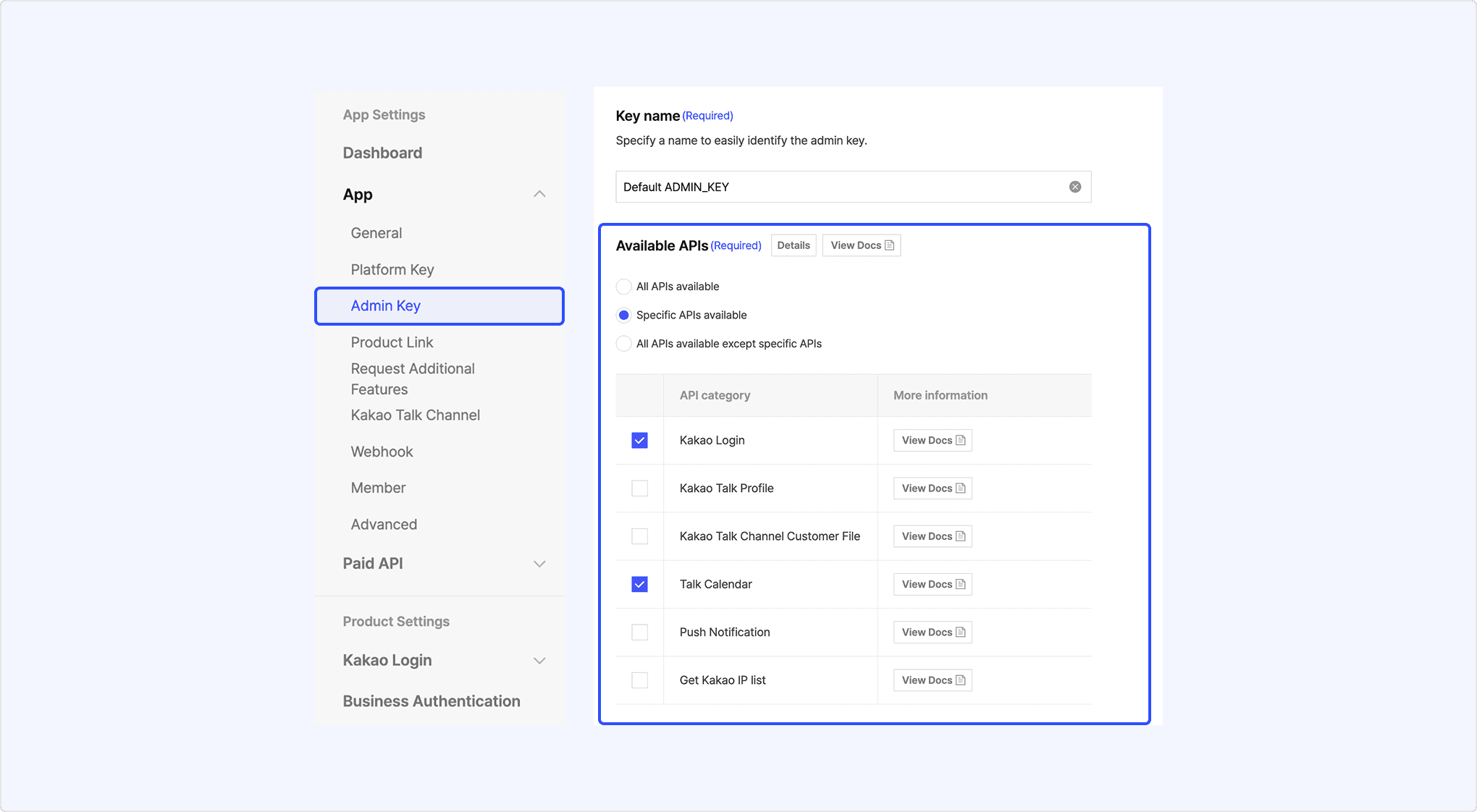
- Admin keys created before the update have been migrated with all APIs allowed. If you need to restrict APIs, see Available APIs to restrict APIs.
- The detailed API list is displayed based on the permissions granted to the app in use. See Admin key: API category to select the category you want to use.
- Target: Web domain, Android platform information (Package name, Key hash, Store URL), iOS platform information (Bundle ID, Store URL)
| Before update | After update |
|---|---|
| Platform information set in [App] > [General] > [Platform] was applied to both API validation and Kakao Talk Message template link settings. | The location to configure platform information differs depending on its purpose.
Note
|
Kakao authenticates clients using SDKs with the information below. When using Kakao SDK for Android, iOS, or JavaScript, you must register the platform information below in the Kakao Developers app to call APIs.
- Android: Package name, Key hash
- iOS: Bundle ID
- JavaScript: JavaScript SDK domain
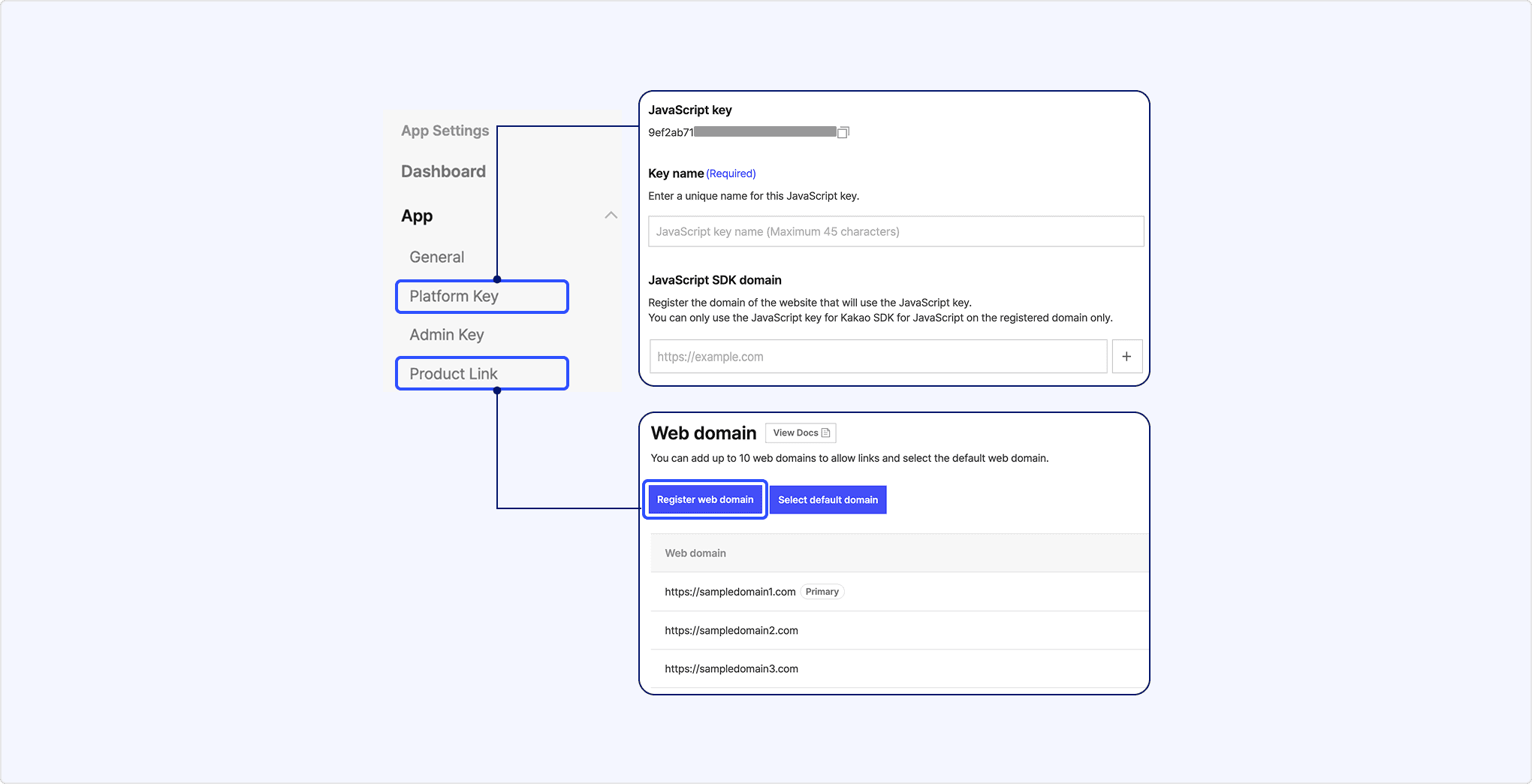
You can use existing features without any additional configuration, but if you need to modify settings, you must modify the information in the path below by purpose.
| Configuration | Before update | After update |
|---|---|---|
| Site domain | Set in [Platform] > [Web] > [Site domain]. | Configuration location depends on the purpose.
|
| Android platform information (Package name, Key hash, Store URL) | Set in [Platform] > [Android]. | Set under Native app key. |
| iOS platform information (Bundle ID, Store URL) | Set in [Platform] > [iOS]. | Set under Native app key. |
| Link settings for Kakao Talk Share or Kakao Talk Message | Only information registered in [Platform] > [Web], [Android], or [iOS] can be used. | Configure separately in Product Link.
|
- Target: Message template tool
- Detailed changes:
- [Common settings] > [Native app scheme]: You can select a scheme to apply to the template from the native app schemes configured in app keys.
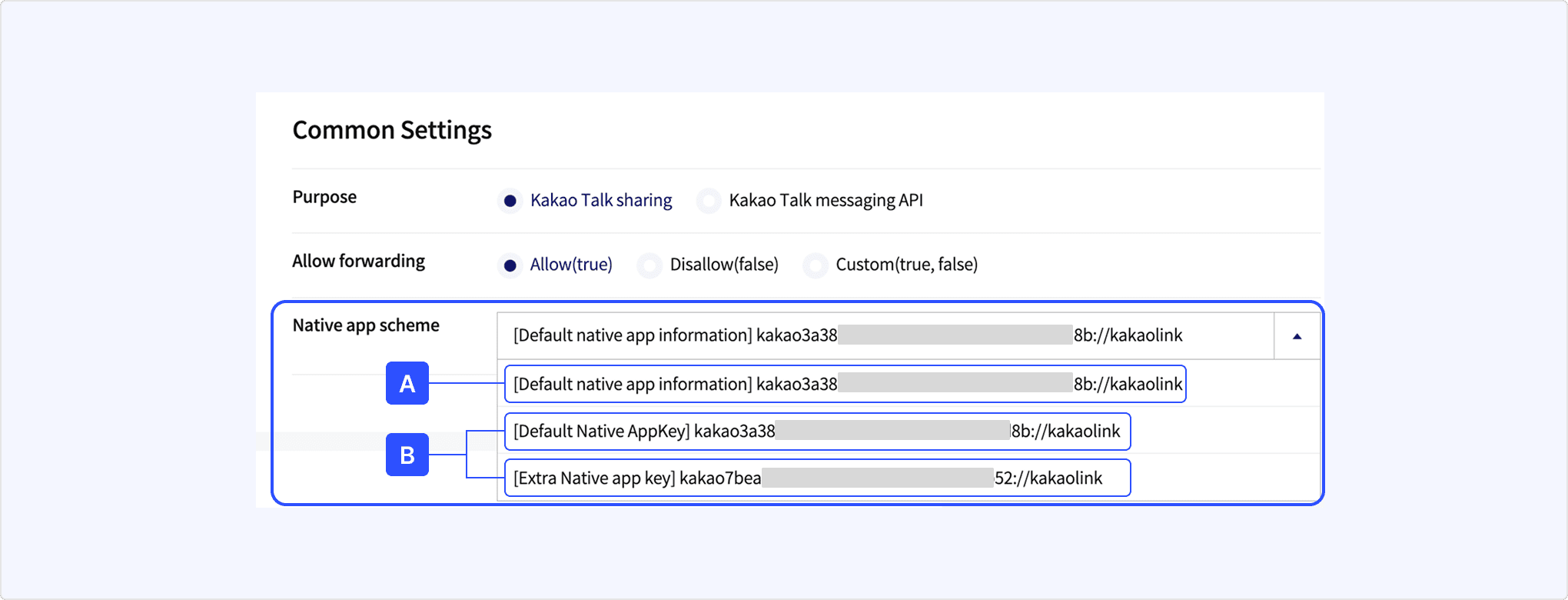
| Reference | Header | Description |
|---|---|---|
| [A] | [Default native app information] | Scheme specified as Default native app scheme in [App] > [Product Link] > [Native app scheme]. |
| [B] | [Key name] | Custom URL scheme of the Native app key. The key name set by the user in [Platform Key] > [Native app key] is displayed as the header. |
- The [Native app scheme] of message templates created before the update has been migrated based on the existing app key set as the primary key.
- A custom URL scheme, named [Default LEGACY_NATIVE_APP_KEY] or [Default Native AppKey], is selected.
- The migrated scheme is also applied to [Default native app information] in the same way.
- To update the default app scheme, first create a Native app key under [Platform Key], then set this as the default native app scheme in [Product Link].
- When changing the default app scheme, note that behavior may vary depending on which native app information is selected in Common settings in the message template tool:
- If [Default native app scheme] is selected: Make sure that the app execution link (Android/iOS store links, etc.) are also updated.
- If [Default LEGACY_NATIVE_APP_KEY] or [Default Native AppKey] is selected: The settings remain as the previous key information.
The UI for Component link settings in the message template tool is updated for you to use easier.
| Before update | After update |
|---|---|
| Enter the domain configured in [App] > [Platform] > [Site domain] directly. When using User arguments, if the registered domain is not passed as a user argument, it is replaced with the first value of the registered domains. | You can select one from the domain list below:
When selecting a domain, you can preview the link. |
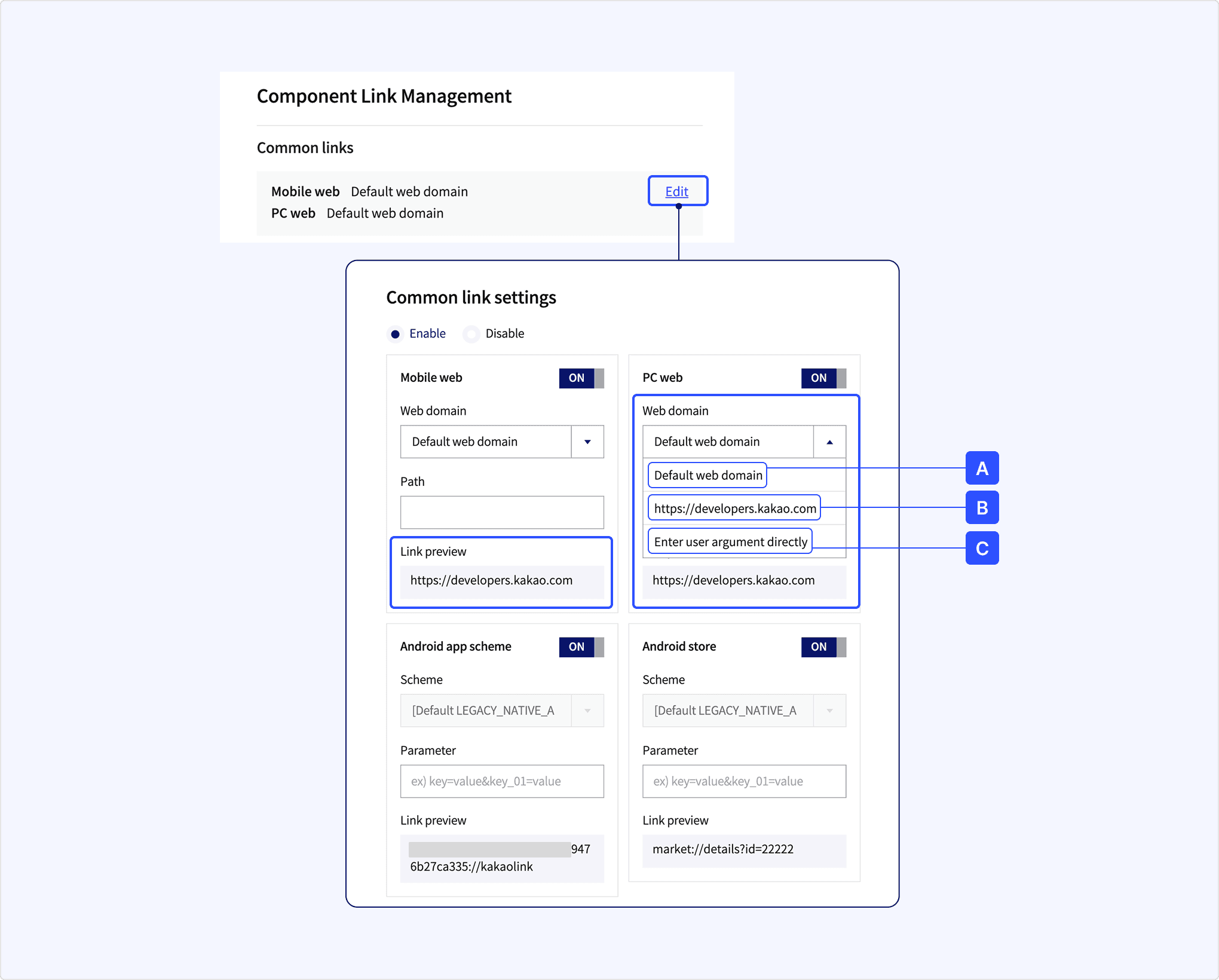
The value display method in Component link settings has been improved for better clarity and readability.
| Before update | After update |
|---|---|
| When using values registered in [Platform], internal reserved words are displayed. (Example: ${REGI_WEB_DOMAIN}, ${A_E}, ${A_M}, ${I_E}, ${I_M}) | The configuration value where the link redirects is displayed instead of reserved words.
|