
This document explains how to compose messages to send with the Kakao Talk Message API or the Kakao Talk Share API as custom templates by using the Message Template Builder. For the details on each item, see Concepts.
The Message Template Builder helps you easily create message templates in the user interface, and you can create templates in the UI without development knowledge. When calling a message sending API, you can send a message with the template by passing only the template ID.
- Select the app to use in [Tools] > [Message template].
- Templates are managed per app, and you cannot send a message using a template ID from another app.
- After selecting the message template to use by referring to the Supported components by template type, select [Add Message template] to create a new template.
- Compose the message template. Review the Precautions when selecting a native app scheme. You can build dynamic messages by using User arguments.
- When calling the Kakao Talk Message API or the Kakao Talk Share API, pass the generated template ID as the
template_idvalue.
The template ID required for sending messages with custom templates can be found in the [B] or [C] area of the Message Template Settings screen.

[A] App information: Displays the currently selected app. You can change to a different app by clicking the list icon next to the app name.
[B] Add a message template: Allows you to add a new message template for the selected app.
[C] Search & filter area: Enter a target keyword or select the options such as template title, message title, content, or button name to filter specific templates.
[D] Template list: Views all templates registered under the selected app. You can configure the detailed settings page by clicking a template.
[E] More button: Allows you to copy or delete the selected template.
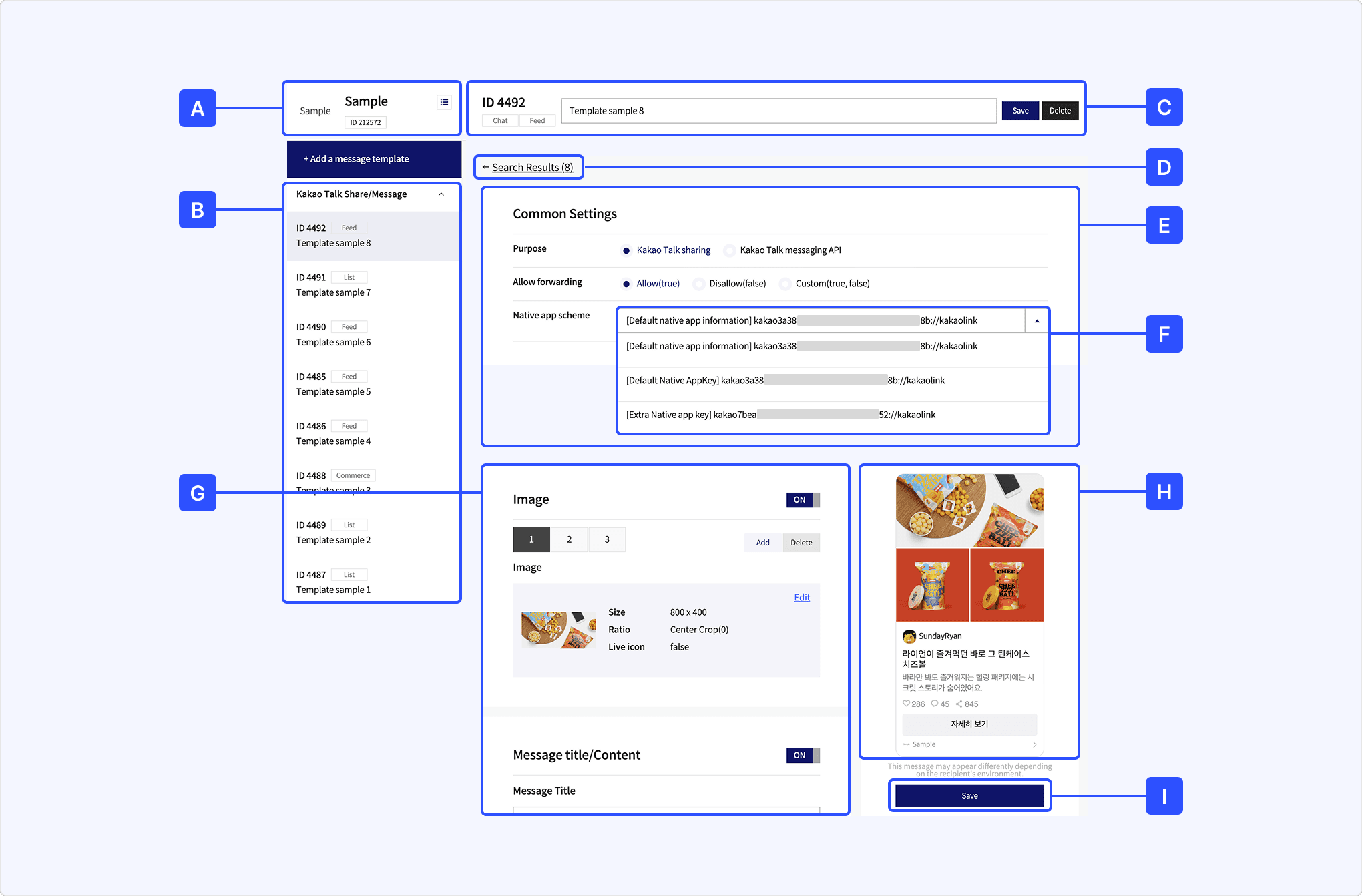
[A] App information: Displays the currently selected app. You can change to a different app by clicking the list icon next to the app name.
[B] Template list: Views all templates registered under the selected app. You can configure the detailed settings page by clicking a template.
[C] Message template information: Displays the template ID and type; saves template changes or deletes the template.
[D] Search results: Navigates to the Message template list before searching.
[E] Common settings: Settings applied commonly to all templates.
[F] Native app scheme: Selects the native app scheme to use in the template; requires checking the Precautions when selecting a native app scheme.
[G] Component-specific settings: Detailed settings for each component; available components vary depending on the message type (Note: Supported components by type).
[H] Preview: Shows a preview of the message reflecting the current settings; selecting each component navigates to its corresponding settings screen.
[I] Save: Saves changes; functions the same as [Save] in [C].
The components supported vary by message template type. Below are the components that can be configured by template type. Click on component names to view detailed information. Use this table to decide which template to use.
| Template Type | Feed A Type | Feed B Type | List | Commerce |
|---|---|---|---|---|
| Image | O | O | X | O |
| Profile | O | O | X | O |
| Header | O* | O* | O | X |
| Profile | O* | O* | X | O |
| Image Item | O | O | X | X |
| Text Item List | O | O | X | X |
| Message Title/Content | O | O | X | X |
| Social | O | O | X | X |
| Item List | X | X | O | X |
| Product | X | X | X | O |
| Product Description | X | X | X | O |
| Button | O | O | O | O |
| Component link settings | O | O | O | O |
This section introduces the items that can be configured for each component in the Message Template Tool.
In the common setting, you can set the [Purpose] and [Allow forwarding] options for the chat bubble.
| Name | Description |
|---|---|
| Purpose | Select which API the message will be used for. Choose one of [Kakao Talk Share] or [Kakao Talk Message API]. Note: If you use the message only to send to me APIs, set the [Purpose] to [Kakao Talk Share]. |
| Allow forwarding | Select whether to add the forward icon next to the message. [Allow]: Users are allowed to forward the message to the user's friends or a chatroom. [Disallow]: Users cannot forward the message. [Custom]: You can make the message forwardable when requesting. |
| Native app scheme | Specifies the native app scheme allowed for app link connections in messages. (Initial value: Default native app scheme). Important: See Precautions when selecting a native app scheme. |
The native app scheme selected in Common settings behaves differently depending on the display [TAG], even if the value is the same, when the Default native app scheme is changed. See the explanations for each tag below.
- [Default native app information]: When the Default native app scheme is changed, the value also changes together. Use this when configuring a template linked to the default scheme setting.
- [App key name]: The value remains fixed regardless of changes to the Default native app scheme. Use this when configuring a template that must remain fixed regardless of the default scheme setting.
Native app schemes configured before December 3, 2025 are designated as [App key name]. For the details, see App key structure migration guide.
Configure the Link among the message components. Link configuration is divided into three main types.
- Common link: Link information to be commonly applied to areas where web pages or app links can be placed.
- Component link: Link information to be applied to a specific component, can be checked and set in [Link details by component].
- Source link: Link information in the app information at the bottom of the message, editable only in custom templates registered with the message template tool, app name and icon cannot be edited.
- Common link works differently depending on user environments.
- Common links can be set dynamically using user arguments.
- To prevent landing settings from changing dynamically depending on user environment or user variables, set a fixed individual link in the message template.
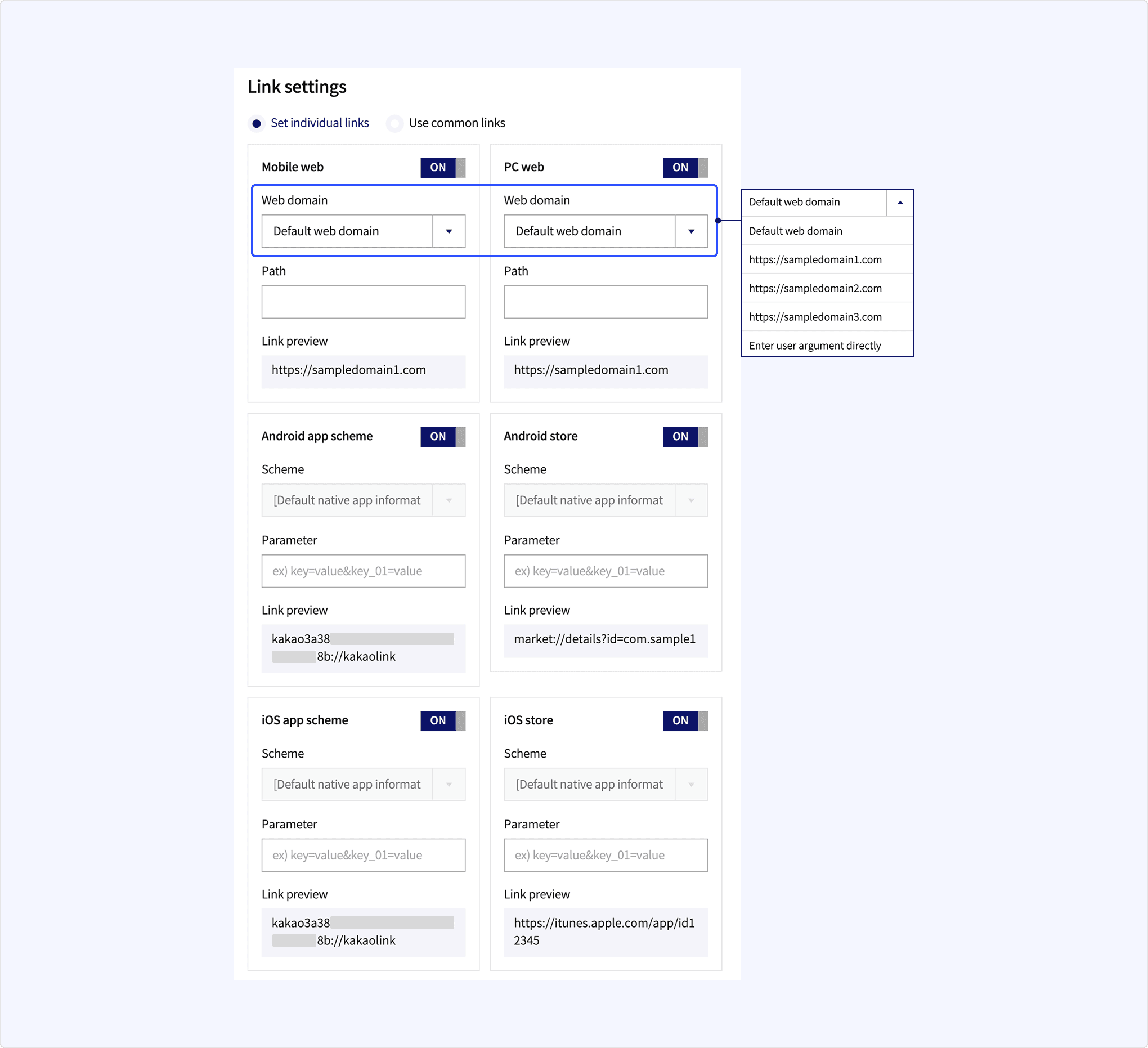
The following items can be set for each link. Refer to Link for the priority and execution conditions.
| Configuration item | Description |
|---|---|
| Mobile web | Applies when the recipient’s environment is mobile. [Web domain]: Select one of the domains registered in the Web domains or enter a user argument directly. [Path]: Enter the value excluding the domain from the full URL. [Link preview]: Displays the link with the applied input values. Caution: When selecting the [Default web domain], the value is reflected as the Default web domain in [App] > [Product Link] on the app management page, and if the Default web domain is changed, the configured [Web domain] value also changes together. Important: The Web domains in [App] > [Product Link] on the app management page must be registered to configure this. |
| PC web | Applies when the recipient’s environment is PC. Configuration items are the same as [Mobile web]. Caution: When selecting the [Default web domain], the value is reflected as the Default web domain in [App] > [Product Link] on the app management page, and if the Default web domain is changed, the configured [Web domain] value also changes together. Important: The Web domains in [App] > [Product Link] on the app management page must be registered to configure this. |
| Android app scheme | Applies when the recipient’s environment is Android. [Scheme]: Automatically filled in the format kakao${NATIVE_APP_KEY}://kakaolink according to the Native app scheme in [Common settings].[Parameters]: Configure values to pass when the app runs. These can be used for custom handling, such as checking whether the user launched the app from a message or navigating to a specific page. Supports User arguments. [Link preview]: Displays the link with the applied input values. Important: The [Android package name] in [App] > [Product Link] > [Native app key] on the app management page must be registered to configure this. |
| Android store | Applies when the service app is not installed in an Android environment. [Scheme]: Automatically filled according to the Native app scheme in [Common settings]. [Parameters]: Configure values to pass when the store runs. These can be used for custom handling, such as checking whether the user launched from a message or navigating to a specific page. Supports User arguments. [Link preview]: Displays the link with the applied input values. Important: The [Android store URL] in [App] > [Product Link] > [Native app key] on the app management page must be registered to configure this. |
| iOS app scheme | Applies when the recipient’s environment is iOS. Configuration items are the same as [Android app scheme]. Important: The [iOS bundle ID] in [App] > [Product Link] > [Native app key] on the app management page must be registered to configure this. |
| iOS store | Applies when the service app is not installed in an iOS environment. Configuration items are the same as [Android store]. Important: The [iOS store URL] in [App] > [Product Link] > [Native app key] on the app management page must be registered to configure this. |
Image is a message component included in content. To exclude the image area from the message, delete all images by clicking [Delete].
| Name | Description |
|---|---|
| Image | You can upload up to three images, and each image file size must be 5 MB or less. If selecting [Custom], you can use a user argument and pass the image URL value when requesting to send a message. In this case, up to 5 MB is allowed. |
| Image size | The image is displayed in the message with a size of the width and height specified in this field. You can set the Image size to a minimum of 400px * 400px and a maximum of 800px * 800px. The ratio is a minimum of 2:1 and a maximum of 3:4. |
| Ratio | If you set the Image size, select [Center Crop]. You cannot check the image ratio in the Preview pane even though you set the ratio. To check the ratio, send a test message to see how it actually looks. The ratio doesn't apply to images if you attach more than two images. [Center Crop(0)]: Select this option to align the image to the center of the specified area and display only the specified area from the center except for the rest areas. [Maintain original ratio(1)]: Shows the image in its original ratio within the 1:1 ratio area and fills the remaining space with white. [Custom(0, 1)]: Select this option to set a user argument. Pass the argument value to [Center Crop(0)] or [Maintain original ratio(1)] when requesting to send a message. |
| Live broadcast | Whether to attach the "LIVE" label to the image at the bottom right of the image. You can use this option when sharing a live broadcast as a video or image. |
| Play time | To attach the duration label of the shared video at the bottom right of the image, enter the duration in seconds. |
Set the profile information that appears between the Image and Text areas. You can make it look as if the person or service of the profile posts the message. You can set a profile only when configuring custom messages. The default templates do not support the profile feature. If you set it to [Disable], the profile is excluded from the message.
| Name | Description |
|---|---|
| Image | Register a profile image. If you upload a profile image, it is displayed with rounded corners. You can only upload a single image with a file size of 5 MB or less. If selecting [Custom], you can use a user argument and pass the image URL value when requesting to send a message. |
| Image size | The profile image is displayed in a small circle with a size of the width and height specified in this field. The input values only affect the image ratio. The maximum image size is 800x800 pixels. |
| Profile name | Enter the profile nickname as you desire. If you set the name too long, it is omitted with an ellipsis(...). |
This component is for the list and the feed of messages. Only one profile or header is available for the feed(item) type.
| Name | Description |
|---|---|
| Header name | Set the title at the top of the message. |
These components are for the Feed B type of a message.
| Name | Description |
|---|---|
| Title | Enter the title of the image item, which is displayed in bold. Up to two lines are allowed. |
| Category | Enter the description or category of the image item, which is displayed in gray and smaller than other letters. |
| Image | Upload an image of the image item. You can only upload a single image with a file size of 5 MB or less. If selecting [Custom], you can use a user argument and pass the image URL value when requesting to send a message. |
These components are for the Feed B type. You can add a list of the text items and summary information.
You can add text items up to five. At least one item's Title and Description are specified, the Item list is displayed in the message. Only when you set both Title and Description of an item, the item is displayed.
You can add summary information for the items in the Item list. Only when you set both Title and Description under Summary information, the summary information is displayed.
| Name | Description |
|---|---|
| Title | Enter the item name, which is displayed in gray. |
| Description | Enter the item description, which is displayed in black. |
| Summary title | Enter the text that summarizes the item list such as [Total price], which is displayed in gray and bigger than the item's Title. |
| Summary description | Enter the total price or amount, which is displayed in black and bigger than the item's Description. |
| Text alignment | Set the alignment of the descriptions of Item and Summary. You can choose one of [left], [right], [center] and [Custom]. |
The title and description are message components included in content. You can only enter up to two lines of title and two lines of description. If you enter more than two lines of title or description, the rest of the texts after the second line are cut off.
| Name | Description |
|---|---|
| Title | Enter the title displayed in black and larger than the description. |
| Description | Enter the description displayed in gray and smaller than the title. |
Social is a message component included in Social. With this component, you can make a message look as if the content has received a lot of attention and response from users. Or you can also reflect the actual number of likes and comments from users using user argument.
Only up to three types of social information are displayed in this area. If you enter values for more than three items, only three items are displayed in this order with the priority: Like > Comment > Shared > View > Subscriber.
| Name | Description |
|---|---|
| Like | Enter the number of user reactions displayed with a heart icon. |
| Comment | Enter the number of user comments displayed with a chat bubble icon. |
| Share | Enter the number of shares displayed with a share icon. |
| View | Enter the number of views displayed with an eye icon. |
| Subscriber | Enter the number of subscribers displayed with a person icon. |
With the List component of the message, you can send a message with a list type that contains several items. You can add up to five items but must add at least one on the list. You must register at least one item on the list.
| Name | Description |
|---|---|
| Title | Enter the title of each item. If you enter too long title, it may cut off. |
| Description | Enter the description of each item displayed in gray and smaller letters than the title. If you enter too long description, it may cut off. |
| Image | You can add a small image at the right side of each item. If you select [Upload image], you can upload up to 5 MB. If selecting [Custom], you can use an argument and pass the image URL value when requesting to send a message. |
| Image size | The input values only affect the image ratio. The maximum image size is 800x800 pixels. |
| Ratio | You cannot check the image ratio in the Preview pane even though you set the ratio. To check the ratio, send a test message to see how it actually looks. |
| Live broadcast | Whether to attach the "LIVE" label to the image at the bottom right of the image. You can use this option when sharing a live broadcast as a video or image. |
| Play time | To attach the duration label of the shared video at the bottom right of the image, enter the duration in seconds. |
| Link settings | If you select [Set individual links], you can specify a link for each item. If selecting [Use common link], the link specified in Common link settings is applied to the links of all items. |
| List ranking | You can use this option when you want to display each item with rankings. If you select [Y], the items in the list are displayed with rankings. You can also decide whether to use rankings by setting it as [Custom] and passing the argument as [Y(true)] or [N(false)]. From 1 to 5 are allowed for ranking numbers for each item, and numbers are assigned in the order you enter. |
You can set the product name and price information for a Commerce message, which is commerce in the Commerce object among message components. The items are sorted in this order: Image > Profile > Product information.
| Name | Description |
|---|---|
| Product name | Enter the product name to be displayed above the price in black. Only up to two lines are displayed. |
| Price | Enter the original price of a product to compare it to the discounted price. It is displayed to the right of the discounted price in gray with a strikethrough. |
| Discount rate | Enter the discount rate to be displayed in red and smaller letters than the price at the most right side of the price information area, which shows how cheap the discounted price is compared to the original price. |
| Discounted price | Enter the discounted product price displayed at the far left of the price information area. |
| Currency unit or symbol | Enter the currency unit (원, won, dollar), the currency code (KRW, USD), or the currency symbol (₩, $). |
| Currency unit position | Select the position of the currency unit or symbol. [After the price(0)]: Place currency symbol after the price. [Before the price(1)]: Place currency symbol before the price. [Custom(0, 1)]: If selecting [Custom], you can decide the currency unit position when requesting to send a message by using user arguments. |
You can set the product description of the commerce message, which is description in the Commerce object among message components.
| Name | Description |
|---|---|
| Product description | Enter a product description. Up to two lines are displayed below the price information. |
You can add one or two gray buttons to your custom message. Buttons are used to redirect users to the designated web page or app.
| Name | Description |
|---|---|
| Button alignment | You can select how to align buttons when adding two buttons. If you select [Horizontal], two buttons with a half-width of one button are displayed side by side. If selecting [Vertical], two buttons with the same width as one button are displayed up and down. If selecting [Custom], you can decide the alignment method when requesting to send a message. |
| Button name | Enter the button name displayed on the button. If you enter too long button name, it may cut off. |
| Display | Decide whether to display the button only to the sender, receiver, or both. |
| Link settings | If you select [Set individual links], you can specify a link for each button. To see the priorities and enable conditions of links, refer to Link. If selecting [Use common link], the link specified in Common link settings is applied to the links of all buttons. |
User arguments are variables that can dynamically change values in message templates. When creating a message template, if you specify variables in ${KEY} format, you can replace them with values appropriate for each user every time you send a message.
Using user arguments, you can send messages with different content to multiple users with one template. For example, you can utilize user arguments in situations like:
- When including each user's name or nickname in the message
- When notifying order numbers, delivery status, etc. that are different for each user
- When setting user-specific custom links or images
- When dynamically changing button text or alignment in messages
There are two ways to utilize user arguments in message templates below.
Use by directly inputting ${KEY} format user arguments in text input fields like message title/content or header.
- Enter user arguments in the text input field in the
${KEY}format. Only uppercase and lowercase English letters, numbers, and underscores (_) can be used.- Example:
${user_name},${order_id}, etc.
- Example:
- When calling the message sending API, pass all values corresponding to each key in
template_argsin thekey:valueformat without the${}notation. Be aware that any missing items will appear in the message as${KEY}.- Example:
{"template_args": {"user_name": "Hong Gil-dong", "order_id": "A001-23948"}}
- Example:
- When using user arguments in URL query parameters, apply form URL encoding (
application/x-www-form-urlencoded) to the correspondingvalueintemplate_args.
In the template tool, compose the template using user arguments in [Message Content] as shown below.
When calling the message sending API, pass user argument values together as shown below. The example below is for the Send message with custom template API.
Users can receive messages like:
The following keys (Argument keys) are already allocated for web page scraping and cannot be used as user argument keys. Refer to Scrap messages.
${SCRAP_IMAGE}${SCRAP_IMAGE_WIDTH}${SCRAP_IMAGE_HEIGHT}${SCRAP_IMAGE_DURATION}${SCRAP_TITLE}${SCRAP_DESCRIPTION}${SCRAP_HOST}${SCRAP_REQUESTED_URL}
For component settings like images, button alignment, etc., when [User Argument] options are provided, you can use them by selecting those options.
- Select the [User Argument] option in the component settings screen.
- Use the default key provided by the system or change it to the desired key.
- Example: For button alignment, the default value
${BUT}is provided - Button alignment example:
${BUT}=0(horizontal alignment),${BUT}=1(vertical alignment)
- Example: For button alignment, the default value
- When calling the message sending API, pass the corresponding key and value in the template_args field.
Below is an API request example for changing button alignment to vertical.